How to Read the Inventory Daily Summary in Vinimay (Step-by-Step)
How much stock did you have at the start of the day, how much came in, and how much went out? The Inventory Daily Summary in Vinimay answers these questions for any selected date, so you can track stock movement without manually counting products or adding up bills.
Quick answer: The Inventory Daily Summary in Vinimay displays the opening inventory value, stock added, stock out, and closing inventory value for a selected day. Closing inventory is calculated as opening inventory plus stock added minus stock out. The Product Movement table below provides the same information for individual products.
Last updated: October 12, 2026
What Is the Inventory Daily Summary in Vinimay?
The page is called Daily Stock Summary. It provides a one-day overview of your inventory, including daily opening stock, stock additions, sales, and closing stock.
The page has two main sections:
Summary cards: Show the total monetary value of your inventory at different stages of the selected day.
Product Movement table: Shows how the quantity of each product changed during the day.
Together, these sections help you monitor inventory movement, identify stock discrepancies, and find products with negative stock.
How to Open the Inventory Daily Summary in Vinimay
You can access the daily inventory report in three simple steps from your dashboard.
Step 1: Click Inventory
Log in to Vinimay and open your dashboard. Click Inventory in the left-side menu.
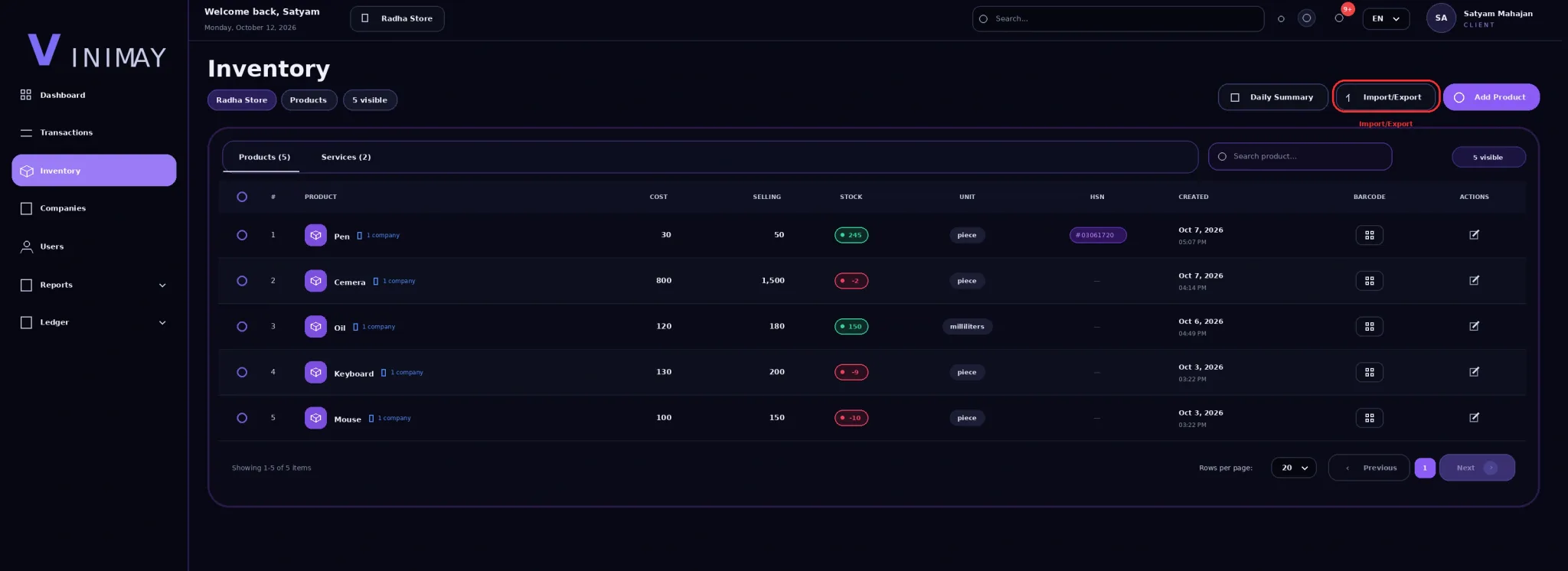
This opens the Inventory page, where you can view your product list and manage stock.
Step 2: Click Daily Summary
On the Inventory page, look at the top-right corner. You will see three buttons:
Daily Summary
Import/Export
Add Product
Click Daily Summary to open the inventory report.
Step 3: Select the Company and Date
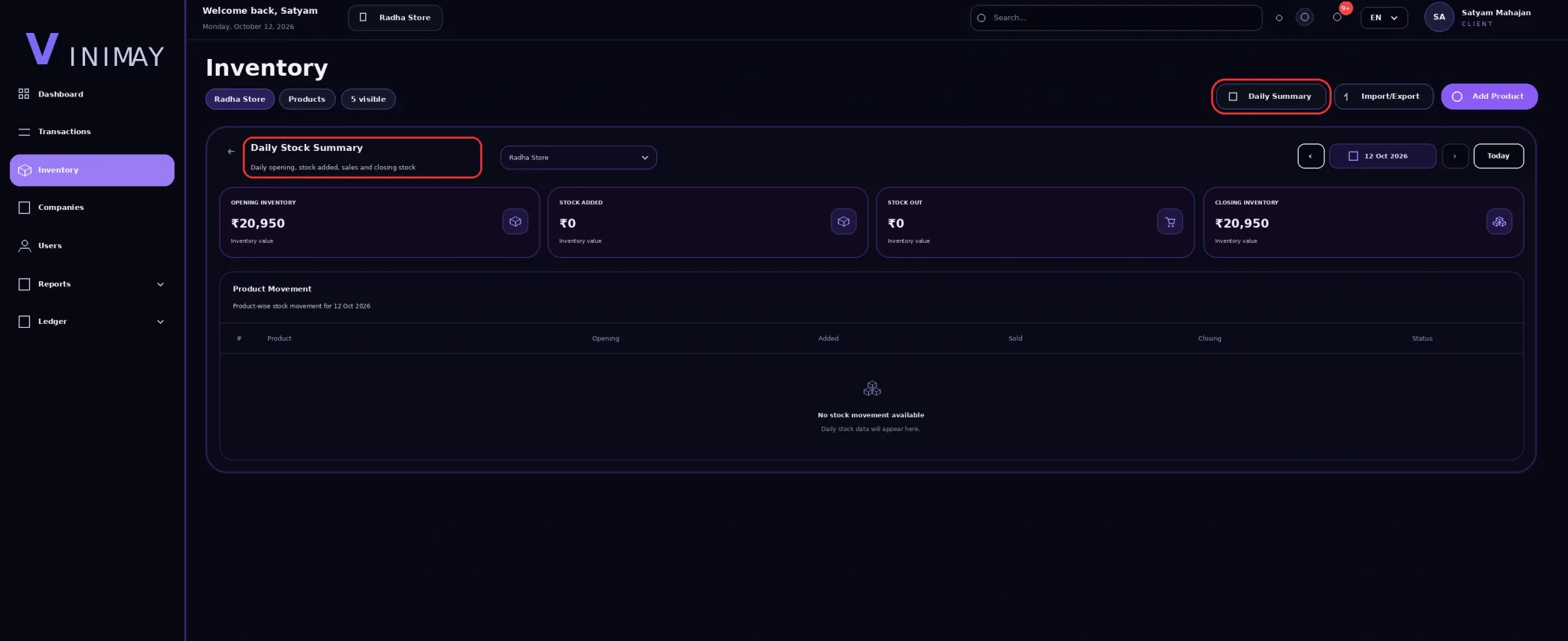
The Daily Stock Summary page opens. At the top, you can select the company and the date you want to review.
Company dropdown: Select the business whose inventory you want to check.
Date selector: Choose the day for which you want to view the stock summary.
Date arrows: Move backward or forward between dates.
Today button: Return to the current date.
Once you select the correct company and date, Vinimay displays the inventory summary cards and the Product Movement table for that day.
Screenshot: Company selector (1), date selector (2), four summary cards (3–6), and Product Movement table (7).
How to Read the Four Inventory Summary Cards
The Daily Stock Summary contains four cards: Opening Inventory, Stock Added, Stock Out, and Closing Inventory.
Each card is labelled Inventory value, which means the figures represent the monetary value of your stock in rupees, not the number of units.
| Summary card | What it means | Example value |
|---|---|---|
| Opening Inventory | Value of stock at the beginning of the day | ₹22,550 |
| Stock Added | Value of stock added during the day | ₹0 |
| Stock Out | Value of stock that went out during the day | ₹1,600 |
| Closing Inventory | Value of stock remaining at the end of the day | ₹20,950 |
1. Opening Inventory
Opening Inventory represents the value of the stock available at the beginning of the selected day.
For example, if the Opening Inventory card displays ₹22,550, your opening stock is valued at ₹22,550.
2. Stock Added
Stock Added represents the value of inventory added during the selected day.
This can help you understand how much inventory entered your records during that period. In the example, Stock Added is ₹0, meaning no stock addition is reflected in the daily summary.
3. Stock Out
Stock Out represents the value of inventory that went out during the day, including stock associated with sales.
In the example, the Stock Out card displays ₹1,600. The Product Movement table shows that two units of a product named cemera were sold. At a recorded cost price of ₹800 per unit, the total stock value is ₹1,600.
Calculation: 2 units × ₹800 = ₹1,600.
4. Closing Inventory
Closing Inventory represents the value of the stock remaining at the end of the selected day.
It reflects the opening inventory value, additions, and stock that went out during the day.
In the example, the Closing Inventory card displays ₹20,950.
How to Check the Closing Inventory Calculation
The four summary cards follow this basic relationship:
Opening Inventory + Stock Added − Stock Out = Closing Inventory
Using the example figures:
₹22,550 + ₹0 − ₹1,600 = ₹20,950
The calculation matches the Closing Inventory card. If the figures do not appear to match, review the stock movements and transactions recorded for the selected date.
How to Read the Product Movement Table
The Product Movement table provides a product-by-product view of inventory changes. Unlike the summary cards, which display monetary values, the table shows stock quantities in units such as pieces.
The table includes the following columns:
| Column | What it shows |
|---|---|
| Product | Product name and its unit |
| Opening | Quantity available at the start of the day |
| Added | Quantity added during the day |
| Sold | Quantity that went out through sales during the day |
| Closing | Quantity remaining at the end of the day |
| Status | Stock status, such as Negative Stock |
Example: Understanding Product Movement
Suppose the Product Movement table shows the following figures for cemera:
| Stock movement | Quantity |
|---|---|
| Opening | 0 pieces |
| Added | 0 pieces |
| Sold | 2 pieces |
| Closing | −2 pieces |
The calculation is:
0 + 0 − 2 = −2 pieces
This means two pieces were sold even though no opening stock or stock addition was recorded for the selected day.
The table helps you identify which product caused the stock discrepancy and investigate the relevant purchase or inventory records.
What Does Negative Stock Mean in Vinimay?
Negative Stock means the recorded quantity sold or otherwise taken out exceeds the stock available in the system.
In the example, cemera had zero pieces at the beginning of the day. Two pieces were sold, and no stock addition was recorded. The closing balance therefore became −2 pieces.
Vinimay allows the sale to be recorded and flags the negative balance so you can identify and investigate the discrepancy.
How to Fix Negative Stock
Follow these steps to investigate a negative stock entry:
Open the Inventory page in Vinimay.
Find the product showing a negative stock balance.
Check whether a purchase or stock addition for that product has been recorded.
If a genuine purchase is missing from the records, enter the appropriate purchase or stock addition using the correct transaction details.
Review the inventory balance again to confirm that the recorded stock reflects the actual movement.
On the Inventory page, products with negative stock display their stock quantity in red, making them easier to identify.
Important: Do not add stock just to remove a negative balance. First verify the actual purchase, opening stock, sales entries, and other relevant movements so that your inventory records remain accurate.
Tips for Using the Inventory Daily Summary
Review inventory at the end of the day: Compare the closing stock with the quantity or value you expect.
Compare different dates: Use the date arrows to review previous days and identify unexpected stock changes.
Investigate negative stock promptly: Check missing purchases or incorrect transaction entries before making adjustments.
Select the correct company: If you manage multiple businesses in Vinimay, confirm the company dropdown before reviewing the report.
Check quantities and values separately: Use the summary cards for monetary values and the Product Movement table for product quantities.
Record stock movements promptly: Timely purchase and sales entries help keep the daily summary reliable.
If you need to add multiple products quickly, see the guide on how to import products in bulk in Vinimay. You can also explore Vinimay's features or Knowledge Base for more billing and inventory tutorials.
Conclusion
The Inventory Daily Summary in Vinimay helps you understand how your inventory changes throughout the day. The four summary cards show the monetary value of your stock, while the Product Movement table provides product-wise quantities and highlights issues such as negative stock.
By reviewing the report regularly, selecting the correct company and date, and correcting missing or inaccurate entries, you can maintain more reliable inventory records and make better stock-management decisions.