Downloading an invoice as a PDF is an important part of managing business transactions. A PDF invoice provides a professional document that can be easily saved, printed, shared with customers, and maintained for future reference.
With Vinimay Accounting Software, businesses can download invoices in PDF format without preparing documents manually. This helps save time, maintain accurate billing records, and simplify invoice management.
In this step-by-step guide, we will explain how to download an invoice as a PDF in Vinimay.
Step 1: Log in to Your Vinimay Account
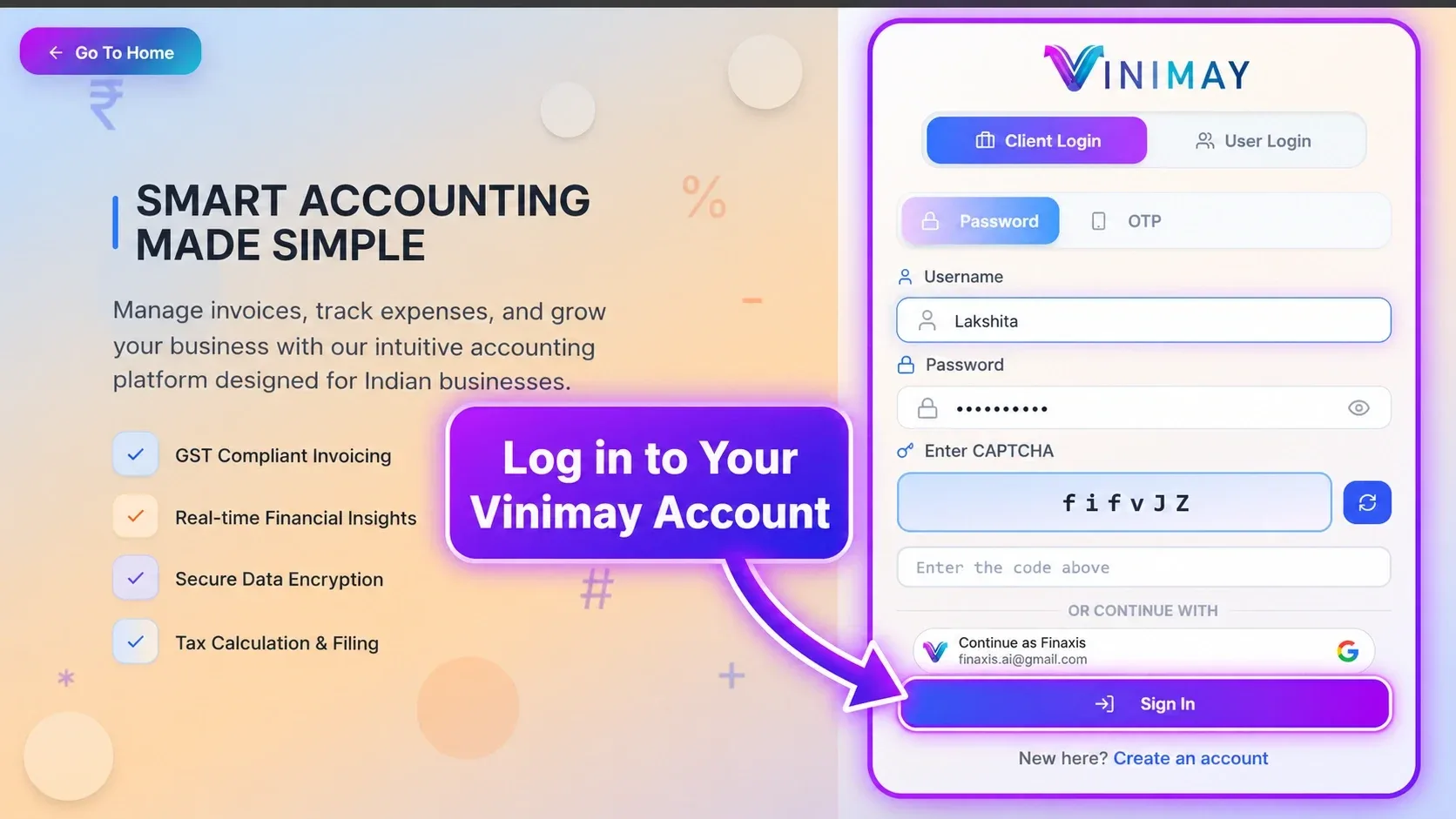
Open the Vinimay website and log in using your registered credentials.
Enter your username and password, complete the CAPTCHA verification, and click the Sign In button.
After successful login, you will be redirected to the Vinimay dashboard.
Make sure you have permission to access invoices and download transaction documents.
Step 2: Open the Transactions Section
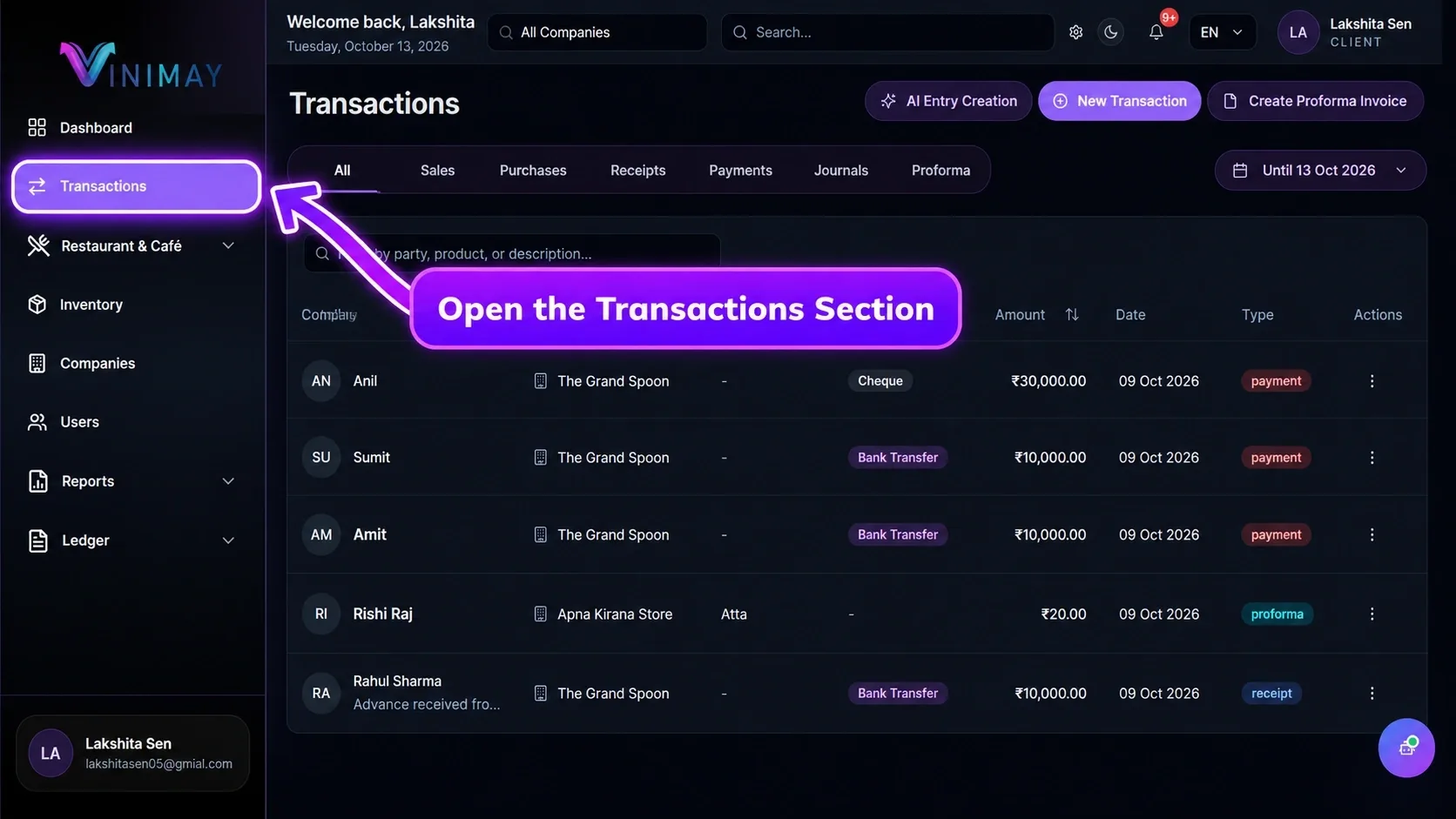
On the left sidebar of the Vinimay dashboard, locate the Transactions option.
Click on Transactions to open the transaction management page.
This section displays different types of transactions, including sales, purchases, payments, receipts, journals, and proforma invoices.
From here, you can locate invoices created for your business.
Step 3: Search for the Invoice You Want to Download
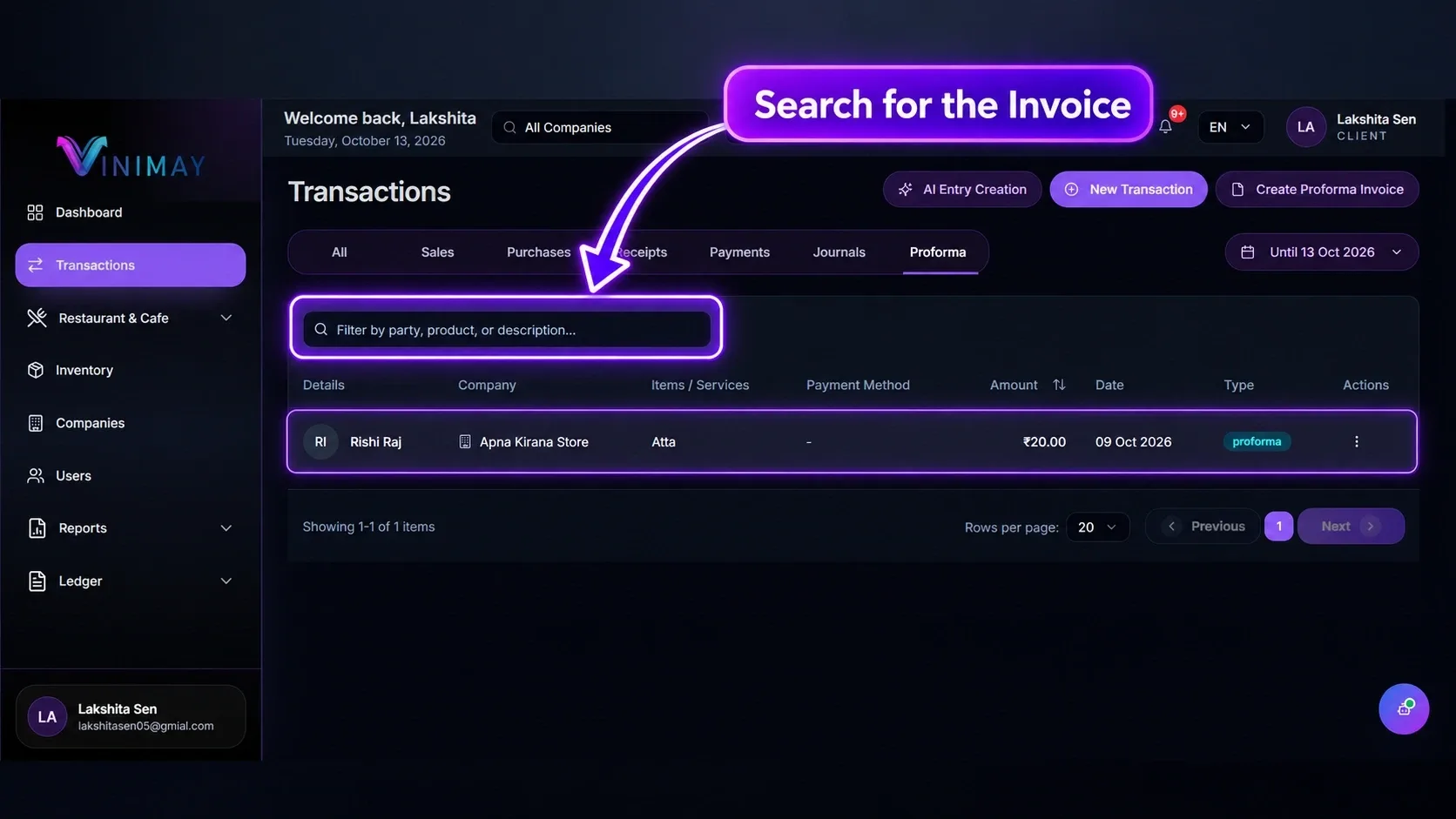
After opening the relevant transaction category, locate the invoice you want to download.
Use the available search bar to find the invoice by customer name, product, or description.
You can also use the date filter to narrow down the results.
For example, if you want to download an invoice issued to Rahul Sharma, search for the customer's name and identify the relevant transaction.
Check the invoice amount, date, and company details to ensure that you select the correct invoice.
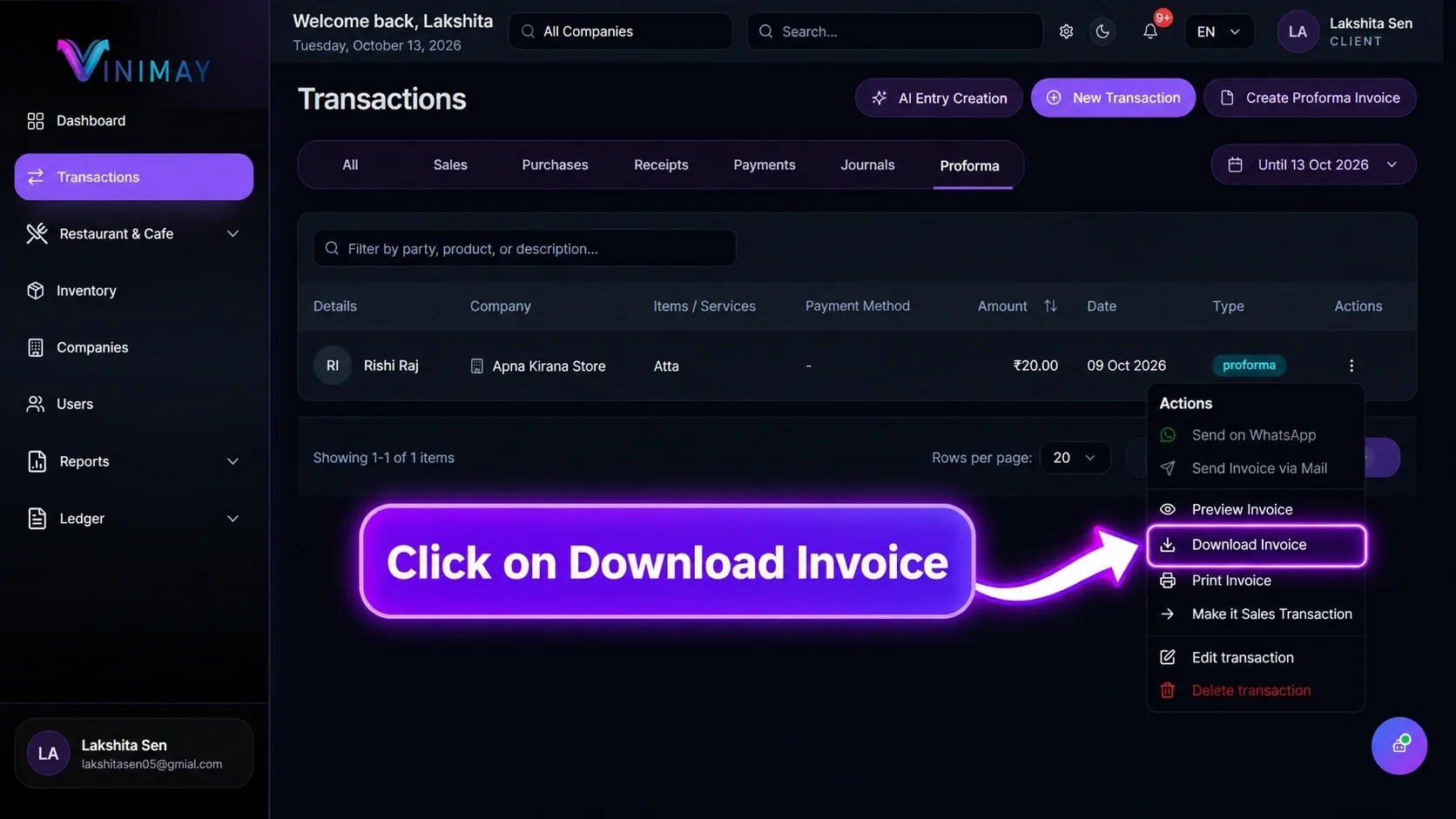
Step 4: Open the Invoice Actions Menu
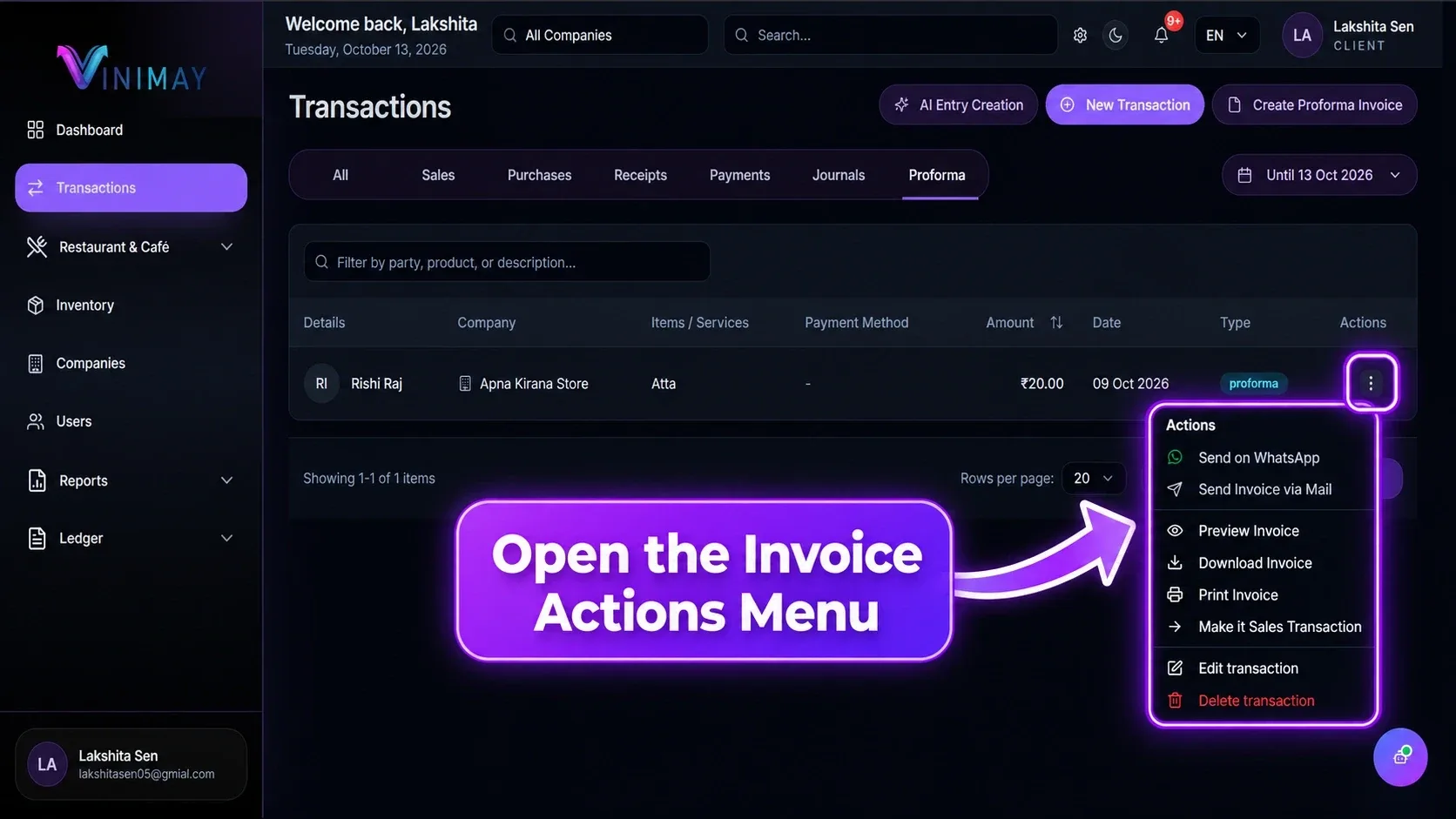
Once you locate the invoice, go to the Actions column on the right side of the transaction row.
Click the three-dot menu (⋮) corresponding to that invoice.
A dropdown menu will appear with different available actions.
These may include Preview Invoice, Download Invoice, Print Invoice, and other transaction-related options.
Make sure you are opening the Actions menu for the correct invoice.
Step 5: Click on Download Invoice
From the Actions menu, click the Download Invoice option.
Vinimay will generate the invoice document using the saved billing information.
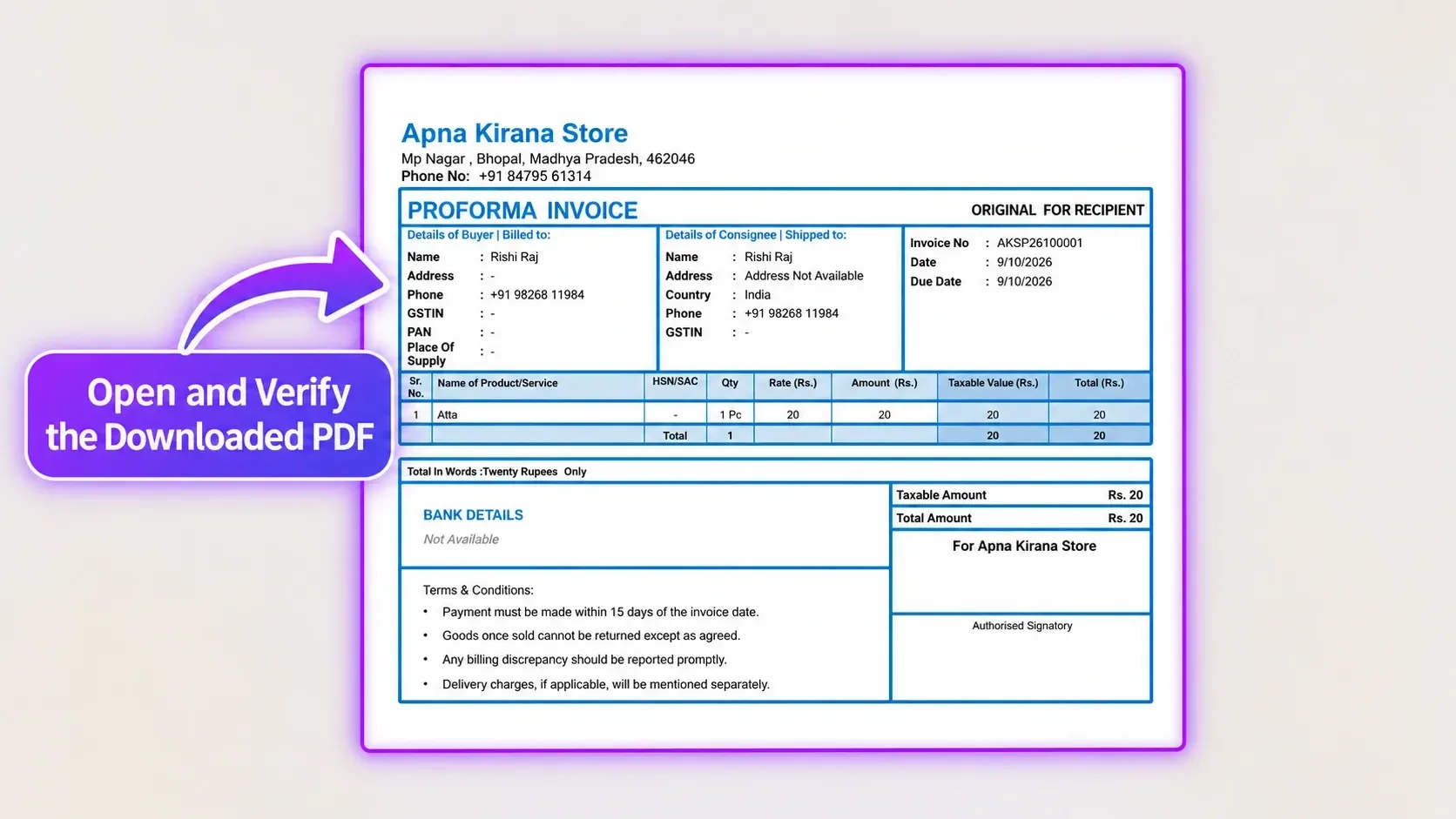
The downloaded invoice may include:
Business name, address, and GST details
Invoice number and invoice date
Customer name and billing information
Product or service descriptions
Quantities, prices, discounts, and applicable taxes
Total invoice amount and payment details
Invoice notes and terms, where applicable
The PDF will generally be saved to your browser's default Downloads folder or your selected download location.
Step 6: Open and Verify the Downloaded PDF
After downloading the invoice, open the PDF file on your computer or mobile device.
Review the document carefully to confirm that the information is correct.
Check the customer name, invoice number, date, product details, GST calculations, and total amount.
If the details are accurate, you can print the invoice or share the PDF with your customer through email, WhatsApp, or another suitable method.
For better record management, save the PDF using a recognizable filename that includes the invoice number or customer name.
Benefits of Downloading Invoices as PDFs
Downloading invoices in PDF format offers several benefits for businesses. PDF documents are easy to store, share, and print while maintaining a consistent layout.
They also help businesses maintain organized billing records and retrieve previous invoices when required.
Keeping invoice copies can be useful during payment follow-ups, account reconciliations, tax-related documentation, and customer inquiries.
Conclusion
Downloading an invoice as a PDF in Vinimay is a simple process that helps businesses manage billing documents efficiently.
By navigating to Transactions → Sales → Select Invoice → Actions → Download Invoice, users can save invoice copies for future reference.
Using digital invoices helps reduce paperwork, improve record management, and simplify communication with customers.