Adding notes and terms to an invoice helps businesses communicate important information to customers. These details may include payment instructions, delivery conditions, due dates, refund policies, or other business-related terms.
With Vinimay Accounting Software, businesses can manage invoice information and include relevant notes and terms to make their invoices more professional and informative.
In this step-by-step guide, we will explain how to change notes and terms on an invoice in Vinimay.
Step 1: Log in to Your Vinimay Account
Open the Vinimay website and log in using your registered username and password.
Enter your login credentials, complete the CAPTCHA verification, and click the Sign In button.
After logging in successfully, you will be redirected to the Vinimay dashboard.
Make sure you have the necessary permissions to create or edit invoices.

Step 2: Navigate to the Transactions Section
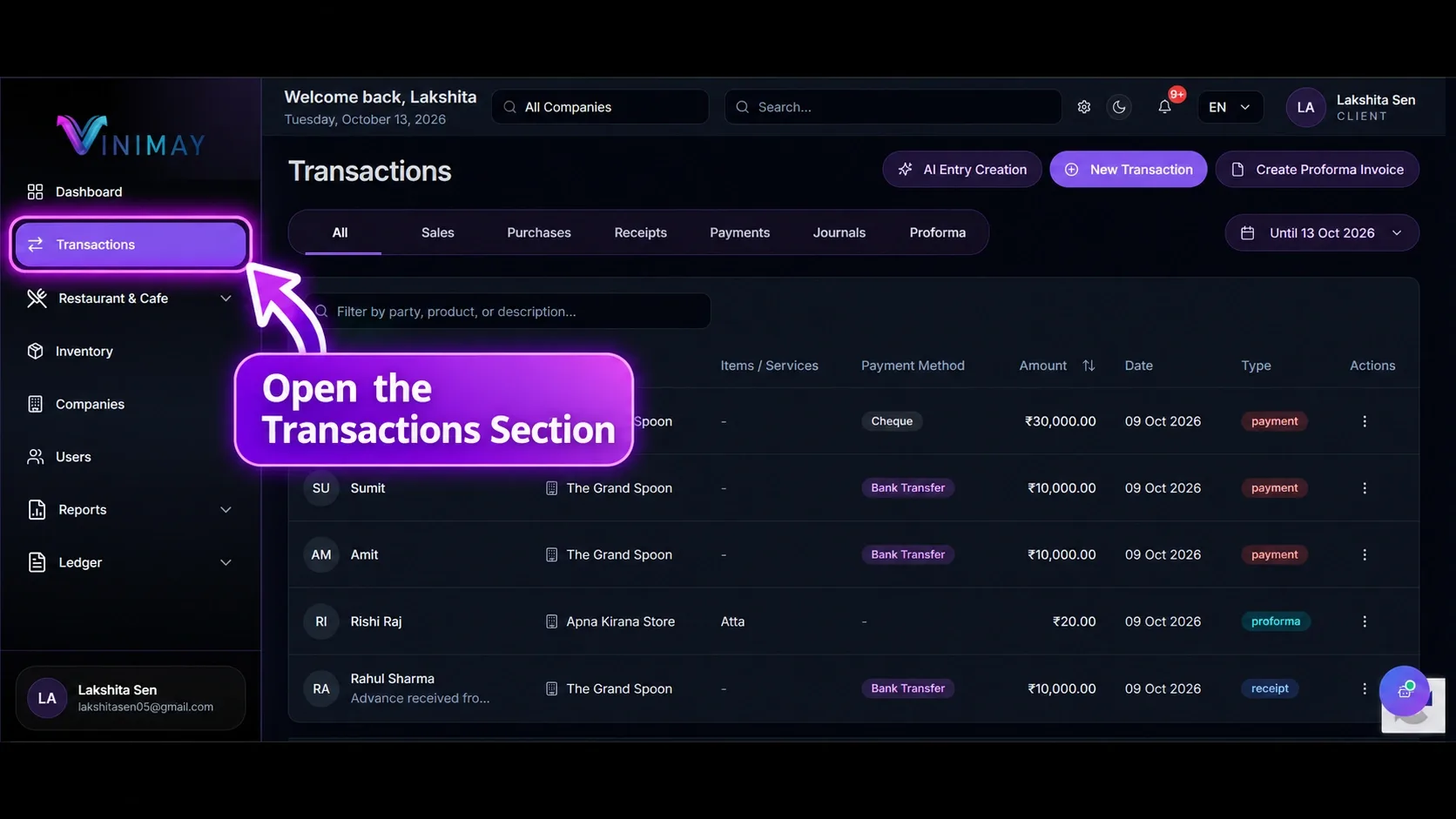
On the left sidebar of the Vinimay dashboard, locate the Transactions option.
Click on Transactions to open the transaction management page.
This section allows you to manage sales, purchases, receipts, payments, and other business transactions.
To change notes and terms on an existing sales invoice, select the Sales tab.
Step 3: Search for the Invoice You Want to Edit
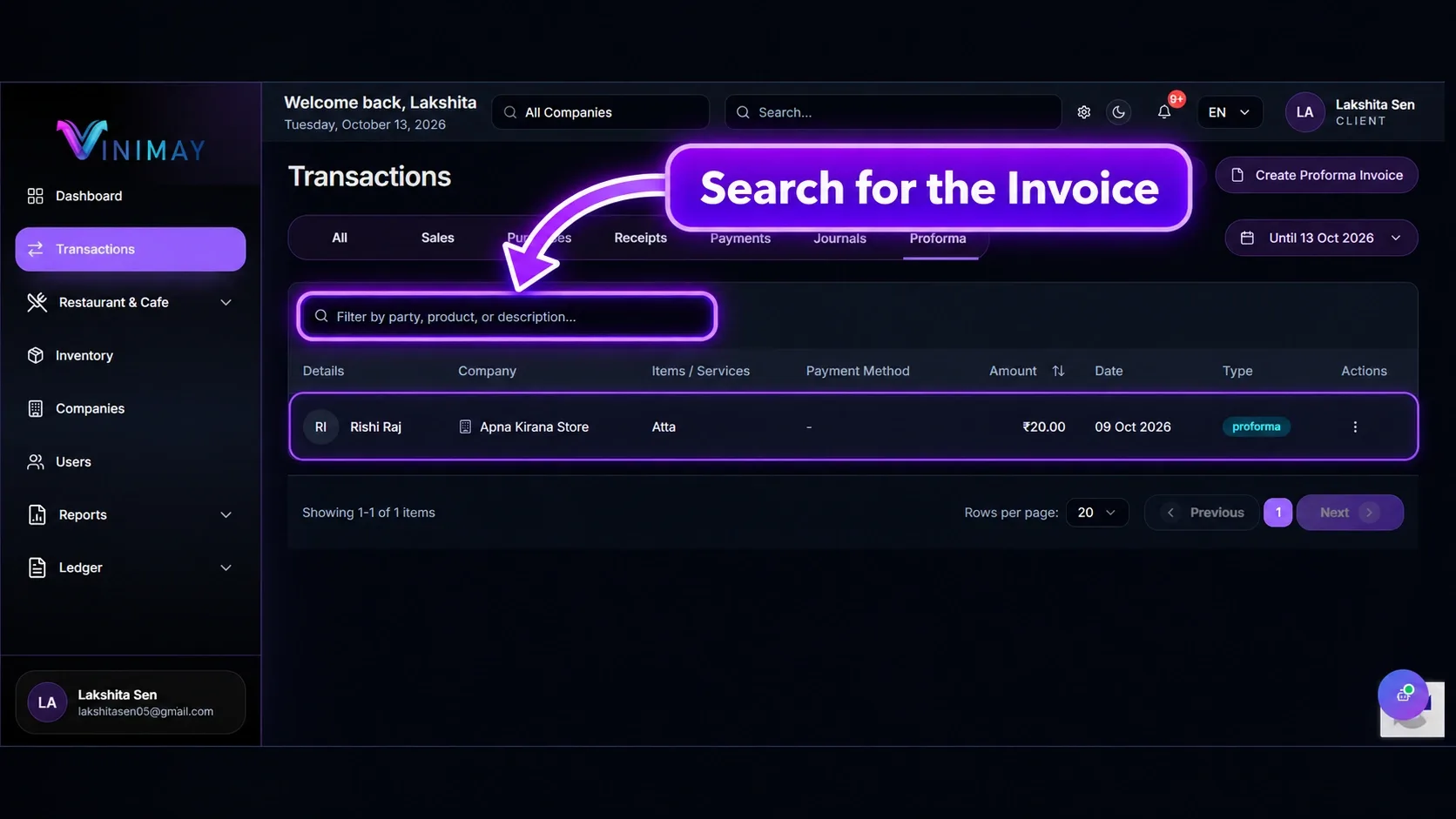
Inside the Sales section, locate the invoice you want to update.
Use the available search field or date filters to find the relevant invoice.
You can identify the invoice using customer information, invoice date, or other available details.
Carefully review the results to ensure you select the correct invoice.
This is especially important when multiple invoices have been created for the same customer.
Step 4: Open the Invoice Editing Form
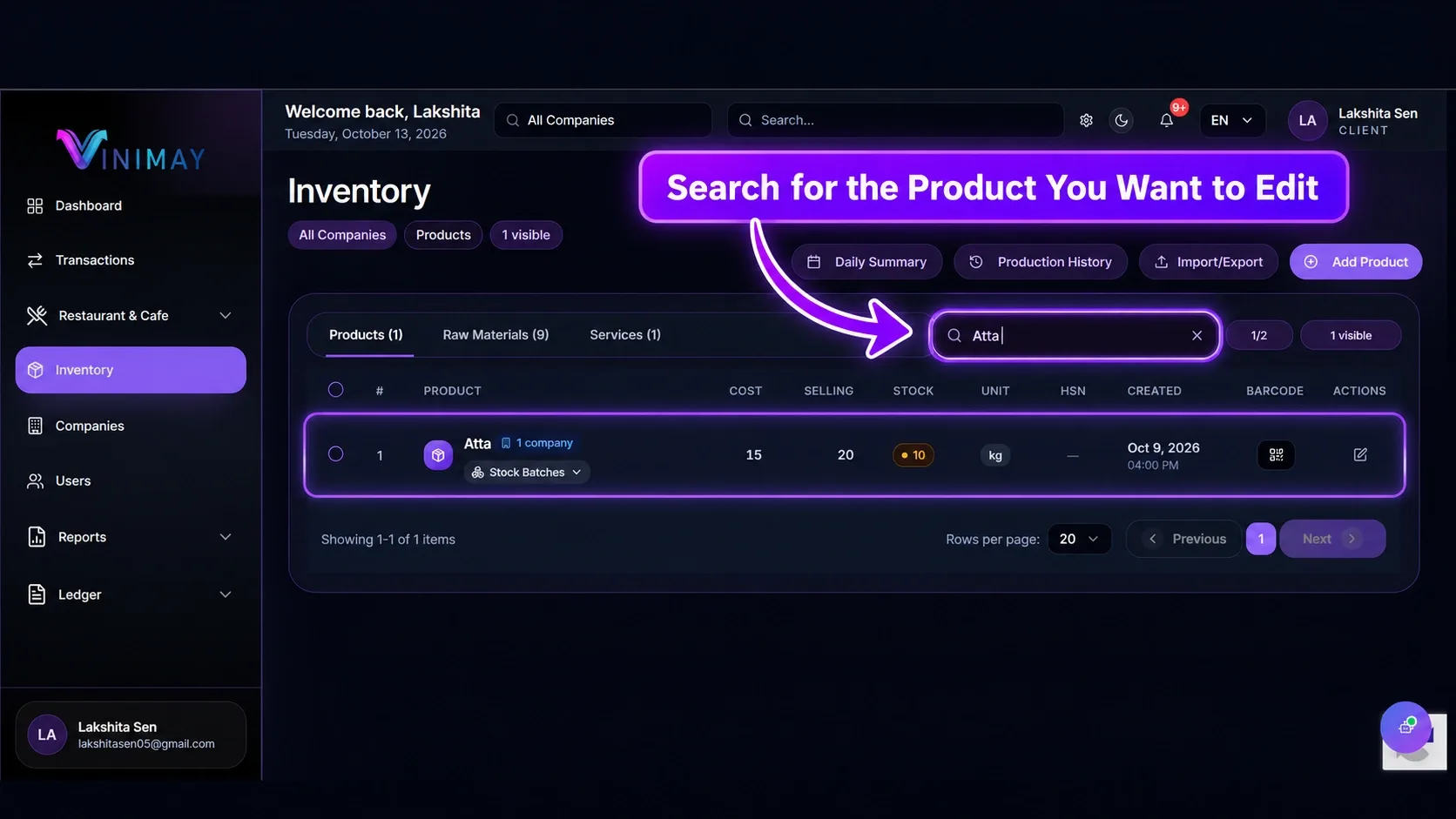
After locating the invoice, find its Actions menu.
Click on the available Edit option to open the invoice editing form.
The form will display previously saved invoice details, including customer information, products or services, quantities, prices, and other billing fields.
Review the information before making any changes.
Avoid modifying unrelated invoice details if you only need to update notes and terms.
Step 5: Locate the Notes and Terms Section
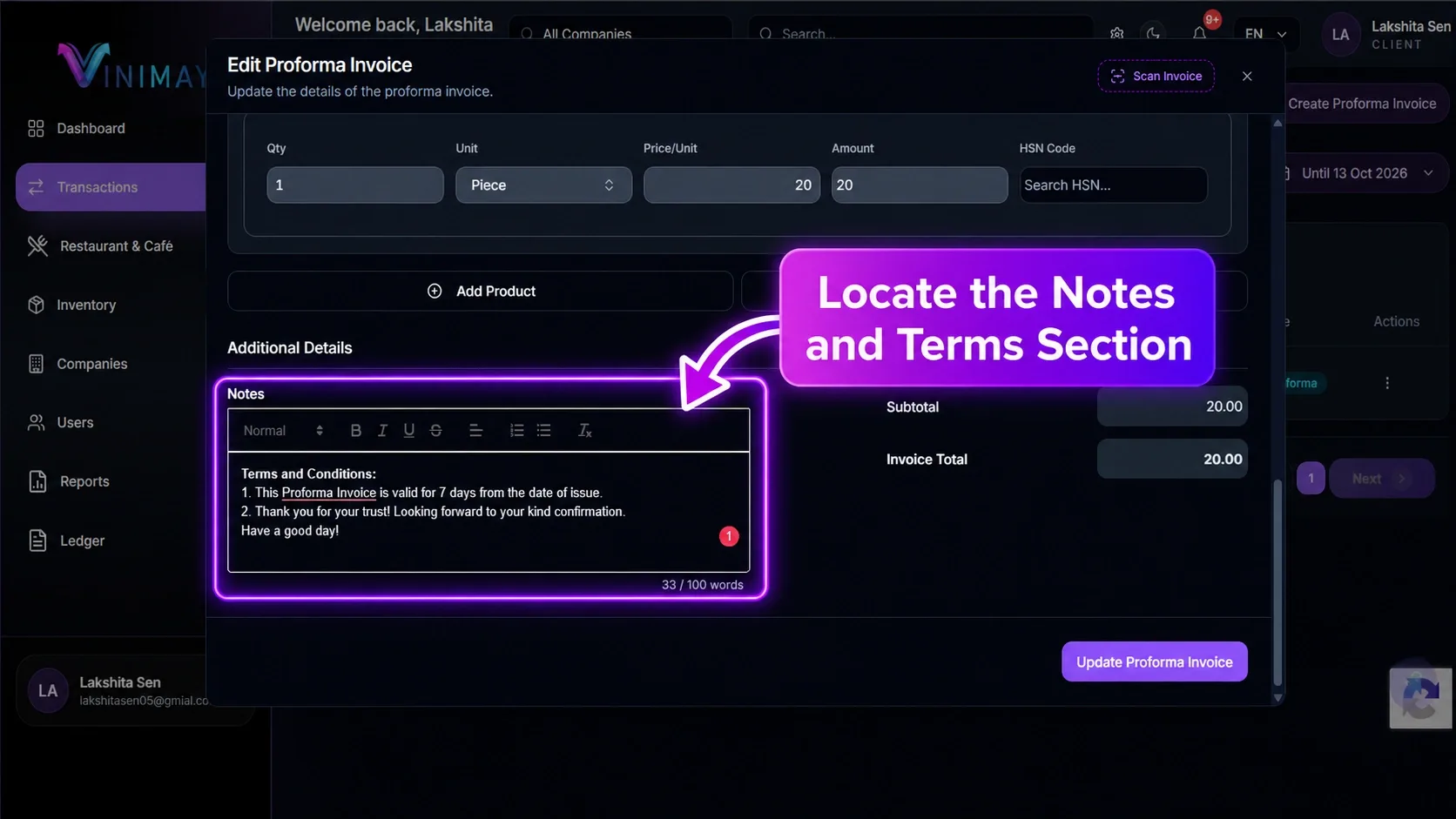
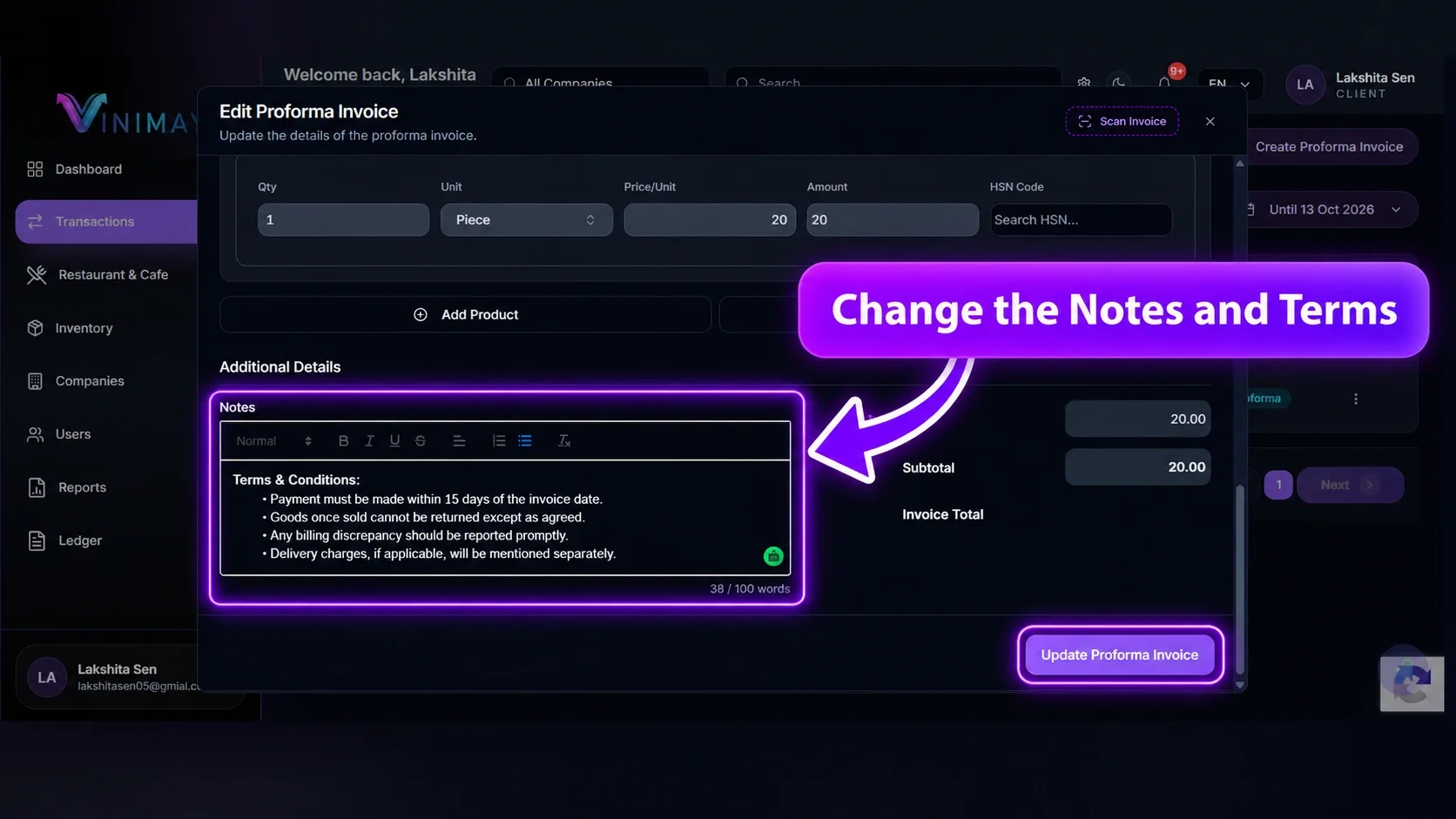
Inside the invoice editing form, look for the Notes, Terms & Conditions, or similarly named fields.
These fields may appear under additional invoice details or another expandable section.
Open the relevant section to view the existing information.
The Notes field is generally used to communicate additional information, while Terms & Conditions explains important business or payment requirements.
Check the existing content before making changes.
Step 6: Change the Notes and Terms
Once you locate the relevant fields, update the information according to your business requirements.
For example, you may enter the following details:
Invoice Notes:
"Thank you for your business. Please contact us for any billing-related queries."
Terms & Conditions:
Payment must be made within 15 days of the invoice date.
Goods once sold cannot be returned except as agreed.
Any billing discrepancy should be reported promptly.
Delivery charges, if applicable, will be mentioned separately.
You can modify, remove, or replace the existing text as required.
Make sure your terms are clear, accurate, and consistent with the agreement made with the customer.
Do not add conditions that were not previously agreed upon without appropriate customer consent.
Step 7: Save Changes and Verify the Updated Invoice
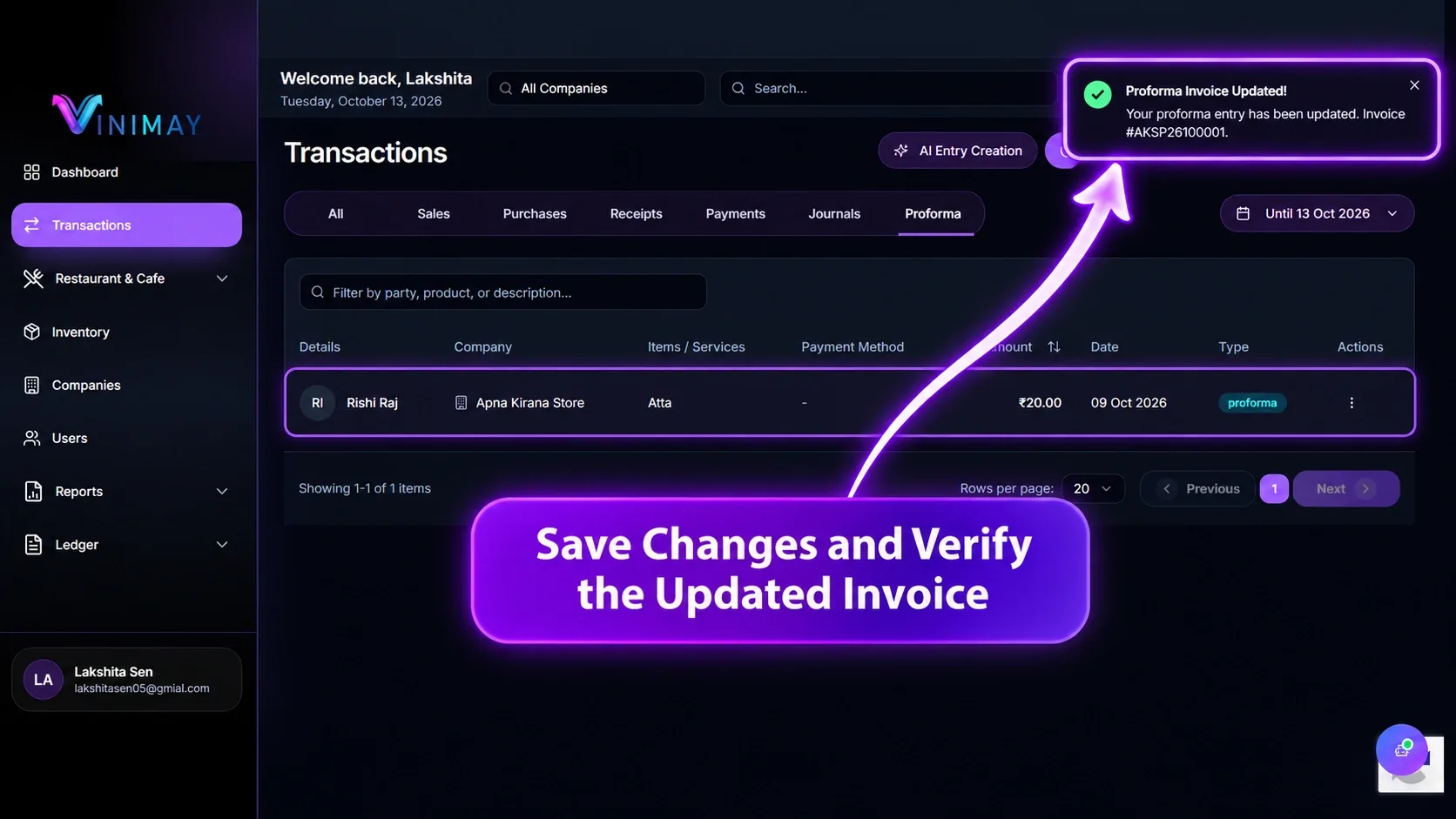
After updating the notes and terms, click the available Save or Update button.
Wait for confirmation that the invoice changes have been saved successfully.
Return to the Transactions section and locate the updated invoice.
Open the invoice preview or download the updated PDF, if available.
Check whether the revised notes and terms appear correctly.
Also verify that the invoice amount, customer information, GST details, and other billing information remain accurate.
If the invoice has already been issued or reported in GST returns, confirm that the proposed changes are permissible before editing the original document.
Benefits of Adding Notes and Terms to Invoices
Clear invoice notes and terms help businesses improve communication with customers and reduce misunderstandings.
They can explain payment deadlines, delivery requirements, service conditions, and other essential information.
Including accurate terms also helps customers understand their responsibilities and makes invoices more informative.
Conclusion
Changing notes and terms on an invoice in Vinimay helps businesses maintain clear billing communication and professional invoice records.
By navigating to Transactions → Sales → Select Invoice → Edit → Notes & Terms → Save, users can update the relevant information where editing is permitted.
Regularly reviewing invoice notes and terms can improve billing clarity, support customer relationships, and reduce payment-related confusion.