A Proforma Invoice is a preliminary invoice shared with a customer before the final sale is confirmed. It can be used to communicate expected items, quantities, prices, taxes, and total value without creating a final sales invoice immediately.
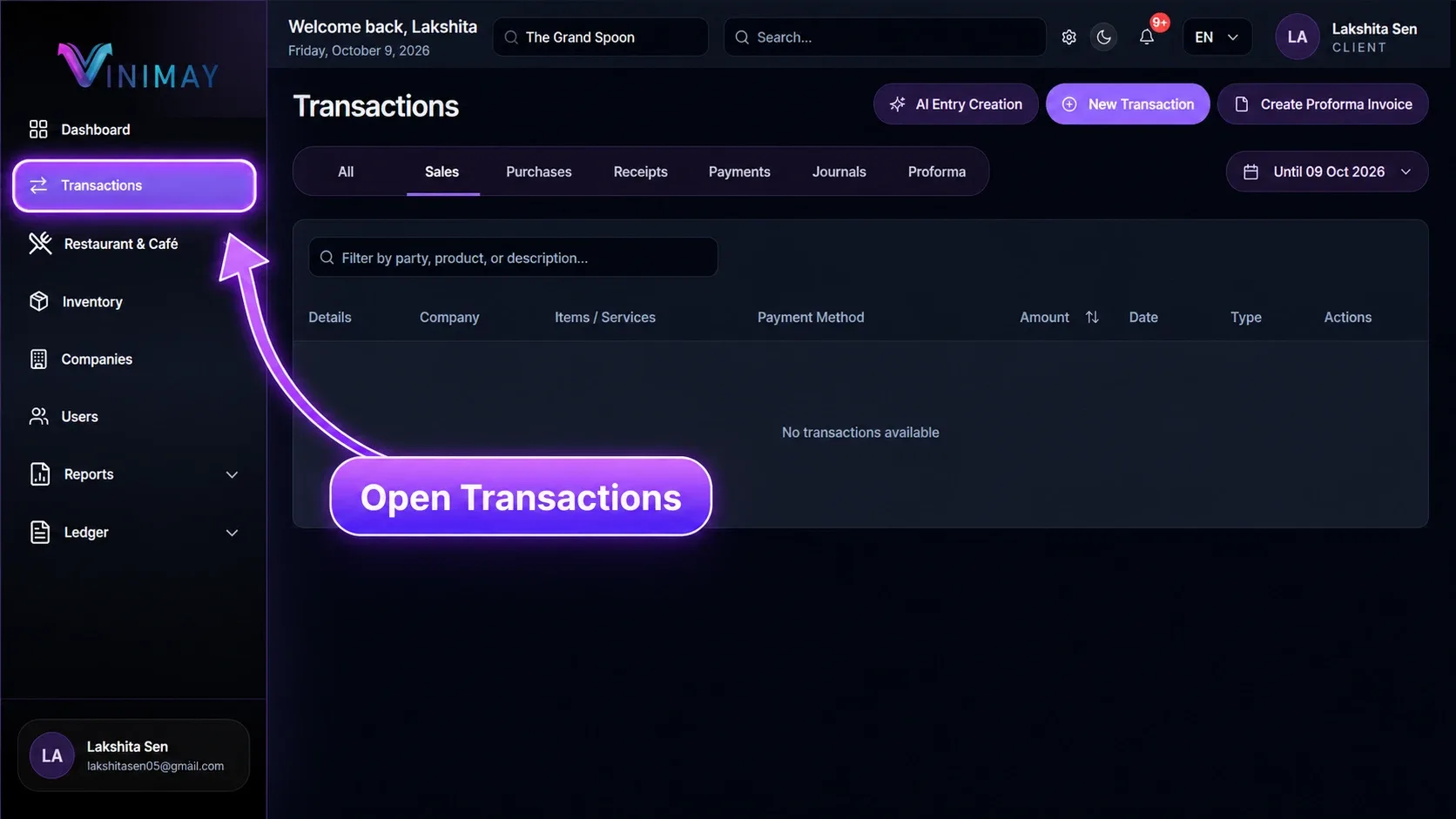
Step 1: Open Transactions
Log in to Vinimay and select the correct company.
From the left-side menu, click Transactions.
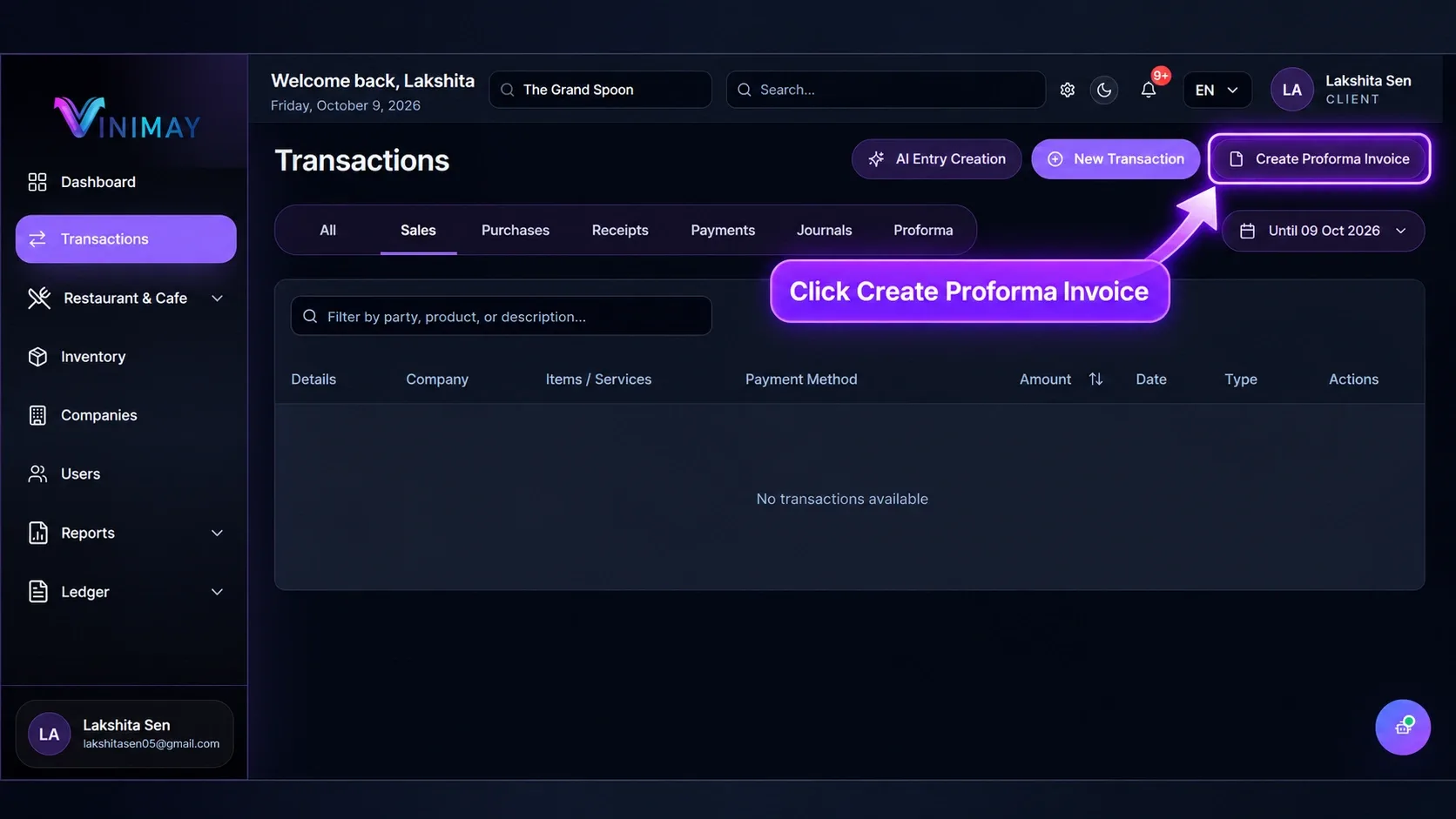
Step 2: Click Create Proforma Invoice
On the Transactions page, click Create Proforma Invoice from the top-right section.
This will open the proforma invoice form.
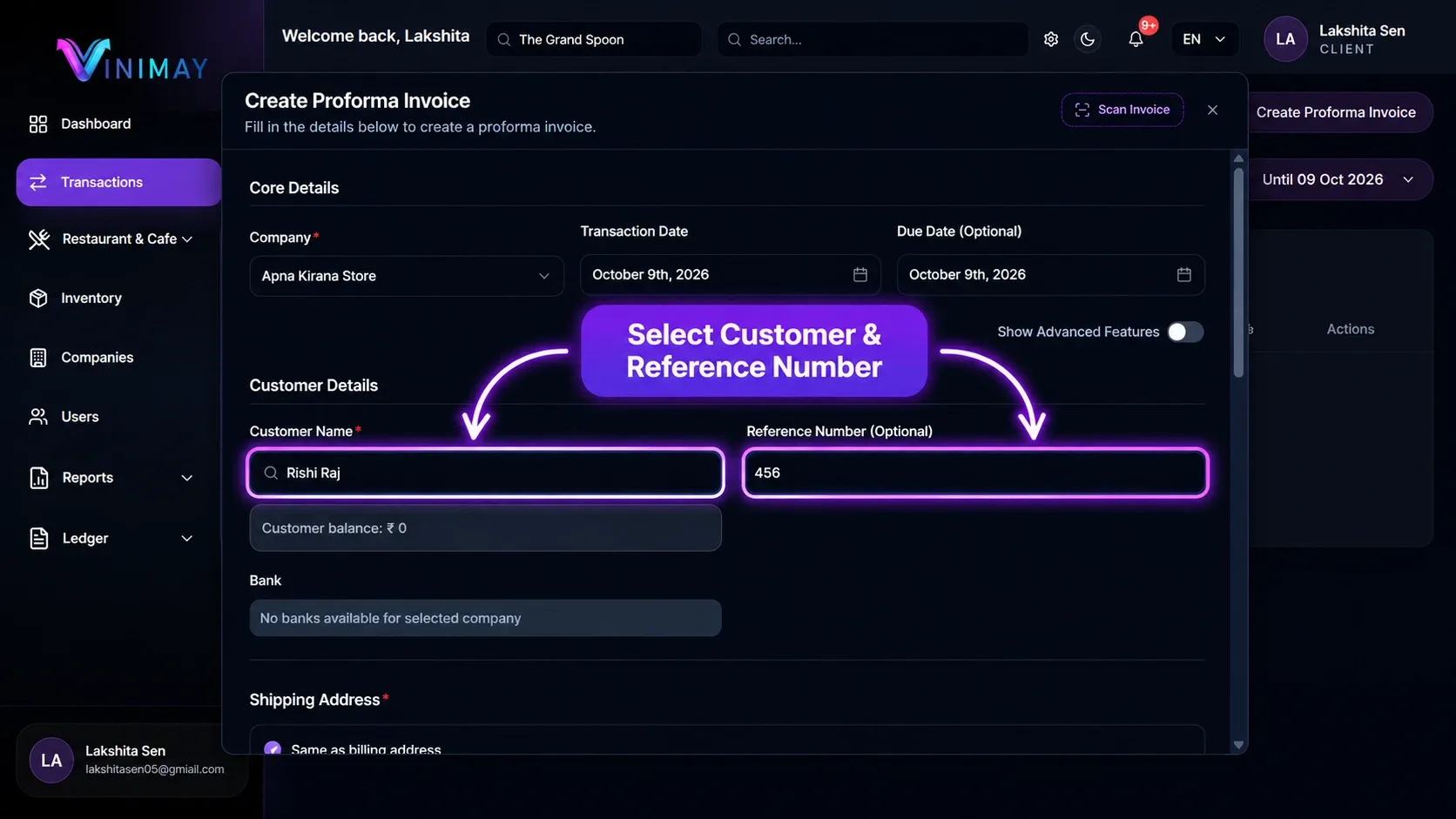
Step 3: Select the Customer
Choose the customer for whom you want to prepare the proforma invoice.
If the customer is not already available, create the customer first and then select them.
Check customer details such as:
Customer name
Contact details
Address
GSTIN, if applicable
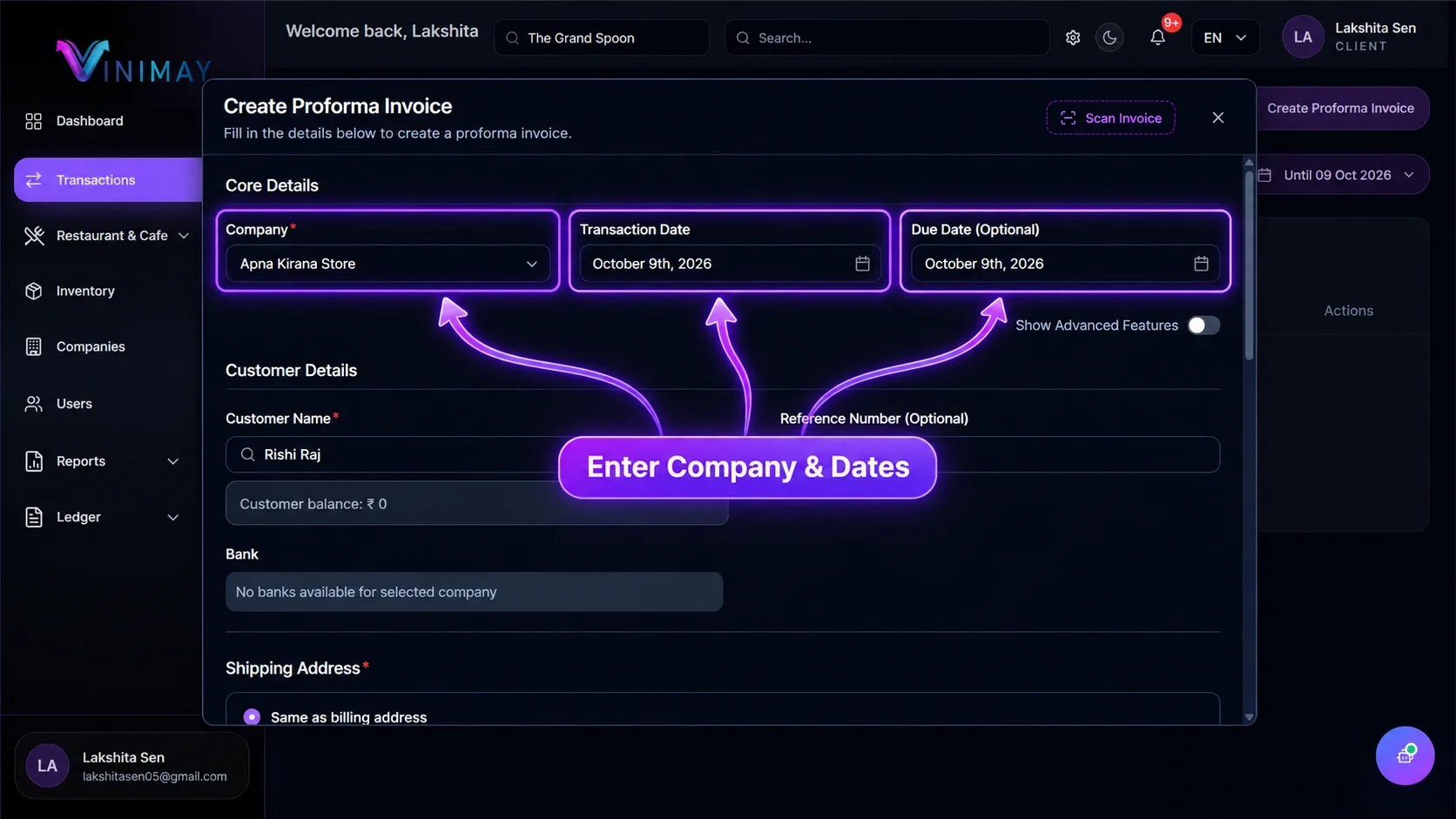
Step 4: Enter Invoice Details
Enter the basic proforma details such as:
Company
Date
Reference number, if available
Customer
Billing details
Make sure the correct company and customer are selected before adding items.
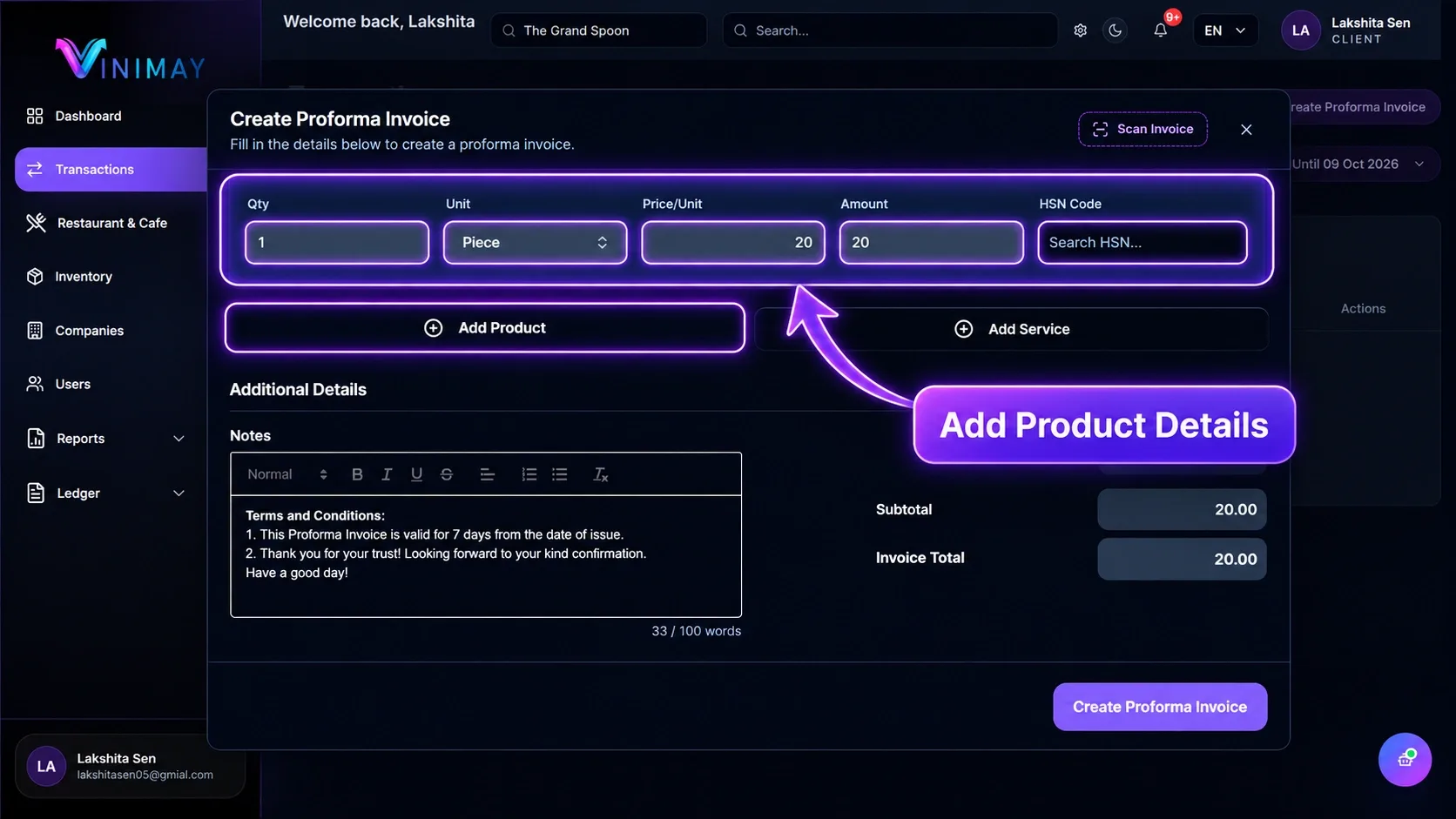
Step 5: Add Products or Services
Add the products or services you are quoting to the customer.
For each line item, enter details such as:
Product or Service
Quantity
Rate
GST rate
Discount, if applicable
For example:
Product: Office Chair
Quantity: 10
Rate: ₹3,000
GST: 18%
Vinimay will calculate the line amount and applicable taxes based on the information entered.
Step 6: Review the Total Amount
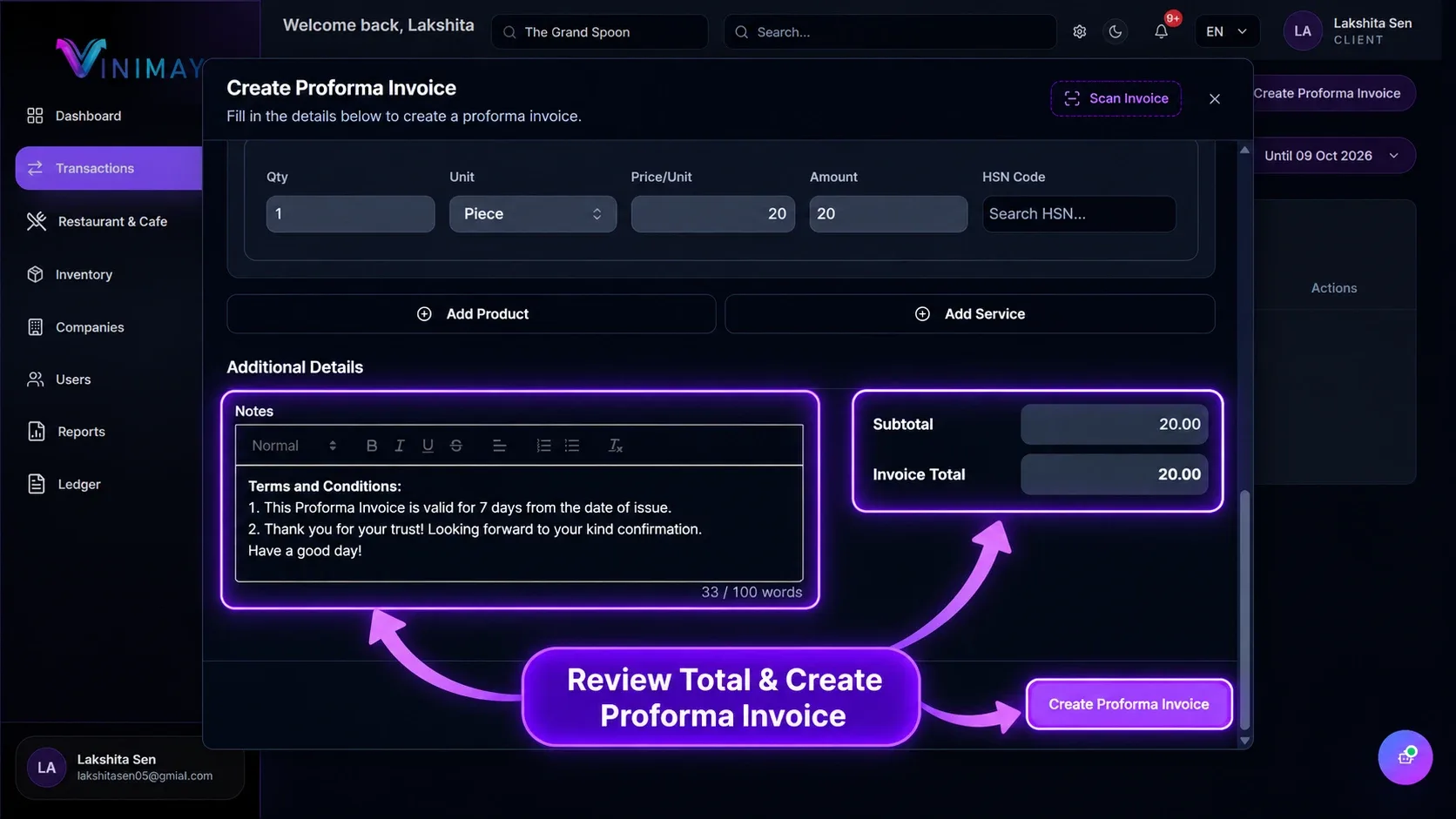
Check the complete proforma invoice before saving.
Review:
Quantity
Item rate
Taxable value
GST
Discount
Final total
Also add any description, terms, notes, or other information required for the customer.
Step 7: Save the Proforma Invoice
Once all details are correct, click the available Save/Create Proforma Invoice button.
The proforma invoice will be recorded in Vinimay without being treated as a final sales invoice.
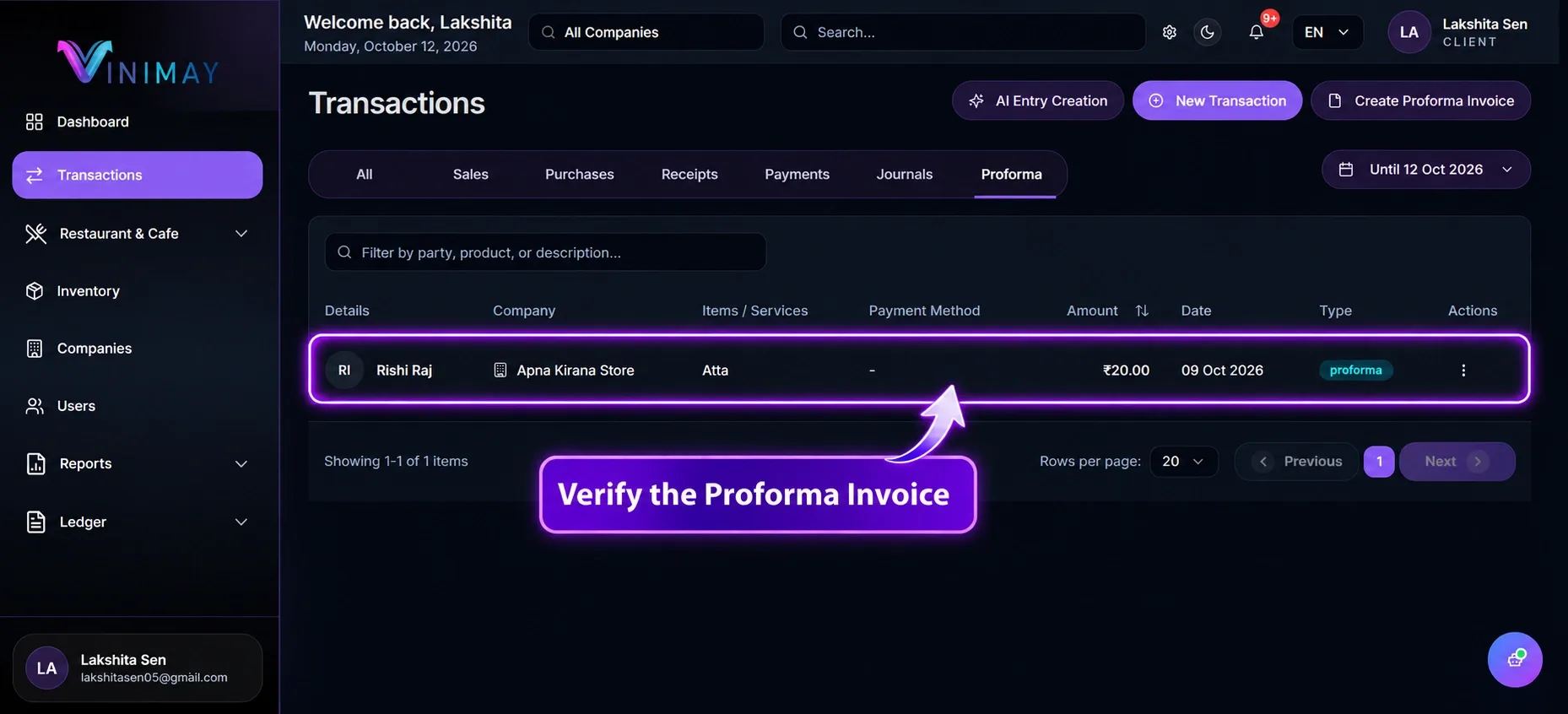
Step 8: Verify the Proforma Invoice
Return to:
Transactions → Proforma
The newly created proforma invoice should appear in the list.
Check the customer, amount, date, and other details to confirm that it has been created correctly.
You can then print, download, or share it with the customer if those options are available.
Quick Path
Transactions → Create Proforma Invoice → Select Customer → Add Products/Services → Enter Quantity, Rate & GST → Review Total → Save → Verify under Proforma