A receipt entry is used when you receive money from a customer or another party. Recording receipts properly helps keep customer balances, cash flow, and ledger records updated.
Step 1: Open Transactions
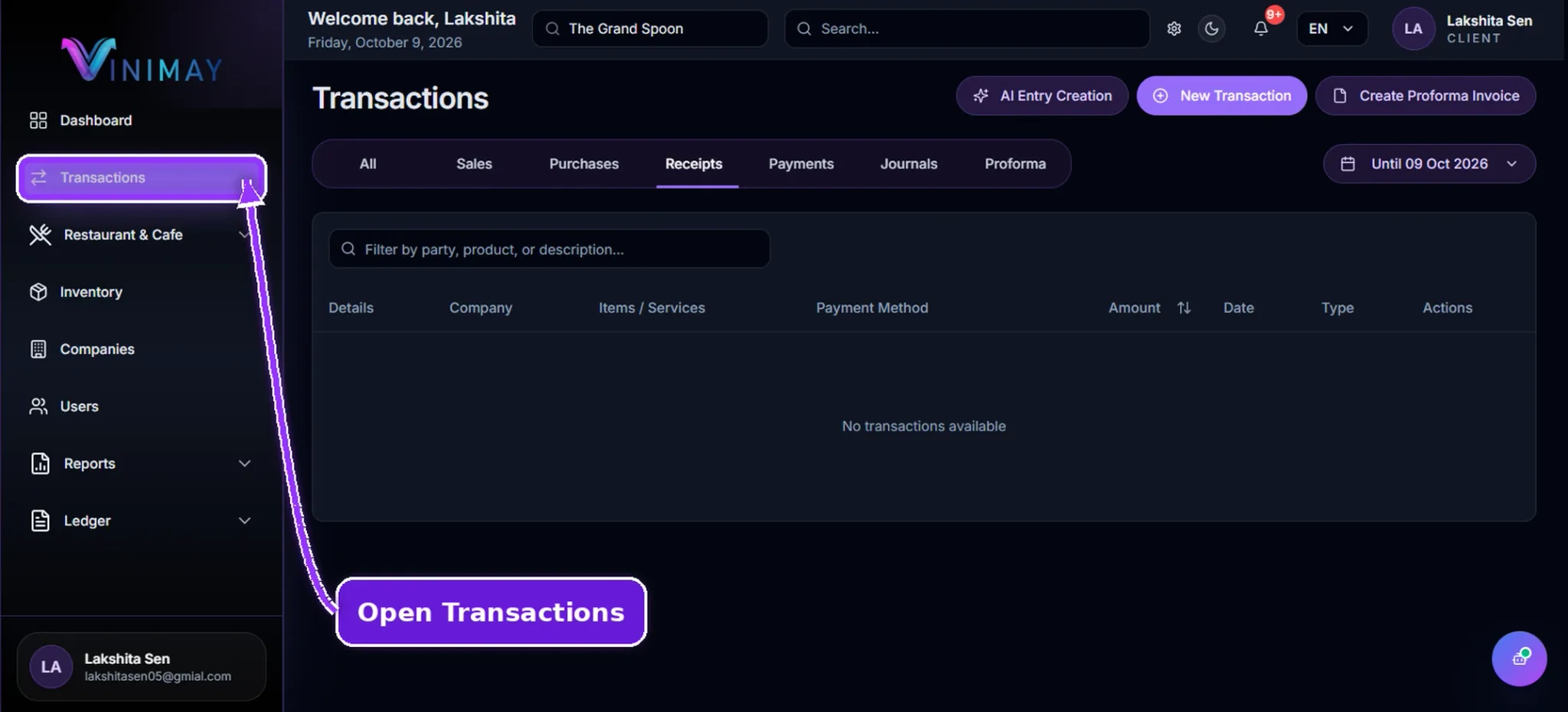
Log in to Vinimay and select the correct company.
From the left-side menu, click Transactions.
Step 2: Click New Transaction
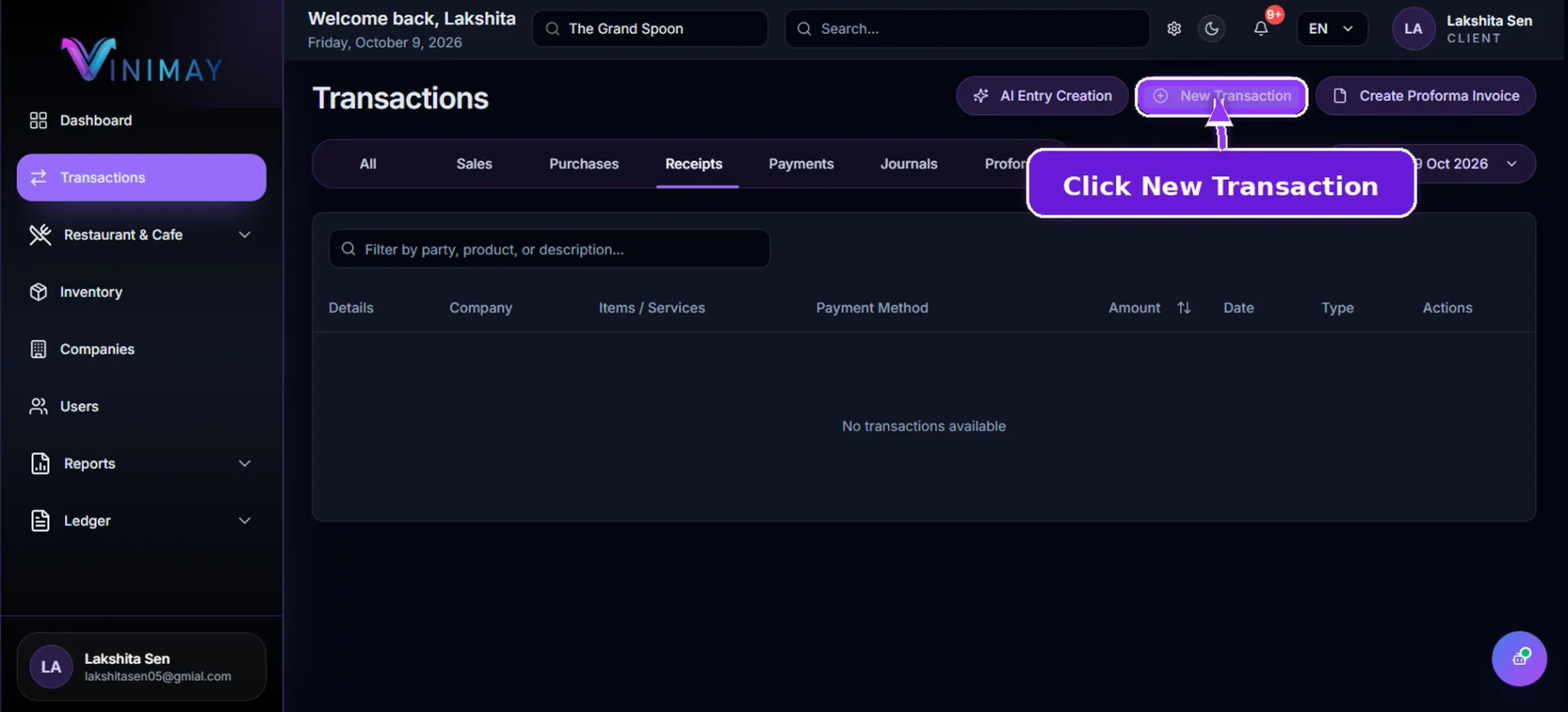
On the Transactions page, click New Transaction.
A transaction form will open with options such as:
Sales
Purchases
Receipt
Payment
Journal
Step 3: Select Receipt
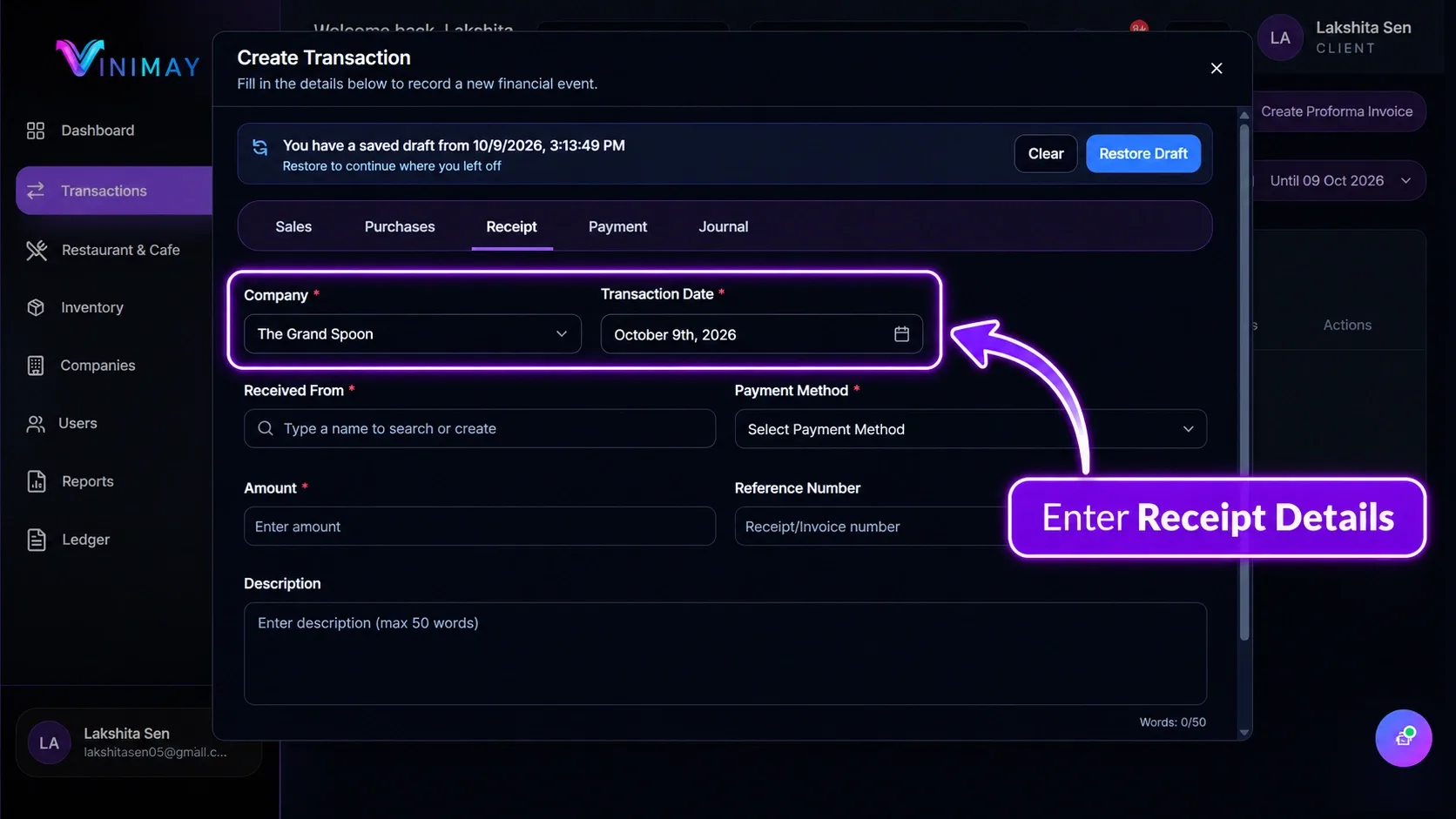
Choose the Receipt tab.
The Receipt form will open where you can record money received from a customer or party.
Step 4: Enter Receipt Details
Fill in the required information, such as:
Company
Transaction Date
Received From
Payment Method
Amount
Reference Number
Description, if required
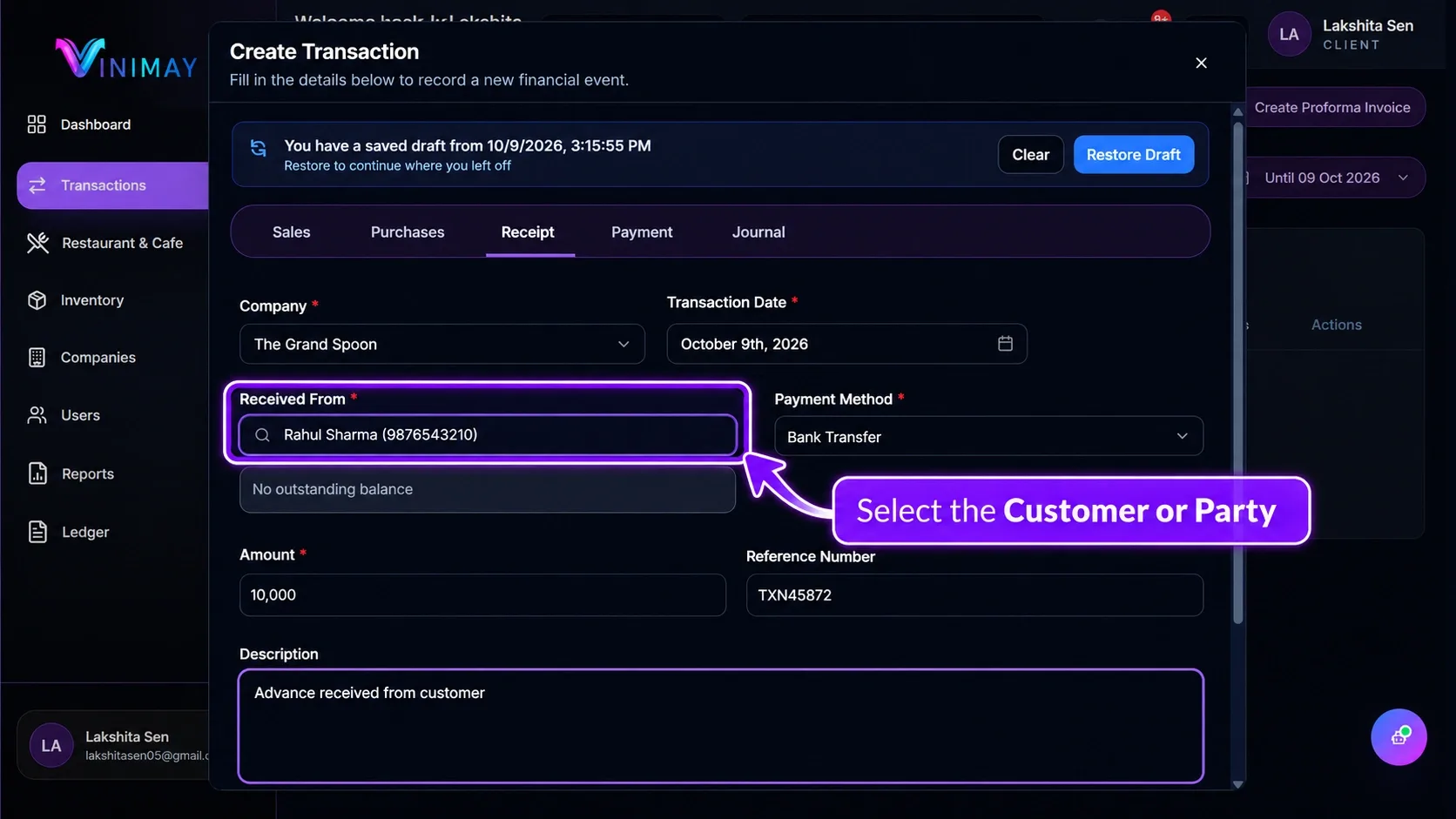
For example:
Received From: Rahul Sharma
Amount: ₹10,000
Payment Method: Bank Transfer
Reference Number: TXN45872
Step 5: Select the Customer or Party
In the Received From field, search for and select the customer or party who made the payment.
Make sure you select the correct party so the receipt is posted to the correct ledger.
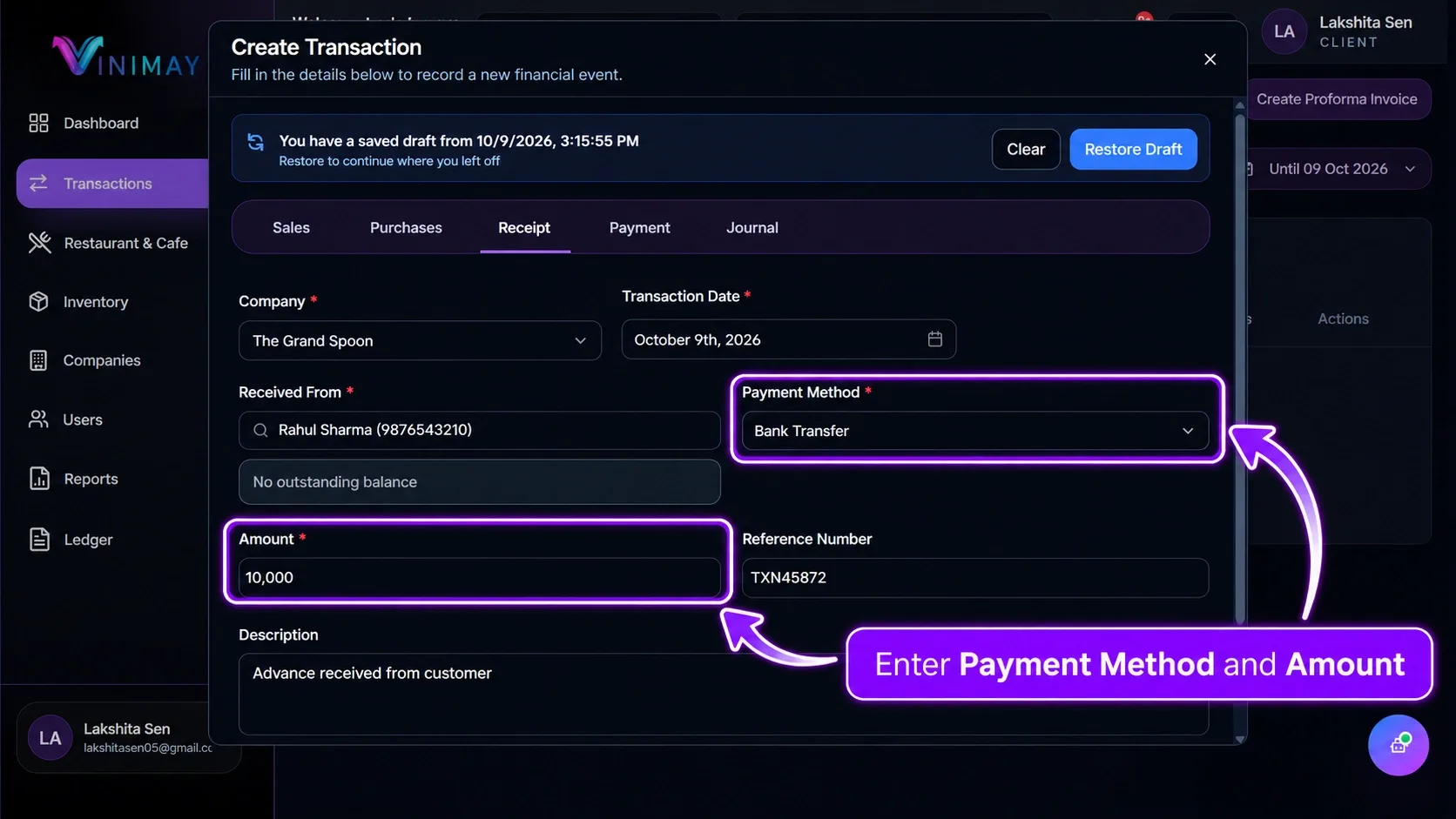
Step 6: Enter Payment Method and Amount
Choose the payment method used to receive the money.
This may include options such as:
Cash
Bank Transfer
UPI
Other available methods
Then enter the amount received.
If available, add the payment or receipt reference number for easier tracking later.
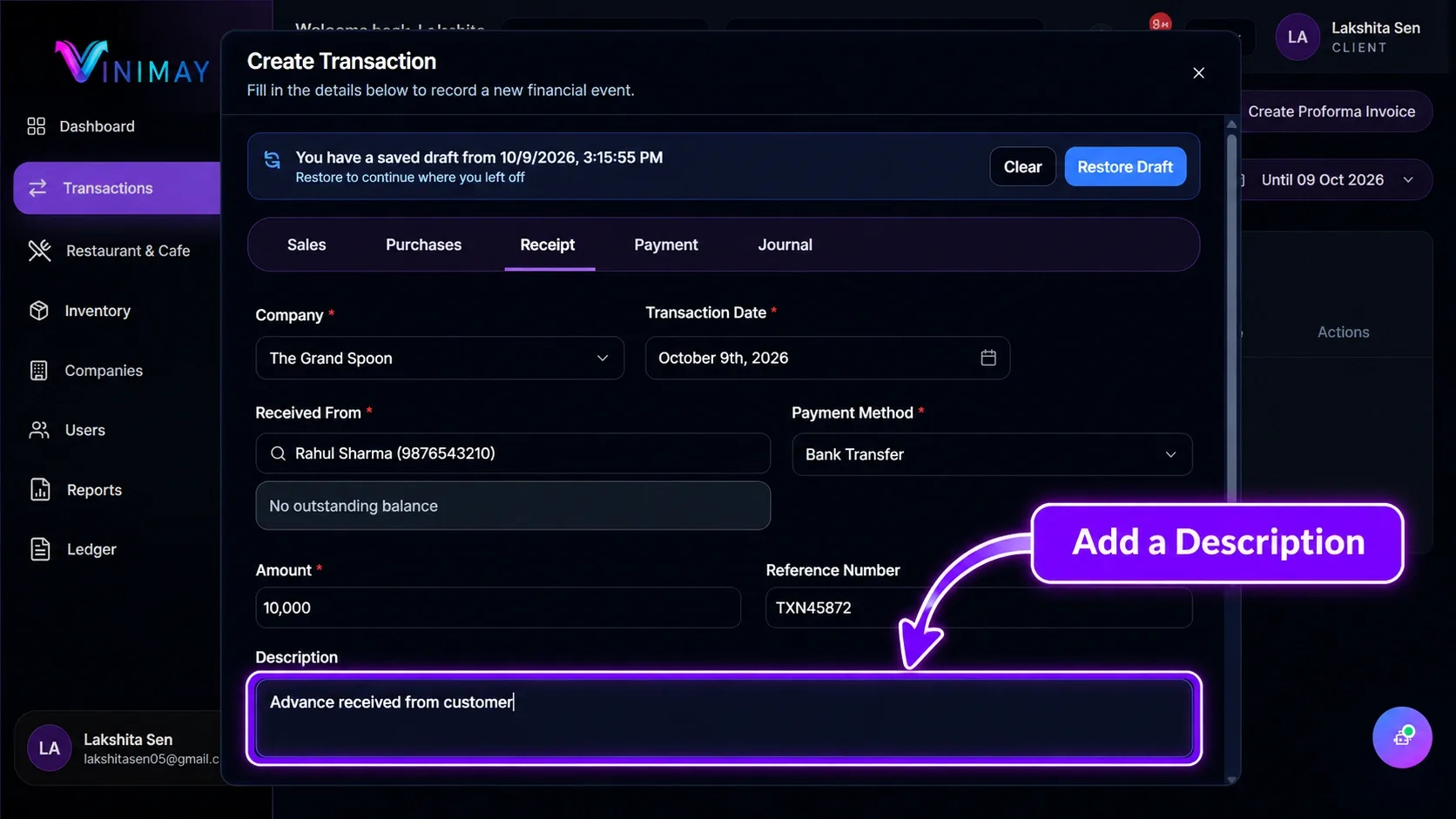
Step 7: Add a Description
Use the Description field to mention the reason for the receipt.
For example:
Payment received against Invoice INV-1025
or
Advance received from customer
This makes the transaction easier to understand when reviewing it later.
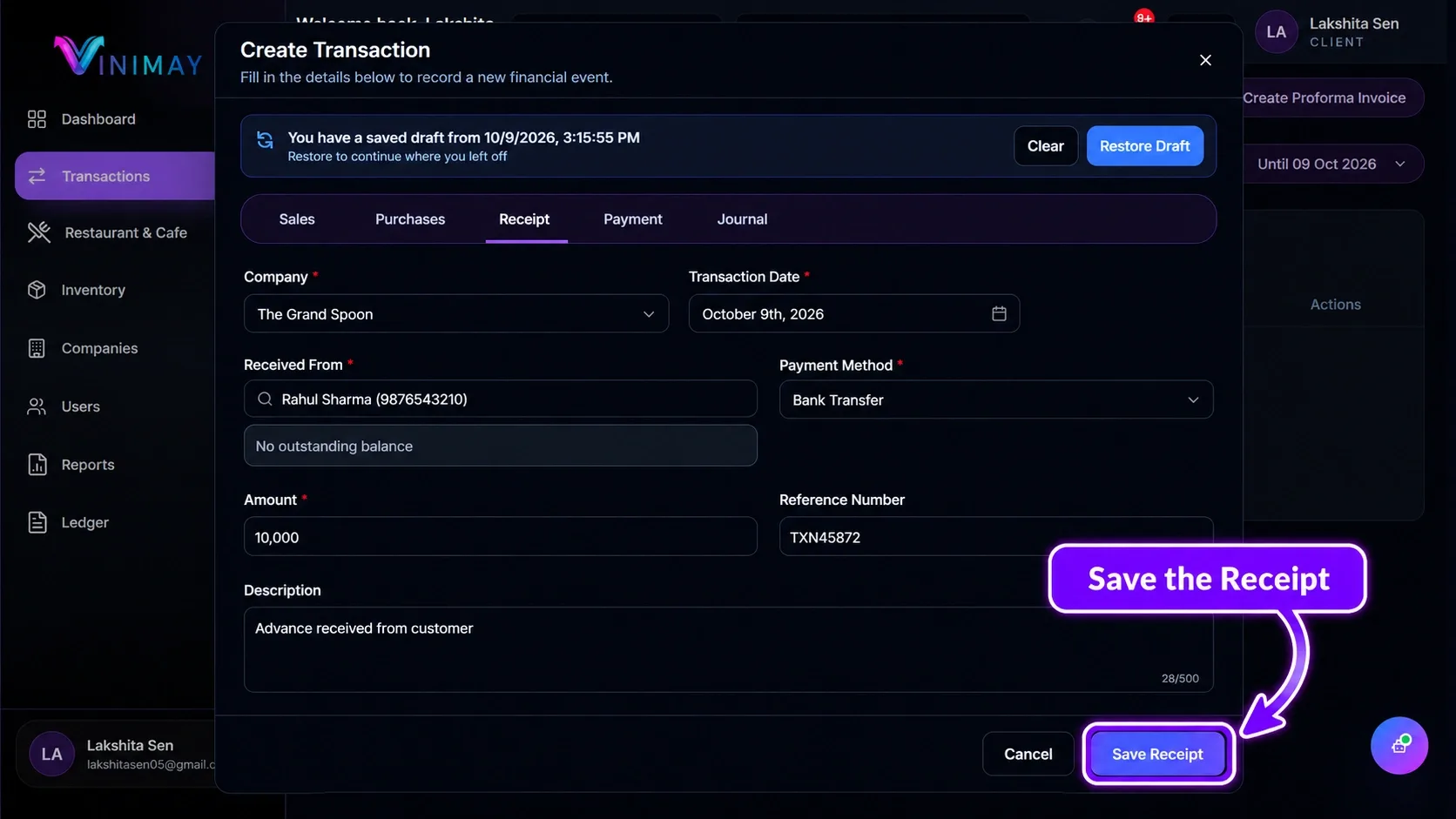
Step 8: Save the Receipt
After checking all details, click Create Transaction or the available save button.
The receipt entry will now be recorded in Vinimay.
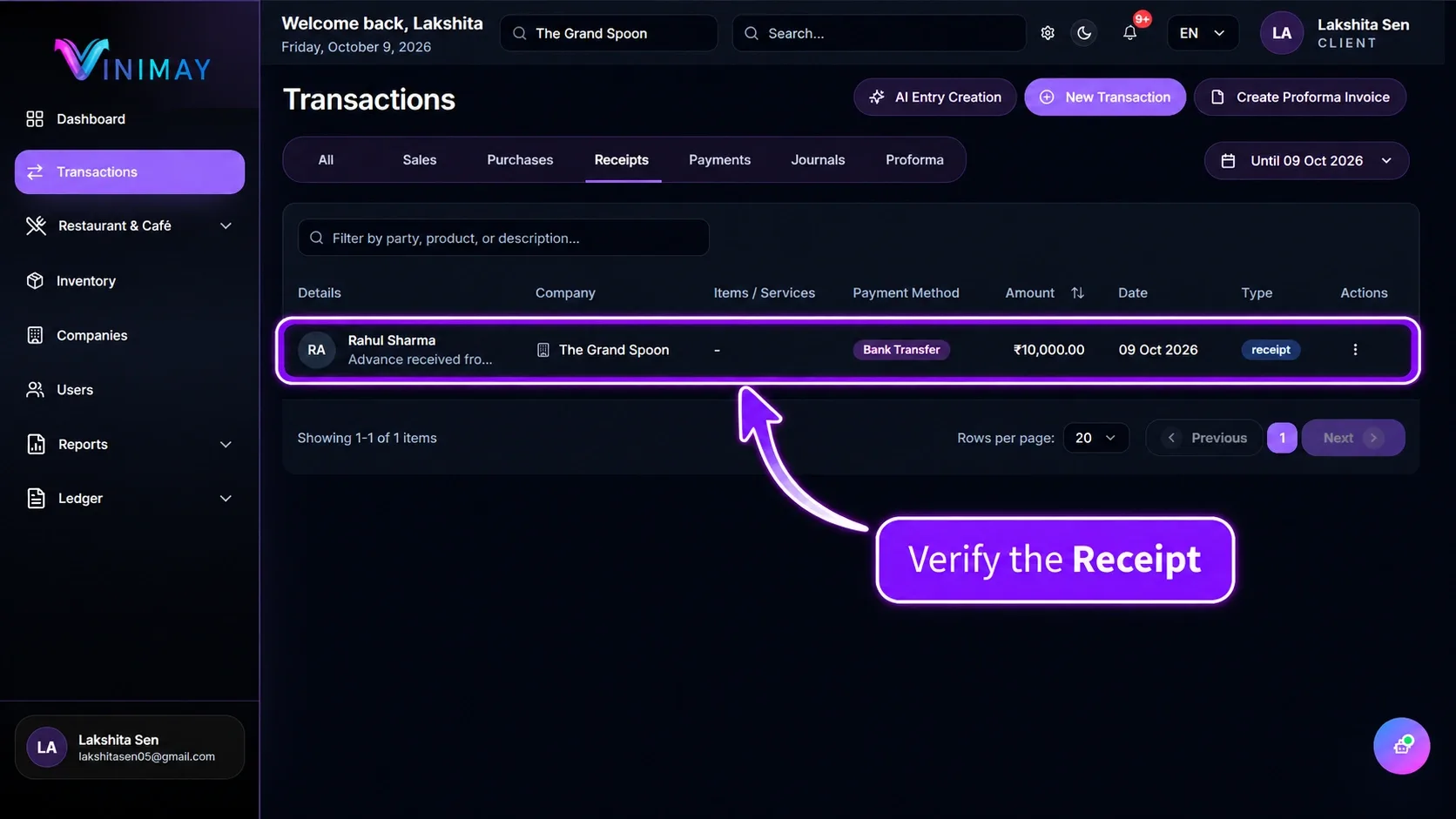
Step 9: Verify the Receipt
Return to the Transactions page and open the Receipts tab.
Check that the receipt appears with the correct:
Customer
Amount
Date
Payment method
Transaction type
The customer’s outstanding balance should also reduce accordingly if the receipt is against an existing amount due.
Quick Path
Transactions → New Transaction → Receipt → Select Customer → Enter Amount & Payment Method → Add Reference/Description → Create Transaction → Verify in Receipts
💡 Remember: A receipt records money coming into your business, while a payment records money going out to a vendor or other party.