When you bill a customer, you often charge for more than the product itself. You might also charge for installation, delivery, maintenance or repair work. Vinimay lets you add these services to the same bill using the Add Service button on the Sales form.
This guide explains how to add additional services in Vinimay, combine products and services in one sales transaction, check invoice totals and save the bill.
Quick Answer: What Are Additional Services in Vinimay?
Additional services in Vinimay are services you add to a sales bill alongside the products you sell. Open a Sales transaction, add your products, click Add Service, review the invoice totals and click Create Transaction to save the bill.
What Are Additional Services in Vinimay?
Vinimay handles products and services separately because they represent different types of business transactions.
A product is a physical good you buy or sell and may keep in stock. A service is work you charge a customer for, such as installation, delivery or repair.
The Sales form provides separate buttons for adding products and services, allowing you to include both in the same bill.
Difference Between Products and Additional Services
| Feature | Add Product | Add Service |
|---|---|---|
| What it represents | Goods you sell | Work you charge for |
| Stock tracking | Tracked in inventory | Does not require stock |
| Tax classification | HSN code on the product row | Optional SAC code configured for the service |
| Where to create it | Dashboard or Inventory | Settings → Services |
| Where to add it to a bill | Sales form | Sales form |
How to Add Additional Services in Vinimay
Follow these six steps to add services to a sales bill.
Step 1: Create the Service in Settings
Before adding a service to a bill, make sure it has been created in Vinimay.|
Open the Dashboard.
Click Settings in the Quick Actions section.
Select the Services tab.
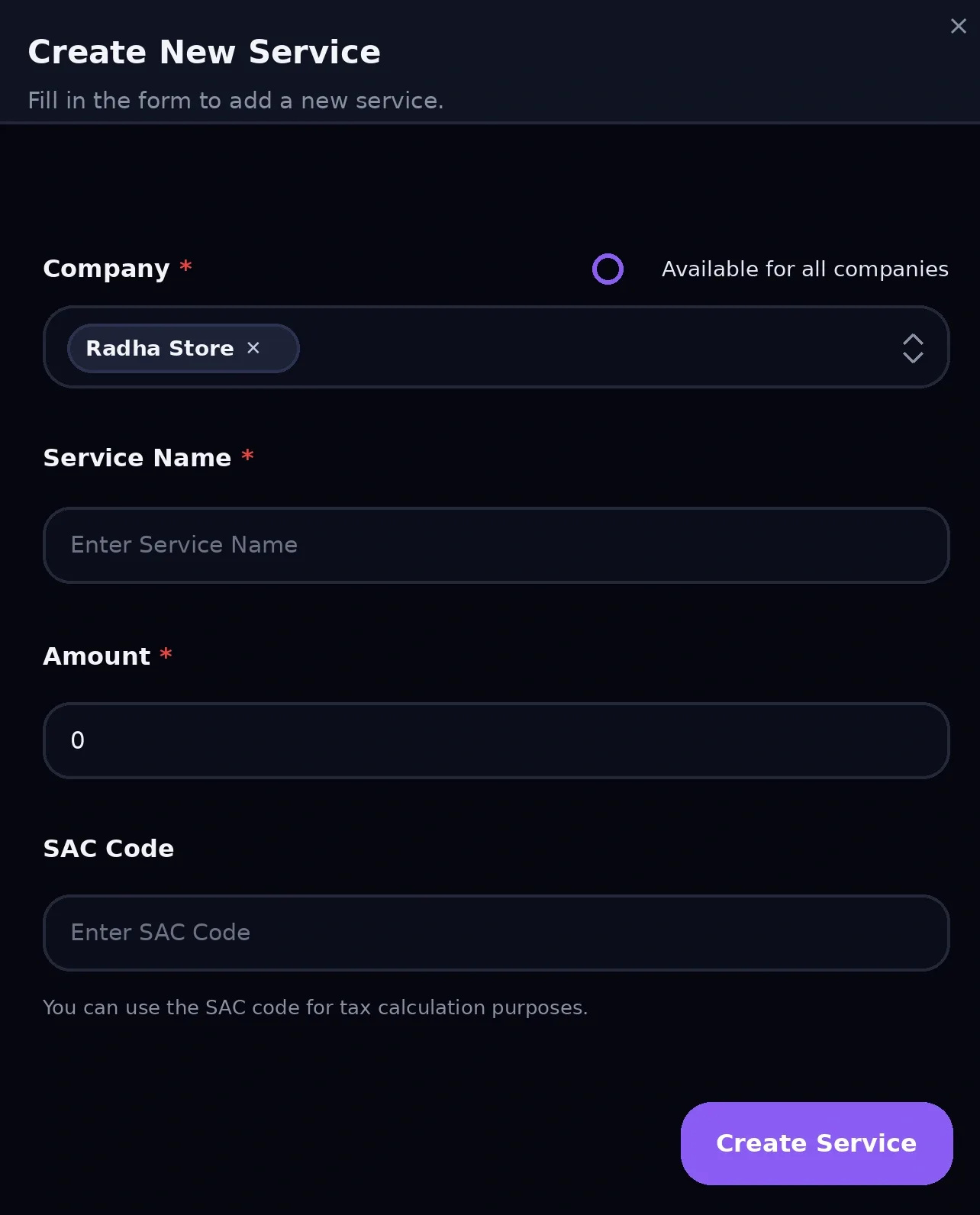
Click Add Service.
Enter the company, service name and amount.
Enter the SAC code if applicable.
Click Create Service.
For example, you can create a service named "AC Installation" and enter the amount you charge for it.
Once saved, the service appears in the Manage Services list and can be selected through the available service workflow.
For a detailed walkthrough, read How to Add a Service in Vinimay (Services Tab).
Step 2: Start a Sales Transaction
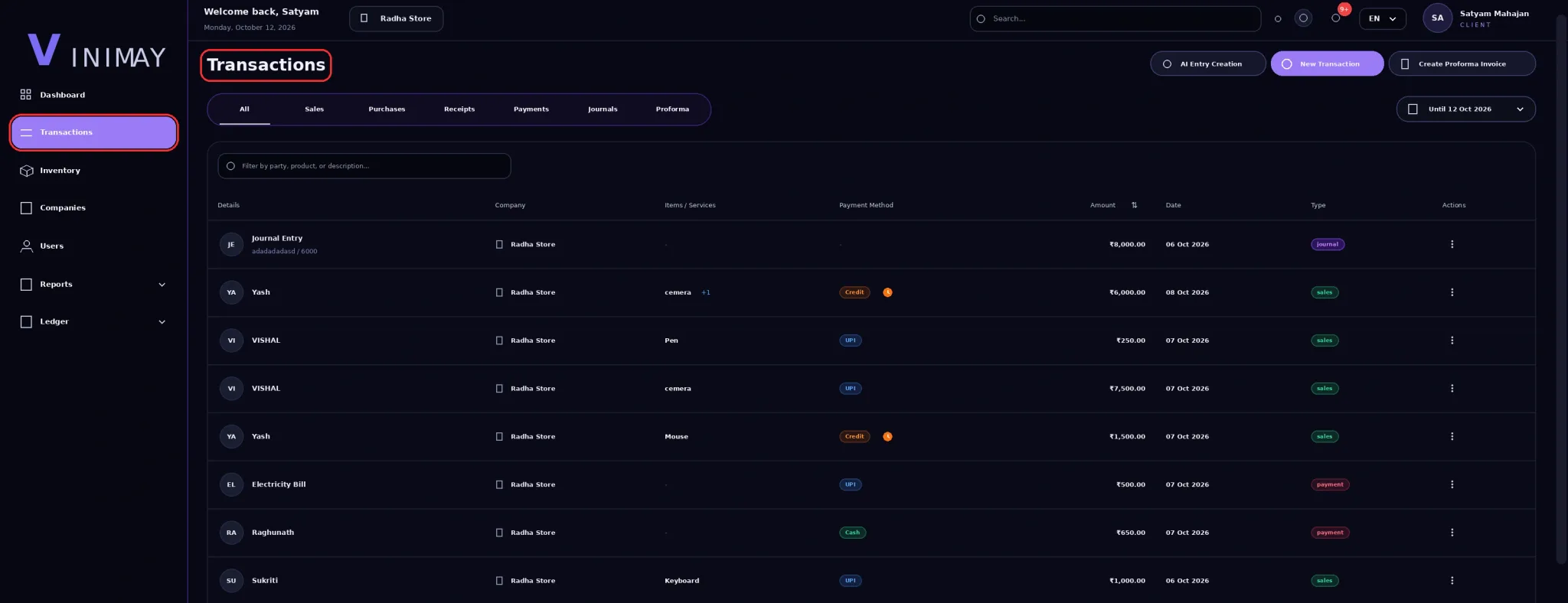
Open Transactions from the left sidebar and click New Transaction in the top-right corner.
Select the Sales tab to open the sales transaction form.
This is where you enter customer details, add products and services, review totals and create the bill.
If you need help with the complete invoicing process, read How to Create and Download an Invoice in Vinimay.
Step 3: Fill In Customer, Payment Method and Bank Details
Before adding products or services, complete the main transaction details.
Company: Select the company issuing the bill.
Customer: Choose the customer receiving the invoice.
Payment Method: Select the applicable payment method.
Bank: Check the selected bank account. If only one bank is available, Vinimay selects it automatically.
Transaction Date: Verify the date of the sales transaction.
Due Date: Enter or confirm the payment due date.
Shipping Address: Review the address. The Same as billing address option is ticked by default.
Check these details carefully to ensure that the invoice is created for the correct customer and company.
Step 4: Add Products and Click Add Service
Scroll down to the Product Selection section of the Sales form.
First, search for and select the product you want to sell. Enter the applicable details, including:
Quantity
Unit
Price per unit
Discount
Amount
HSN code
Description, if required
Below the product row, you will find two buttons: Add Product and Add Service.
Click Add Product when you want to include another product in the bill. Click Add Service when you want to include an additional service.
For example, if you sell an air conditioner and also charge for installation, you can add the air conditioner as a product and AC installation as a service on the same bill.
This helps you record the goods sold and the additional work charged to the customer in one transaction.
Step 5: Check the Totals and Notes
Before saving the bill, review the totals displayed on the right side of the Sales form.
The totals section includes:
Subtotal: Displays the subtotal calculated for the transaction.
Invoice Total: Shows the invoice total before the final receivable calculation.
Discount: Allows you to enter a discount in rupees or as a percentage.
Net Receivable: Shows the net amount receivable after applicable calculations.
Check the figures carefully, especially if you have added multiple products, services or discounts.
The Notes box on the left contains Terms and Conditions by default. You can edit the text using the formatting toolbar. The form displays a 100-word limit for the notes.
Review the notes and totals before proceeding to the final step.
Step 6: Click Create Transaction
Once all the details are correct, click Create Transaction at the bottom-right corner of the form.
If Vinimay displays the message "Amount must be greater than 0," check that you have entered a valid amount for the relevant item or service.
After the transaction is successfully saved, the bill appears in your Transactions list.
Where to See Your Bill After Adding Additional Services
After creating the sales transaction, open Transactions from the sidebar.
Your bill appears in the transaction list with details such as:
Customer name
Company
Payment method
Transaction amount
Date
Transaction type
Items / Services
The Items / Services column shows what was sold on the bill. If a label such as "+1" appears beside an item name, it indicates that the bill contains additional items.
Open the list and verify the customer, amount and items or services to ensure that the transaction has been recorded correctly.
Tips for Using Additional Services in Vinimay
Create the service first: Add the service through Settings → Services before starting the sales transaction.
Use descriptive names: Names such as "AC Installation" or "Equipment Repair" are easier to identify than generic names.
Check Net Receivable: Review the final amount before saving, particularly when applying discounts.
Keep products and services separate: Use Add Product for goods and Add Service for work you charge for.
Verify the saved bill: Check the Transactions list to confirm that the customer, amount and items or services appear correctly.
Review tax classifications: Maintain the appropriate HSN and SAC details for applicable GST documentation.
Conclusion
Additional services in Vinimay help you include charges for installation, delivery, repair and other work alongside the products you sell. Create the service under Settings → Services, start a Sales transaction, add your products and click Add Service to include the required service.
Before saving, verify the customer details, service amount, discounts, notes and Net Receivable. Finally, click Create Transaction and check the Transactions list to confirm that your bill has been recorded correctly.