How to Find a Transaction in Vinimay: Filter, Search and Sort
You recorded a purchase last month, or a payment last week, and now you need to find it. Scrolling through a long list wastes time, and it is easy to miss the entry you are looking for.
Vinimay's Transactions page gives you several ways to narrow the list: tabs for each type of entry, a filter box for names and words, a date button, and a sortable amount column. Used together, they bring you to the right entry in seconds.
This guide starts from the login page, goes through the dashboard, and shows each way of finding a transaction with clear images.
Step 1: Log in to Vinimay
Open the Vinimay login page. Choose Client Login for the account owner or User Login for staff (marker 1). Enter the Username (marker 2) and Password (marker 3), type the CAPTCHA (marker 4), and click Sign In (marker 5).
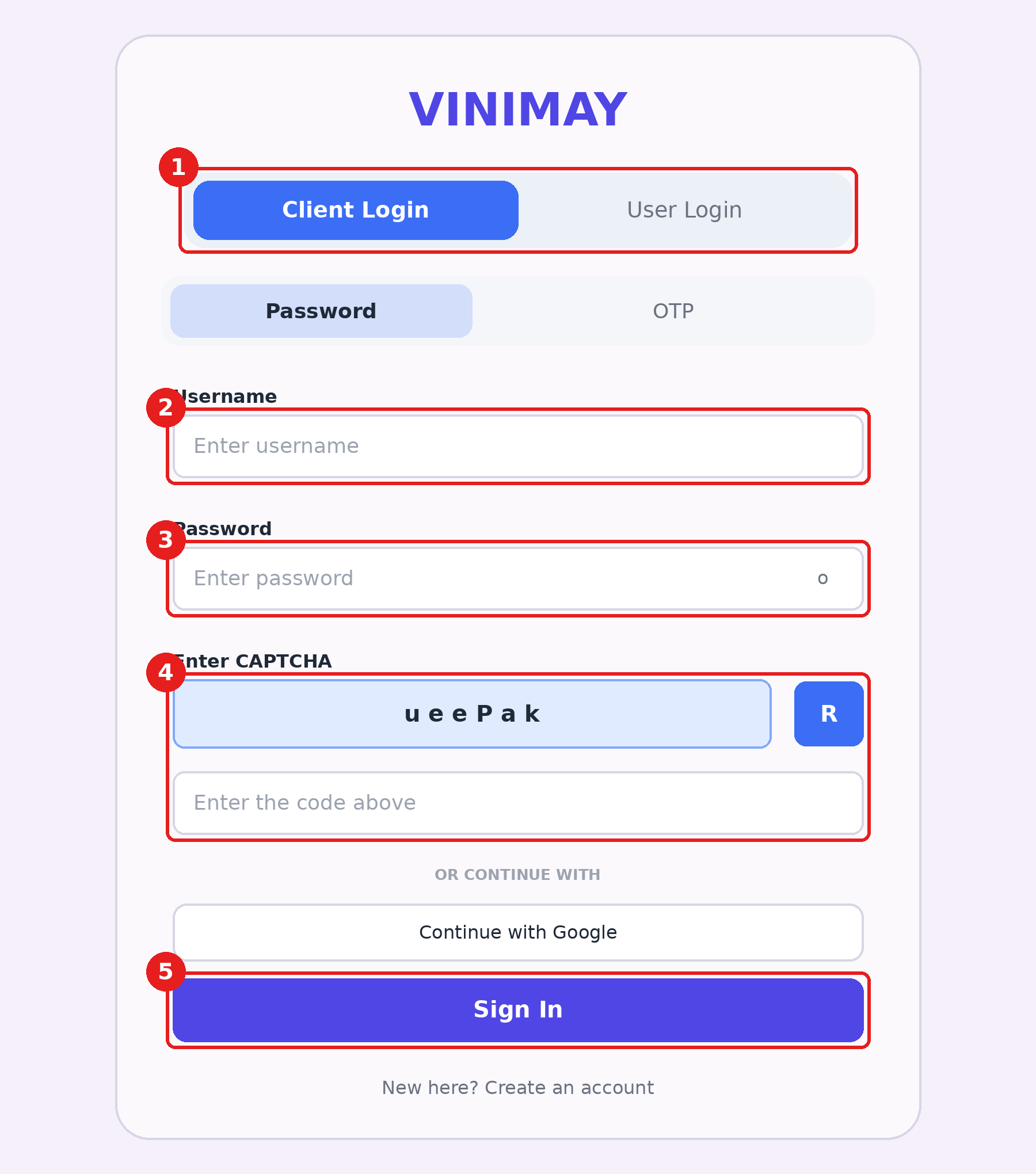
Step 1: Log in to Vinimay
Step 2: Go from the Dashboard to Transactions
After you sign in, you land on the Dashboard (marker 6). In the left menu, click Transactions (marker 7).
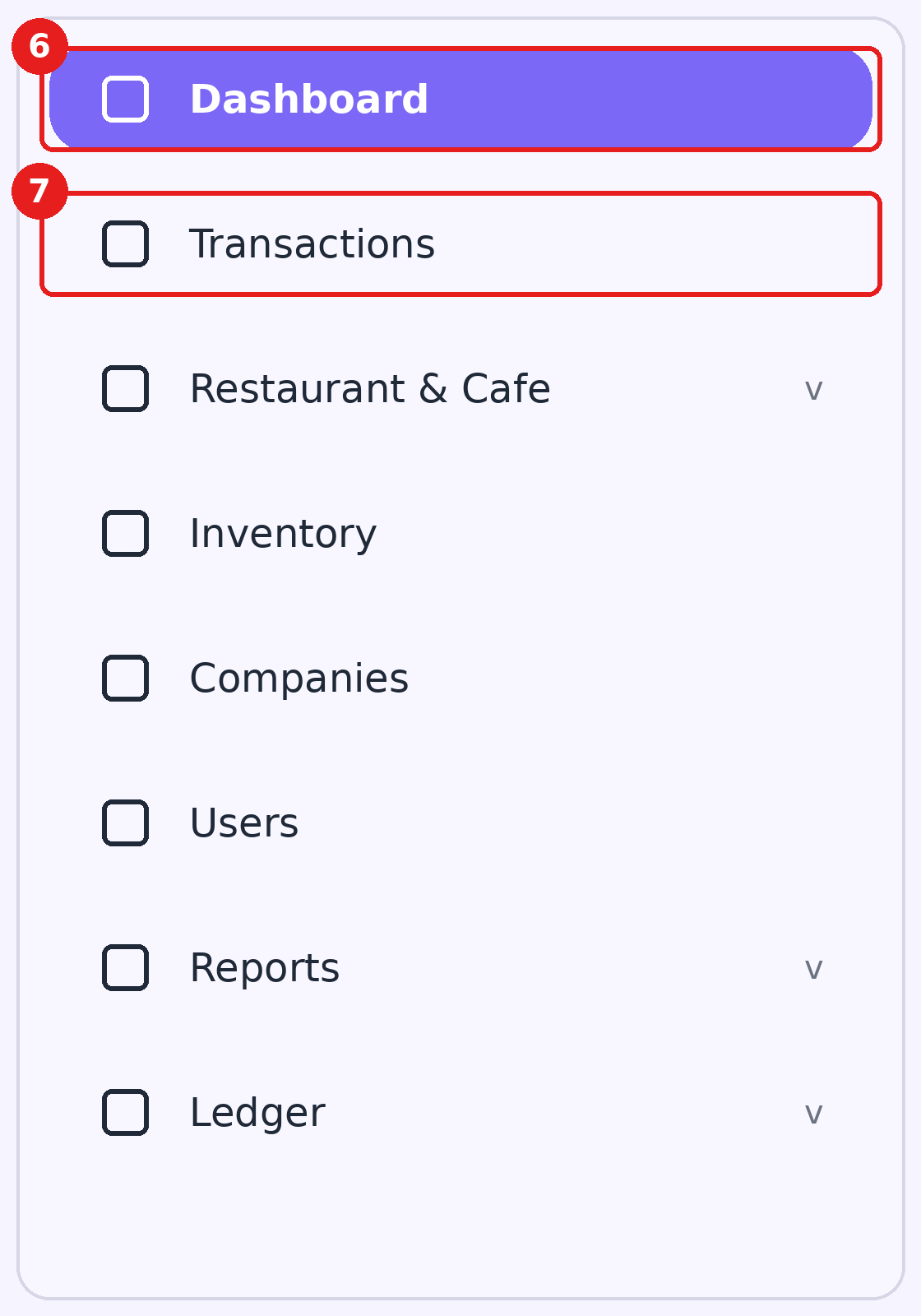
Step 2: Dashboard and Transactions in the left menu
Step 3: Use the tabs, the filter box and the date button
Under the Transactions heading, the tabs (marker 8) split your entries by type: All, Sales, Purchases, Receipts, Payments, Journals and Proforma. Click one to see only that type. Type in the filter box (marker 9), which reads "Filter by party, product, or description", to find an entry by a vendor or customer name, a product, or a word from the description. The date button at the top right (marker 10) shows the date range, for example "Until 08 Oct 2026".
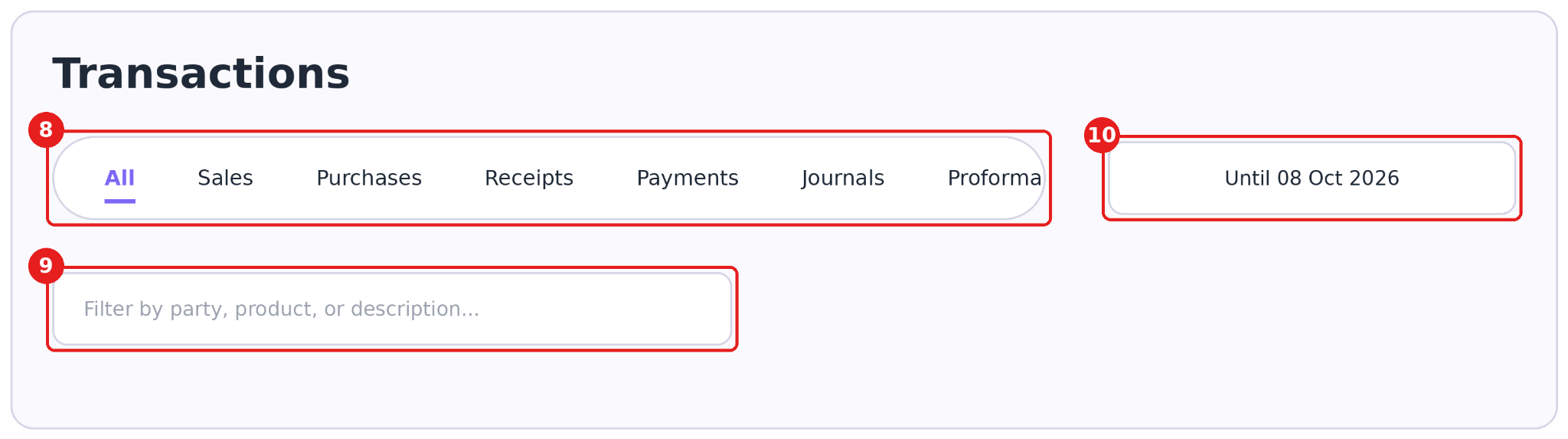
Step 3: Tabs, filter box and date button
Step 4: Read and sort the table
Each row shows the party, company, items or services, payment method, amount, date and type. Click the small arrows next to Amount (marker 11) to sort by amount. The Type tag (marker 12), such as purchases, tells you the kind of entry. The three-dot button in Actions (marker 13) opens the options for that row.
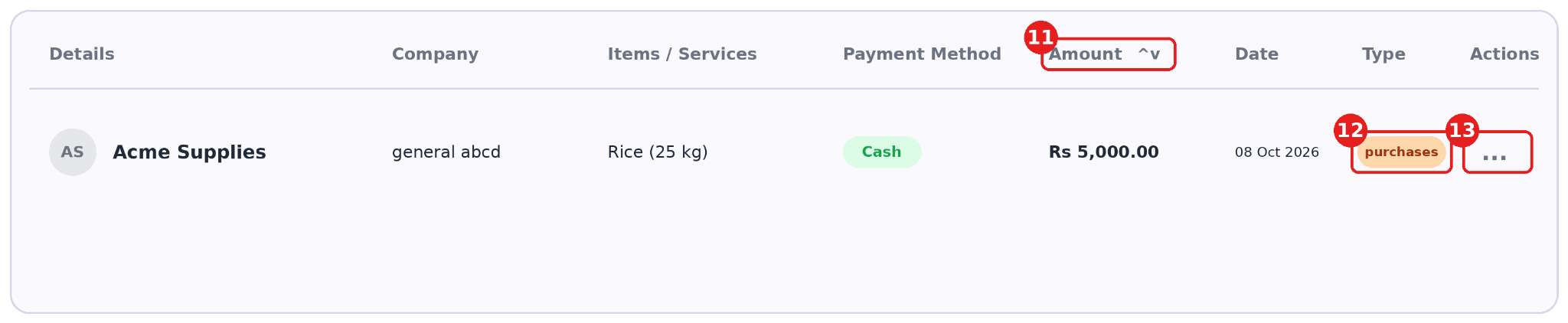
Step 4: Sort and read the table
Step 5: Move between pages
At the bottom, Showing 1-1 of 1 items (marker 14) tells you how many entries match. Rows per page (marker 15) sets how many rows you see at once. Use Previous, the page number and Next (marker 16) to move between pages.

Step 5: Pagination
Tips
Start with the right tab, then use the filter box. This narrows the list the fastest.
Search by the vendor or customer name if you do not remember the amount.
Sort by Amount to find the largest or smallest entries.
Check the date range if an entry you expect is missing.
Conclusion
To find a transaction in Vinimay, log in, go from the Dashboard to Transactions, choose the right tab, and type a name or word in the filter box. The date button and the Amount sort narrow it down further.
If the entry is still missing, check the date range and that you are in the correct tab. The Showing line at the bottom tells you how many entries match your filters.
Once you know these controls, you can find any entry in a few clicks. Create a free Vinimay account and try them on your own transactions today.
Q6. What does the Type column show?
It shows a tag for each entry, for example purchases, so you can tell what kind of transaction it is.
Q7. How many transactions are shown on a page?
The Rows per page box sets this. The example shows 20. Use Previous and Next to move between pages.
Q8. What is the three-dot Actions button?
It opens the options for that transaction. Click it on a row to see what is available in your account.