How to Set Cost Price and Selling Price for a Product in Vinimay
Every product you sell needs two important prices: what it costs you to buy or make and what you charge your customer. Setting the correct cost price and selling price helps you track product costs, calculate your profit margin, and maintain accurate inventory records.
In Vinimay,you can enter both prices while adding a new product through the Inventory section. This step-by-step guide explains how to enter the prices, save the product, verify the details, and update them later, with screenshots showing each step.
Quick answer: To set the cost price and selling price for a product in Vinimay, click Inventory in the left menu, select Add Product, complete the product details, enter the selling price and cost price in their respective fields, and click Create Product.
What Are Cost Price and Selling Price?
Cost price is the amount you pay to purchase or manufacture a product. Selling price is the amount you charge your customer for that product.
The difference between the selling price and cost price represents the gross profit per unit before other expenses, such as rent, salaries, transportation, and taxes.
Here is an example of three products:
| Product | Cost Price | Selling Price | Gross Profit per Unit |
|---|---|---|---|
| Pen | ₹30 | ₹50 | ₹20 |
| Keyboard | ₹130 | ₹200 | ₹70 |
| Mouse | ₹100 | ₹150 | ₹50 |
The calculation is simple:
Gross profit per unit = Selling Price − Cost Price
For example, if a pen costs ₹30 and you sell it for ₹50, your gross profit is ₹20 per pen before other business expenses.
How to Set Cost Price and Selling Price in Vinimay
Follow these six steps to enter both prices while creating a product in Vinimay.
Step 1: Click Inventory
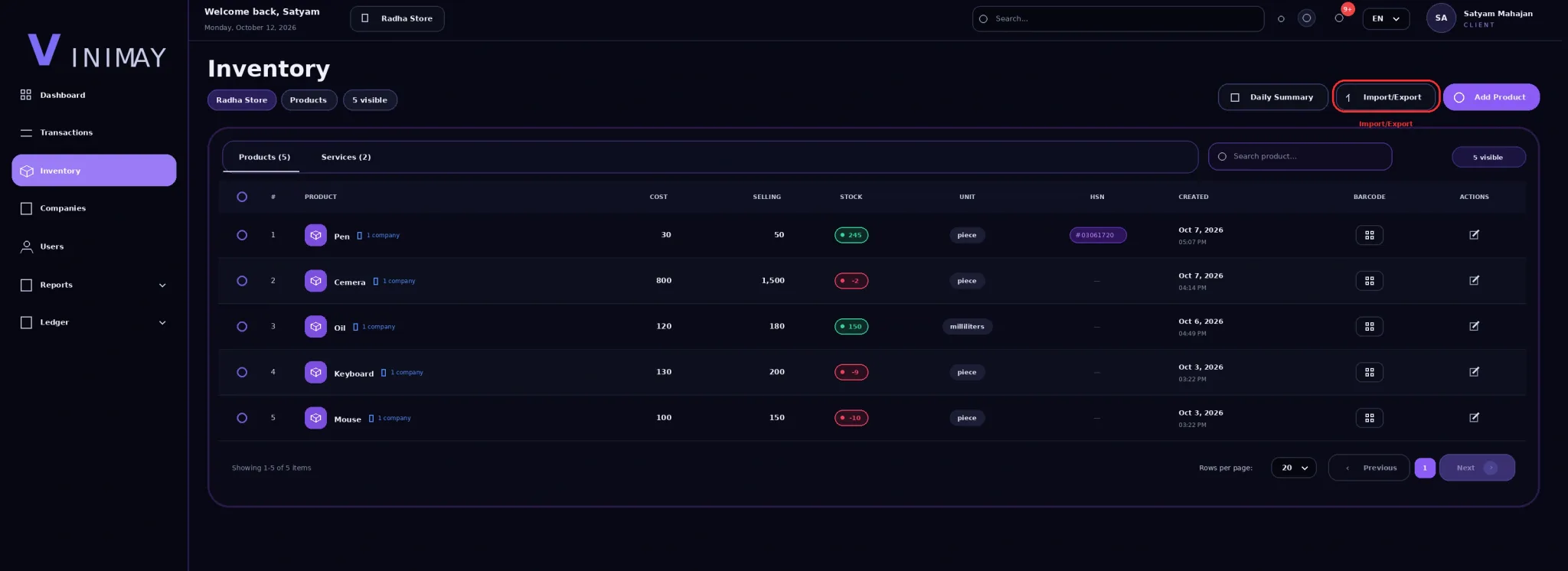
Log in to Vinimay and open your dashboard. Click Inventory in the left-side menu.
The Inventory page opens and displays your product list, where you can manage existing products and add new ones.
Step 2: Click Add Product
On the Inventory page, look at the top-right corner. You will find the following buttons:
Daily Summary
Import/Export
Add Product
Click Add Product to open the product creation form.
Step 3: Enter the Product Details
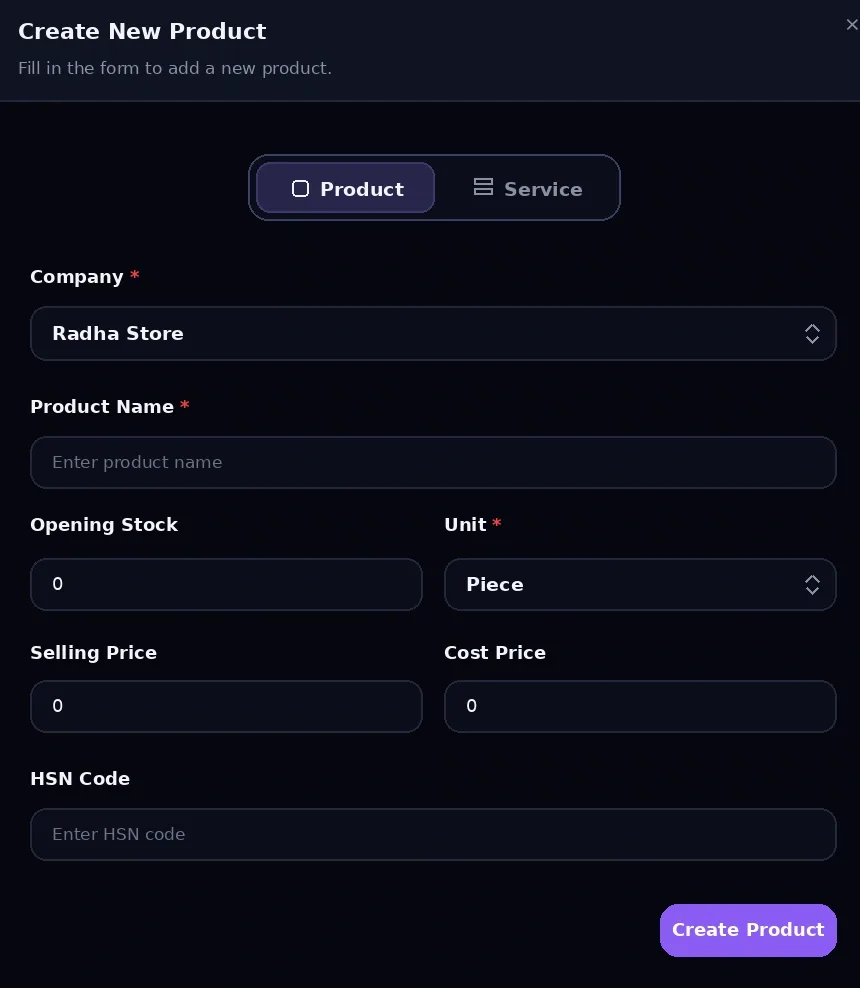
The Create New Product form opens. At the top, you will see two tabs: Product and Service.
Keep the Product tab selected and complete the following fields:
Company: Select the company to which the product belongs.
Product Name: Enter the name of the product, such as Pen, Keyboard, or Mouse.
Opening Stock: Enter the number of units currently available. The default value is 0.
Unit: Select the appropriate measurement unit, such as Piece. The default unit is Piece.
Enter the correct opening stock so that your inventory records reflect the quantity available when you create the product.
Step 4: Enter the Selling Price and Cost Price
Below the Opening Stock and Unit fields, you will find two price fields displayed side by side.
Selling Price: Enter the amount you charge your customer.
Cost Price: Enter the amount you pay to purchase or manufacture the product.
In the form, Selling Price appears on the left and Cost Price appears on the right. Both fields start at 0, so replace the default values with the appropriate prices for your product.
You will also find an optional HSN Code field below the price fields.
Important: Company, Product Name, and Unit are marked with a red asterisk, indicating that they are required fields. Selling Price and Cost Prices are not marked as required in the form, but entering the correct values is important for meaningful pricing and inventory records.
Step 5: Click Create Product
After completing the product details and entering both prices, click Create Product in the bottom-right corner of the form.
Vinimay saves the product and adds it to your inventory list.
Before proceeding, make sure the product name, opening stock, unit, selling price, and cost price are correct.
Step 6: Verify the Prices in the Inventory List
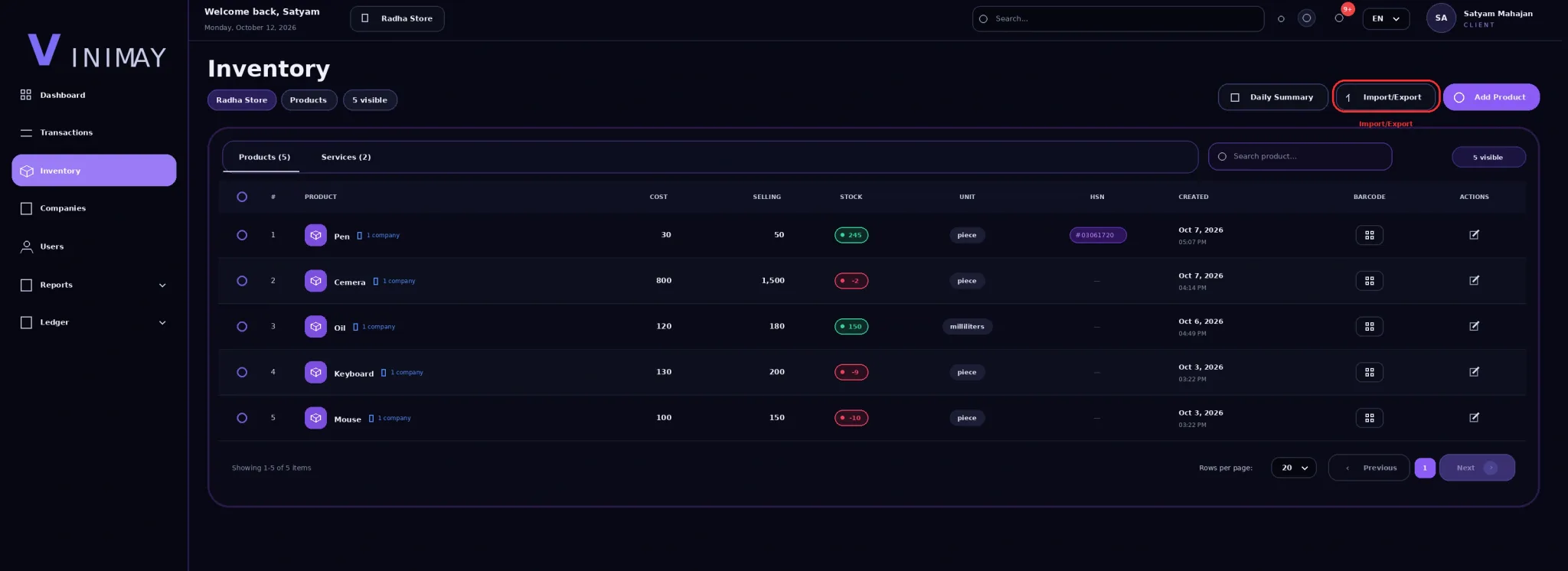
Return to the Inventory page and locate the product you just created.
Check the Cost and Selling columns to confirm that the prices match the values you entered in the form.
If you need to change a price later, click the edit icon in the Actions column for that product's row.
Where Else Can You View Cost Price and Selling Price in Vinimay?
Apart from the Inventory page, you can check product prices in two other places.
1. Settings → Products
Open Settings and select the Products tab. The Manage Products list displays the Cost Price and Selling Price columns, allowing you to review prices for your products.
2. Dashboard → Product & Service Stock
The Product & Service Stock list on the dashboard displays product details, including the cost price, selling price, stock quantity, and unit.
These views help you review product pricing without opening each product individually.
Tips for Setting Accurate Product Prices
Enter the actual cost price: Use a cost figure that accurately reflects your product's purchase or manufacturing cost. Consider other costs separately when calculating overall profitability.
Check the correct field: Selling Price appears on the left, while Cost Price appears on the right. Verify both values before saving.
Update prices when supplier rates change: Use the edit icon in the Actions column to revise a product's cost price when necessary.
Review the sales bill before saving: The Sales form includes a price/unit field for the product. Check the displayed price before creating the bill.
Keep opening stock accurate: Enter the correct quantity available when adding the product so that your inventory starts with a reliable balance.
Review stock values regularly: Accurate cost prices help you interpret inventory valuation and stock movement reports.
For example, in the Inventory Daily Summary, the Stock Out value may reflect the cost value of products leaving inventory. If two units are valued at ₹800 each, their total stock value is ₹1,600.
If you need to add several products at once, read the guide on how to import products in bulk in Vinimay. You can also explore Vinimay's features or Knowledge Base for more billing and inventory tutorials.
Conclusion
Setting the correct cost price and selling price in Vinimay is an important step in maintaining reliable product and inventory records. By entering both values when creating a product, checking the saved prices in the Inventory list, and updating them when costs change, you can manage product pricing more effectively.
Use the Inventory section to maintain product details, review the Cost and Selling columns regularly, and check the Price/Unit field before creating sales bills.