How to Add an HSN Code to a Product in Vinimay
Adding an HSN code to your products helps you maintain organised product records and prepare GST invoices more efficiently. Instead of entering the code repeatedly, you can save it in the product details and refer to it whenever you manage your inventory.
In Vinimay, you can add an HSN code while creating a new product or update an existing product through the Inventory section. This step-by-step guide explains how to enter the code, save it, verify it in your product list, and update products that do not yet have an HSN code.
Quick answer: To add an HSN code to a product in Vinimay, open Inventory, click Add Product, complete the product details, enter the code in the HSN Code field, and click Create Product. For an existing product, click its edit icon in the Actions column and update the HSN code.
What Is an HSN Code?
HSN stands for Harmonized System of Nomenclature. It is a standard classification system used to identify and categorise goods.
Under India's GST system, HSN codes help classify products for tax reporting and invoicing. The applicable GST rate depends on the product's classification and the relevant tax provisions.
Services use a related classification system called the SAC (Services Accounting Code).
Why Should You Add an HSN Code to a Product?
Adding the correct HSN code to your product records offers several benefits.
GST compliance: HSN details may be required on GST tax invoices, depending on the applicable rules.
Less repetitive data entry: Saving the code in the product record makes it easier to maintain consistent product information.
Better record-keeping: Consistent HSN details help organise product data for GST reporting and reconciliation.
Fewer classification errors: Maintaining the correct code for each product reduces the risk of using an incorrect classification.
How Many HSN Digits Are Required Under GST?
The applicable HSN reporting requirement depends on factors such as turnover, the type of supply, and current GST rules.
For certain registered taxpayers, the general invoice requirements have included the following turnover-based rules:
| Annual aggregate turnover | General HSN requirement |
|---|---|
| Up to ₹5 crore | 4-digit HSN code for applicable B2B invoices, subject to the relevant rules and exceptions |
| Above ₹5 crore | 6-digit HSN code for applicable invoices |
These are general guidelines, not a substitute for checking the current requirements. Special provisions, exemptions, and changes in GST rules may affect what applies to your business. Verify the latest requirements through the official GST portal or with your chartered accountant before finalising your product records.
How to Add an HSN Code to a Product in Vinimay
Follow these six steps to add an HSN code when creating a new product.
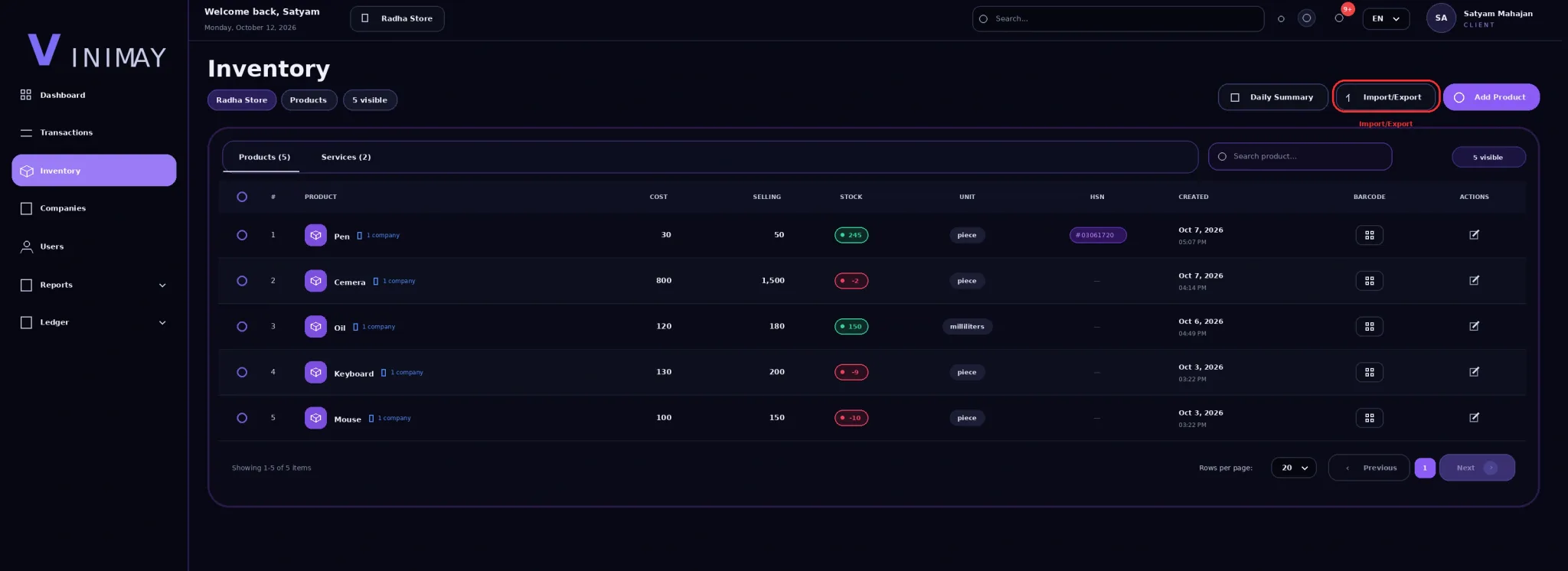
Step 1: Open Inventory
Log in to Vinimay and open your dashboard. Click Inventory in the left-side menu.
The Inventory page displays your product list and the options available for managing products.
You may also be able to access the product creation form through the Add Product option on your dashboard.
Step 2: Click Add Product
On the Inventory page, locate the buttons at the top-right corner.
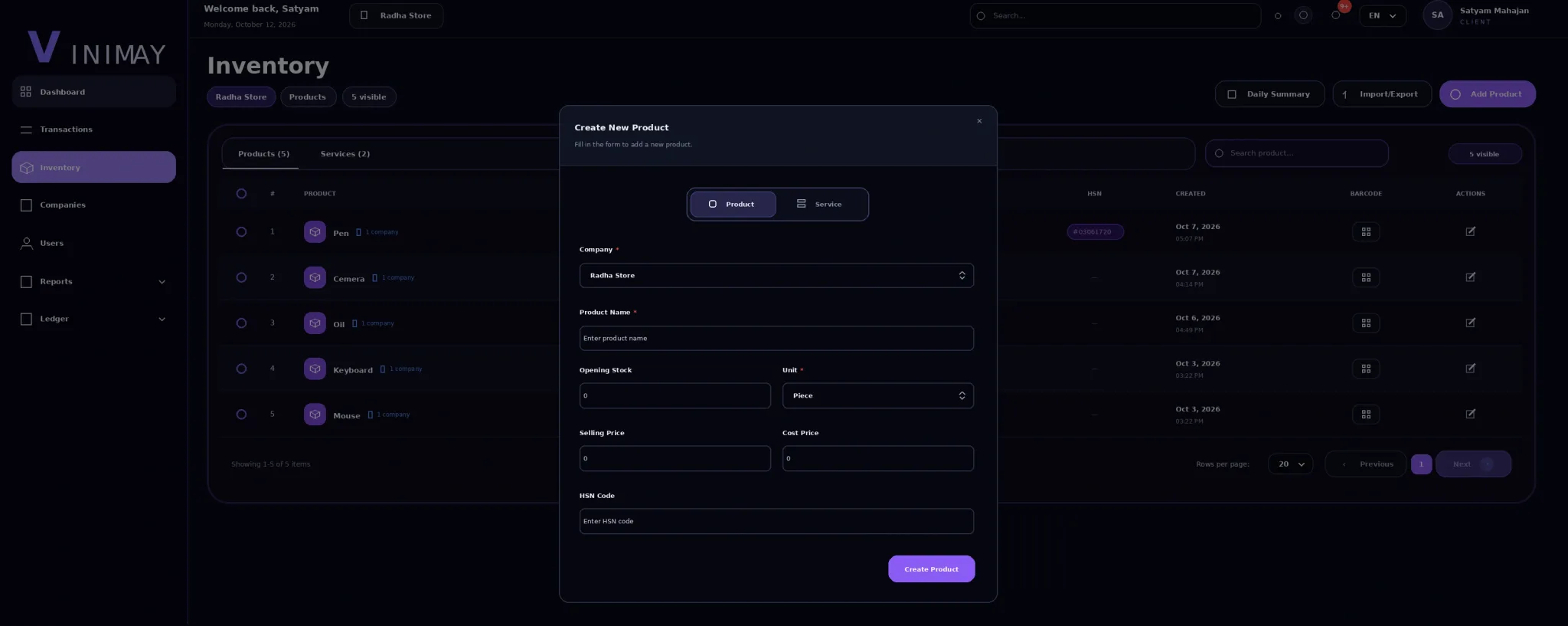
Click Add Product to open the Create New Product form.
Step 3: Fill In the Product Details
The Create New Product form opens with Product and Service tabs.
Make sure the Product tab is selected, then enter the relevant product details.
Company: Select the company that owns the product.
Product Name: Enter the product's name.
Opening Stock: Enter the available quantity, if applicable.
Unit: Select the appropriate unit, such as Piece or Kg.
Selling Price: Enter the selling price, if available.
Cost Price: Enter the cost price, if available.
Fields marked with a red asterisk are required. In the described form, Company, Product Name, and Unit are marked as required.
Step 4: Enter the HSN Code
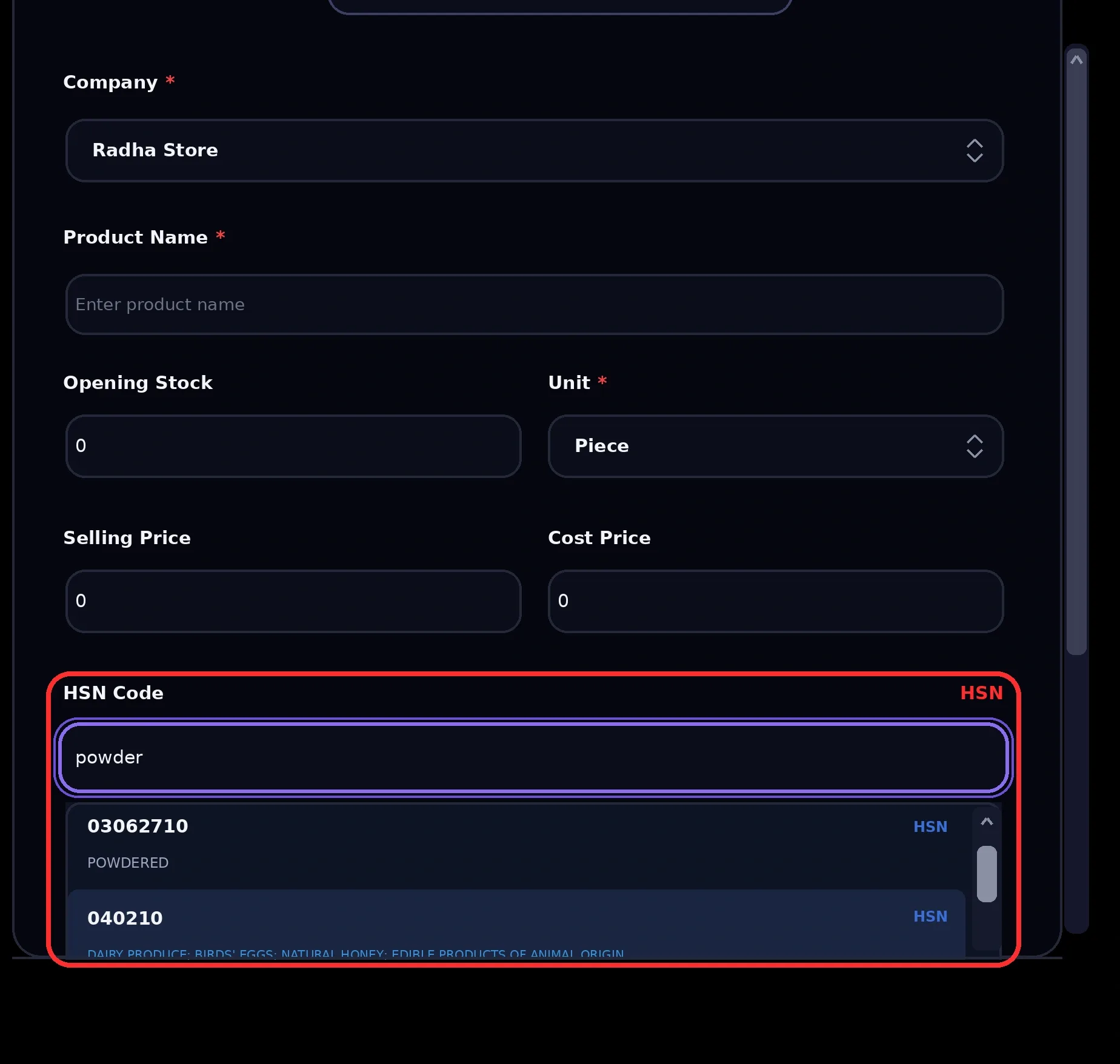
Locate the HSN Code field in the product creation form.
Enter the HSN code that correctly classifies your product under the applicable GST rules.
Before entering the code, verify that it matches the product's description and classification. Depending on your business and the applicable requirements, you may need a 4-digit, 6-digit, or more detailed classification code.
Important: Do not choose an HSN code simply because it belongs to a similar product. Confirm the correct classification using an authoritative source or your tax adviser.
Screenshot: Enter the product's HSN code in the HSN Code field.
Step 5: Click Create Product
Review the product details, including the company, product name, unit, prices, and HSN code.
Click Create Product to save the product.
The product is then added to your Inventory list with the details you entered.
Screenshot: Review the form and click “Create Product” to save the product.
Step 6: Check the HSN Column
Return to the Inventory page and locate the product you just created.
Check the HSN column to verify that the code appears next to the product name.
If the column displays a dash, no HSN code is currently saved for that product.
How to Add an HSN Code to an Existing Product
If you have already created products in Vinimay without HSN codes, you can update their details.
Follow these steps:
Open Inventory from the left-side menu.
Find the product you want to update.
Locate the Actions column in that product's row.
Click the edit icon.
Find the HSN Code field and enter the correct code.
Save the changes using the available form controls.
Return to the Inventory list and check the HSN column.
If you have many products to update, review the Import/Export option on the Inventory page to see whether bulk editing or importing is supported for the relevant product fields.
Tips for Avoiding HSN Code Mistakes
Verify the classification: Use the official GST resources or consult a tax professional if you are unsure which code applies.
Use consistent product records: Make sure the correct HSN code is saved against each relevant product.
Do not guess the code: An incorrect classification may cause tax calculation or reporting errors.
Review product details regularly: Check your HSN records when product specifications or applicable GST requirements change.
Check invoice details: Verify the classification and applicable tax treatment before issuing GST invoices.
Confirm current requirements: HSN reporting rules may change, so check the latest requirements instead of relying only on older guidance.
Conclusion
Adding HSN codes to products in Vinimay helps you maintain organised product records and prepare for GST invoicing and reporting. Enter the appropriate code when creating a product, verify it in the HSN column, and update existing products that are missing the required details.
Always confirm the correct product classification and current GST requirements before using an HSN code for tax purposes. Accurate product records can make inventory management and GST-related work easier.