How to Add a Product in Vinimay: Complete Form Guide
Everything in your accounts, from invoices to stock, starts with a product record. If a product is saved with the wrong unit, a missing price or incorrect opening stock, the mistake can affect every sale and purchase.
This guide explains how to add a product in Vinimay using the Create New Product form. Follow the field-by-field instructions to enter product details, set stock quantities and prices, add an HSN code and verify the product after saving.
Three Places to Add a Product in Vinimay
You can add a product in Vinimay from any of these locations:
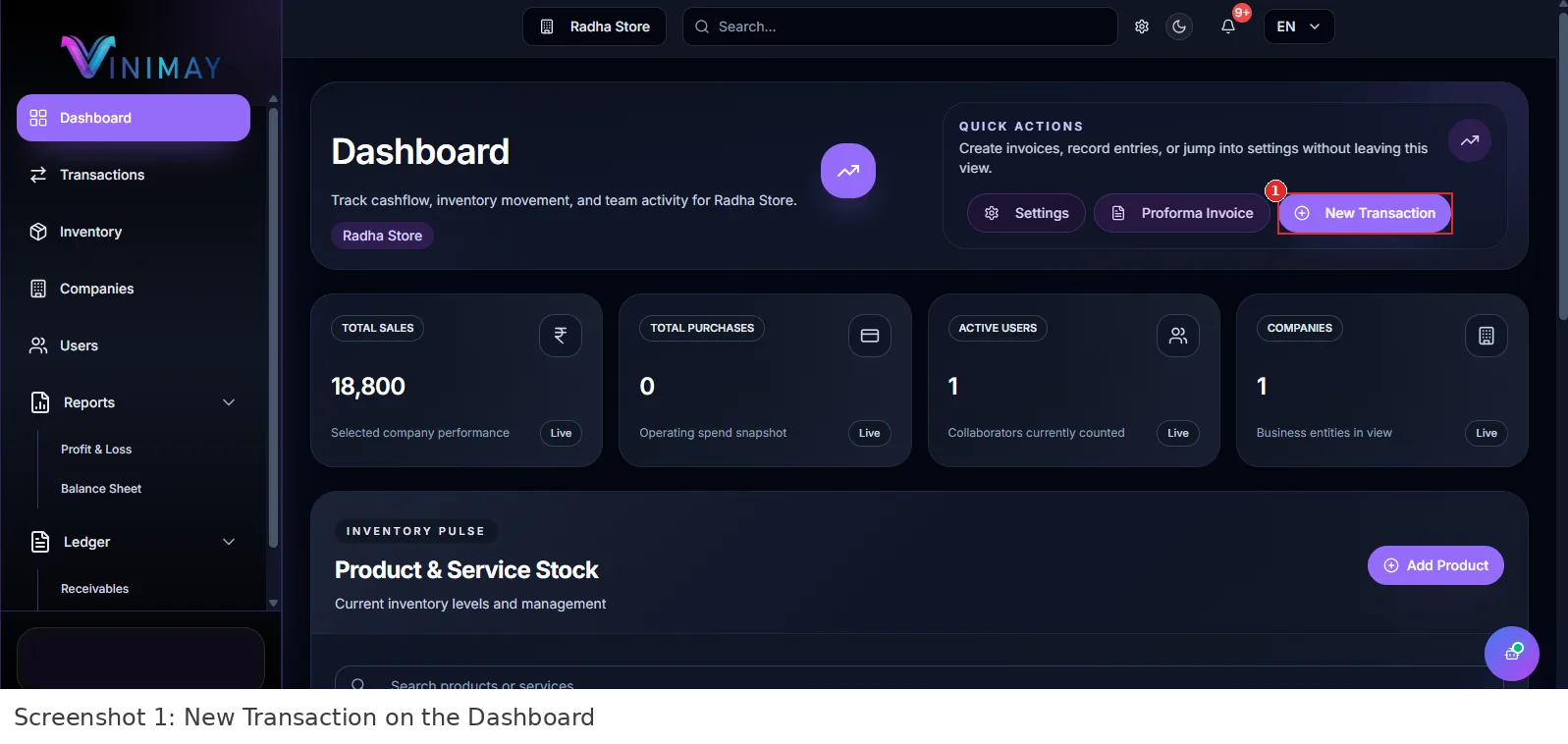
Dashboard: Click Add Product in the Product & Service Stock section.
Inventory page: Click Add Product at the top-right of the page.
Settings → Products: Click Add Product on the Manage Products page.
All three options open the same Create New Product form.
Step 1: Click Add Product
Log in to your Vinimay Client account and open the Dashboard. Locate the Product & Service Stock section and click Add Product.
Alternatively, open Inventory from the sidebar and click Add Product at the top-right corner.
The Inventory page also has an Import/Export button, which you can use when you need to add multiple products at once.
Step 2: Fill In the Create New Product Form
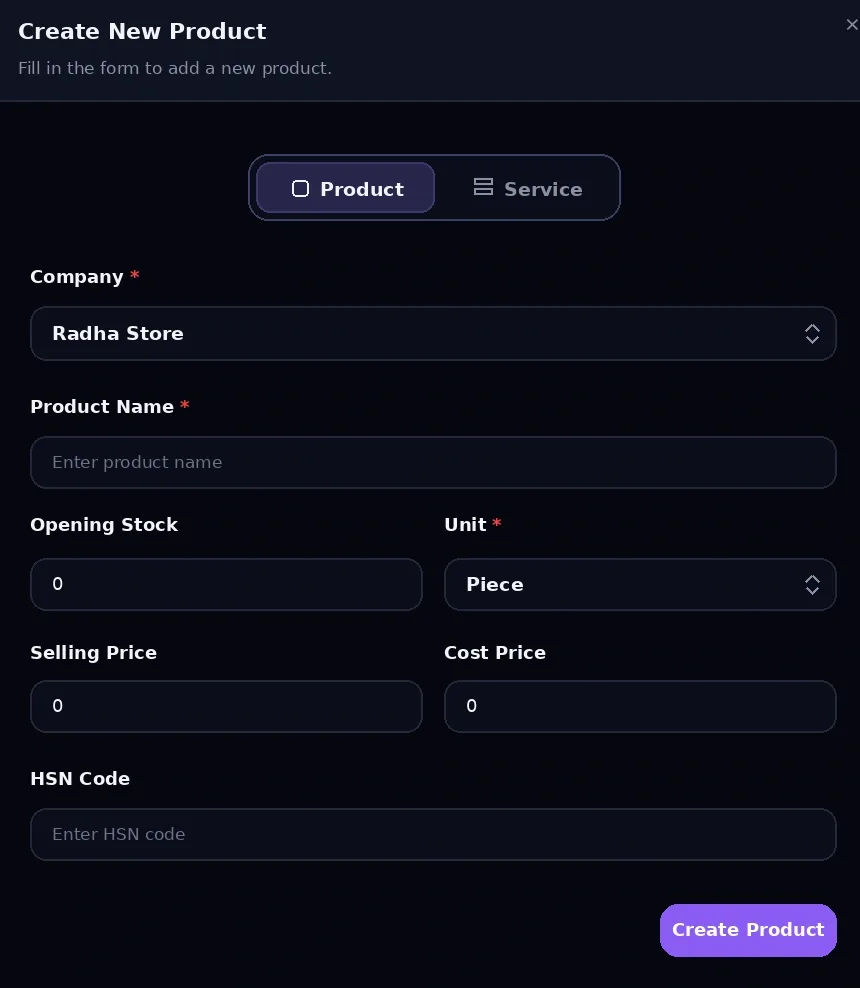
The Create New Product form contains fields for product classification, company details, stock quantity, unit, prices and HSN code. Fields marked with a red star are required.
1. Product or Service
Choose whether you are adding a physical product or a service.
Product: Select this option for goods you buy, sell or keep in stock.
Service: Select this option for services you provide to customers.
Keep Product selected when adding physical inventory items.
2. Company
Select the company to which the product belongs. This field is required.
If you manage multiple businesses in Vinimay, check the selected company before entering the remaining details.
3. Product Name
Enter a clear and identifiable product name. For example, you could enter "Keyboard," "Office Chair" or "Packaging Box."
The product name will help you identify the item when creating sales invoices, purchase entries and other transactions.
Before adding a new item, search your Inventory list to ensure that the same product does not already exist.
4. Opening Stock
Enter the quantity of the product you already have in stock when creating the product record.
For example, if you currently have five keyboards in your warehouse, enter 5 as the opening stock.
The default value is 0. Enter the actual available quantity so that Vinimay can begin tracking stock from the correct starting point.
5. Unit
Select the unit used to measure or sell the product. This field is required.
Vinimay's unit list includes:
Kg
Litre
Piece
Box
Meter
Dozen
Pack
Other
Choose the unit that matches your product and how you purchase or sell it. For example, select Kg for products sold by weight and Piece for individual items.
Using the correct unit helps maintain consistent quantities across purchase and sales transactions.
6. Selling Price
Enter the price per unit that you charge customers.
For example, if you sell a keyboard for ₹1,500, enter 1,500 as the selling price.
The default value is 0. Enter the actual selling price to keep product records useful when preparing sales transactions and reviewing margins.
7. Cost Price
Enter the price per unit you pay your supplier to purchase the product.
For example, if you purchase a keyboard for ₹800, enter 800 as the cost price.
The default value is 0. Keeping the cost price updated helps you compare purchase costs with selling prices.
In this example, the difference between the selling price of ₹1,500 and cost price of ₹800 is ₹700 per unit before considering other business expenses, taxes and applicable adjustments.
8. HSN Code
Enter the Harmonized System of Nomenclature (HSN) code applicable to the product.
HSN codes classify goods for GST purposes. This field is optional in the form, but maintaining the appropriate code can help with GST-related documentation.
Use the correct classification for your product. If you are unsure which HSN code applies, consult your accountant or GST adviser.
Step 3: Click Create Product
Once you have filled in the form, review the details before saving.
Check the following:
Product or Service selection
Company name
Product name
Opening stock quantity
Unit of measurement
Selling price
Cost price
HSN code, if applicable
After verifying the information, click Create Product at the bottom of the form.
Vinimay will process the entry and add the product to your inventory if the transaction is successful.
Step 4: Check the Product in Inventory
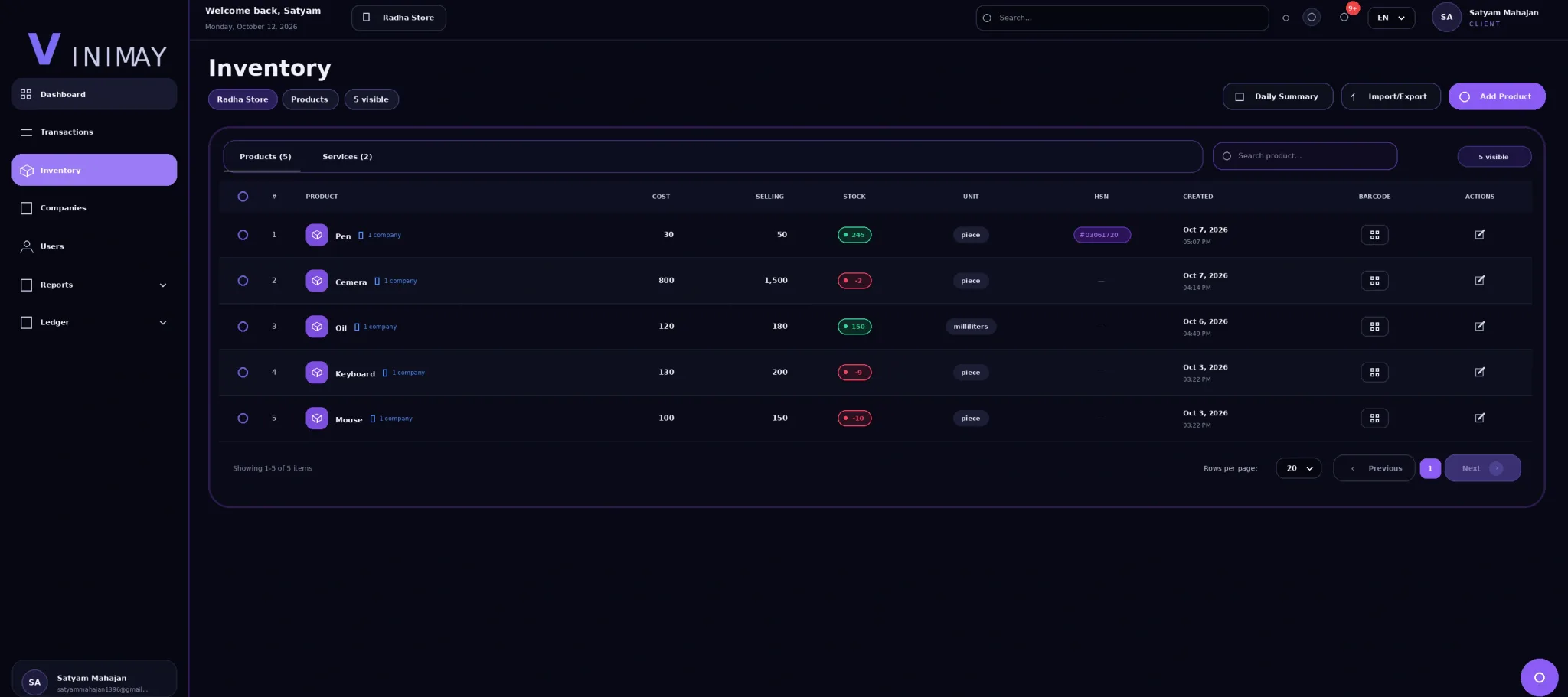
After creating the product, check the Inventory page to confirm that the new item appears in the product list.
Vinimay displays a success message, such as "1 products created successfully," and adds the product to the Inventory list.
The product row displays details such as the product name, cost price, selling price, stock quantity and unit.
For example, a newly added product might show:
Cost price: ₹800
Selling price: ₹1,500
Opening stock: 5 pieces
These details help you verify that the product has been created with the correct values.
If the product does not appear as expected, review the selected company and the details entered in the form.
Step 5: Edit the Product Later
You can update a product if you enter an incorrect price, need to correct its details or want to change other editable information.
To edit an existing product:
Open the Inventory page.
Locate the product you want to update.
Click the edit icon in the Actions column.
Review the fields in the Edit Product form.
Update the required information.
Click Save Changes.
The form displays the existing product information, including its opening stock and prices where applicable.
Review your changes carefully before saving to keep your product records accurate.
Common Mistakes to Avoid When Adding a Product
Leaving Selling Price and Cost Price at Zero
Both price fields start at 0. If you leave them unchanged when actual prices are available, your product records may not accurately reflect your selling and purchasing costs.
Enter the appropriate prices when creating the product.
Selecting the Wrong Unit
Choosing Piece for a product sold by weight, or selecting Kg for an item sold individually, can cause quantity mismatches.
Always select the unit that matches the way you measure and transact in the product.
Entering Incorrect Opening Stock
Opening stock represents the quantity available when you create the product record. Count your existing inventory before entering the quantity.
An incorrect opening balance can affect the accuracy of subsequent stock records.
Adding a Service as a Product
Physical goods and services are different types of records. Choose Product for goods and Service for work or services you provide.
Creating Duplicate Products
Search the Inventory list before adding a new product. Duplicate records can make it harder to identify the correct item during sales and purchase transactions.
Entering an Incorrect HSN Code
An incorrect HSN code can create problems in GST-related documentation. Verify the applicable classification before saving the product details.
Conclusion
Creating an accurate product record helps you maintain reliable inventory, sales and purchase information. When you add a product in Vinimay, enter the correct product name, company, opening stock, unit and prices, and provide the applicable HSN code.
After saving, check the Inventory list to verify the product details. If any editable information needs correction, use the edit option to update the record. Following these steps helps keep your product records organized and supports more accurate inventory management.