How to Choose the Right Unit (Kg, Piece, Litre) for a Product in Vinimay
Is it Kg, Piece, or Litre? The unit you select when adding a product determines how you count it, set its price, and display its quantity on sales bills. Choosing the correct unit from the beginning helps you maintain accurate inventory records and avoid confusion when billing customers.
In Vinimay, you can select a unit while creating a product through the Inventory section. This step-by-step guide explains how to choose the right unit, understand the available options, and enter prices that match your selected unit, with screenshots showing each step.
Quick answer: To choose the right unit in Vinimay, open Inventory, click Add Product, and select the Unit dropdown. Choose Piece for counted items, Kg for products sold by weight, Litre or Milliliters for liquids, Box or Pack for packaged goods, Dozen for sets of 12, Meter for length, or Other (Custom) if none of the available units fits your product.
Which Units Does Vinimay Offer?
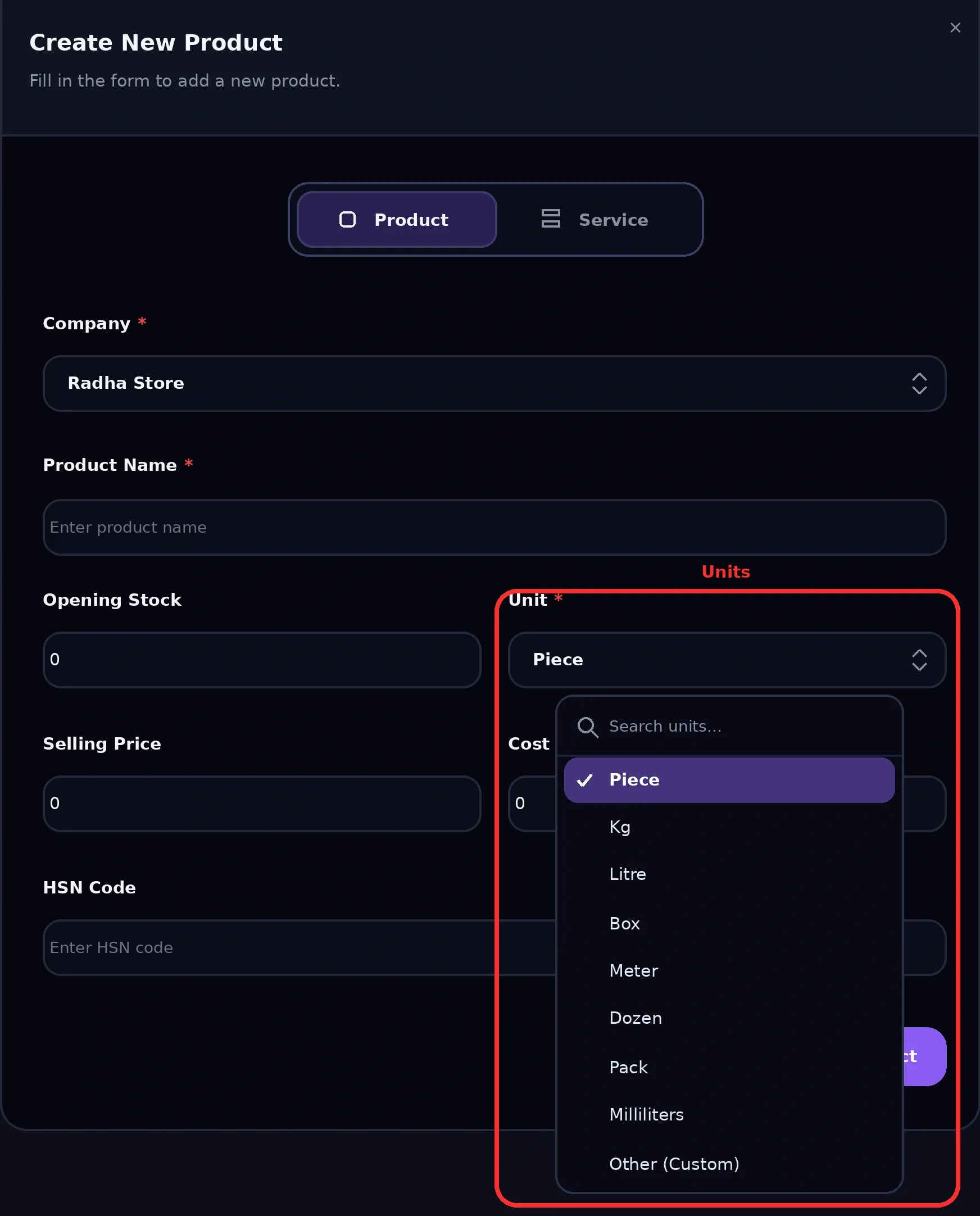
Vinimay provides nine unit options in the Unit dropdown. Each option is suitable for a different type of product or selling method.
| Unit | Best for | Example |
|---|---|---|
| Piece | Items counted individually | Pens, keyboards, or mice |
| Kg | Products sold by weight | Rice, sugar, or flour |
| Litre | Liquids sold in litres | Loose oil or milk |
| Box | Products sold in boxes | A box of tiles |
| Meter | Products sold by length | Cloth or electrical cable |
| Dozen | Products sold in sets of 12 | Eggs or bananas |
| Pack | Products sold in packs | A pack of biscuits |
| Milliliters | Liquids measured in small volumes | Small quantities of oil |
| Other (Custom) | Products requiring another unit | A custom measurement unit |
The correct choice depends on how you measure and sell the product. For example, if you sell rice by weight, Kg is more appropriate than Piece. If you sell individual pens, Piece is the better option.
How to Choose the Right Unit in Vinimay
Follow these six steps to select the appropriate unit while adding a new product.
Step 1: Click Inventory
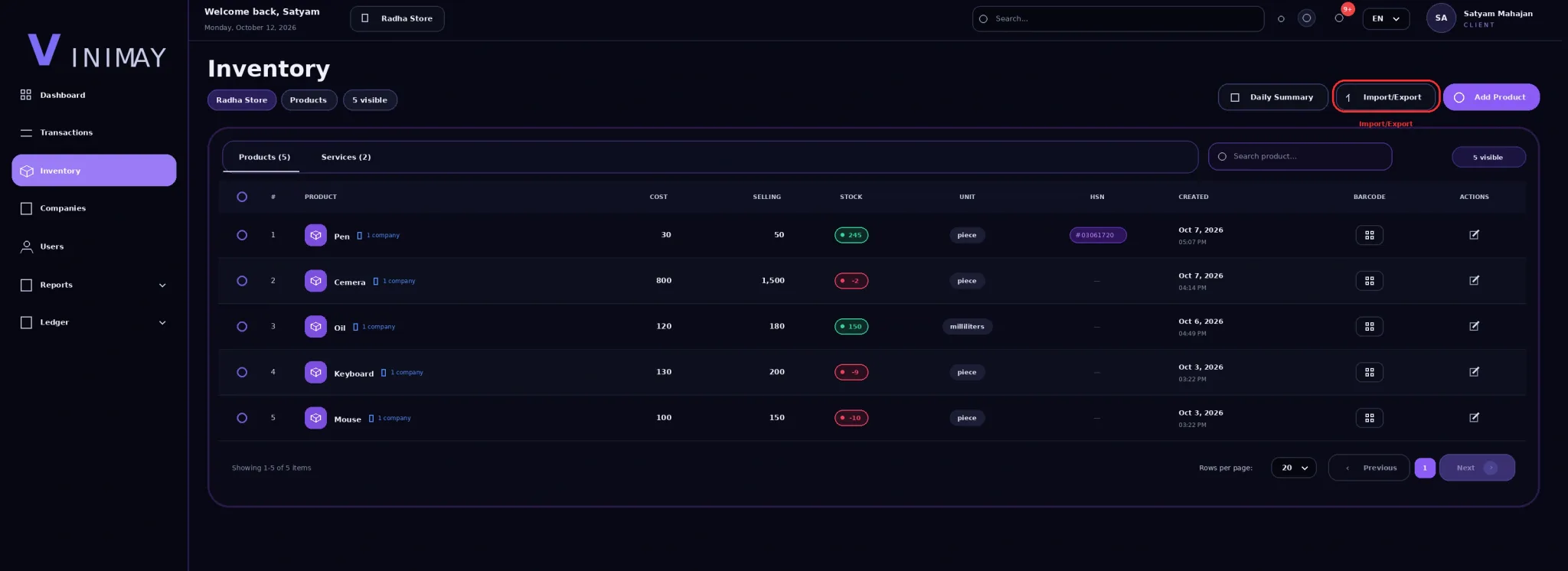
Log in to Vinimay and open your dashboard. Click Inventory in the left-side menu.
The Inventory page opens, displaying your product list and options for managing your stock.
Step 2: Click Add Product
On the Inventory page, look at the top-right corner. You will see the Daily Summary, Import/Export, and Add Product buttons.
Click Add Product to open the product creation form.
Step 3: Open the Unit Dropdown
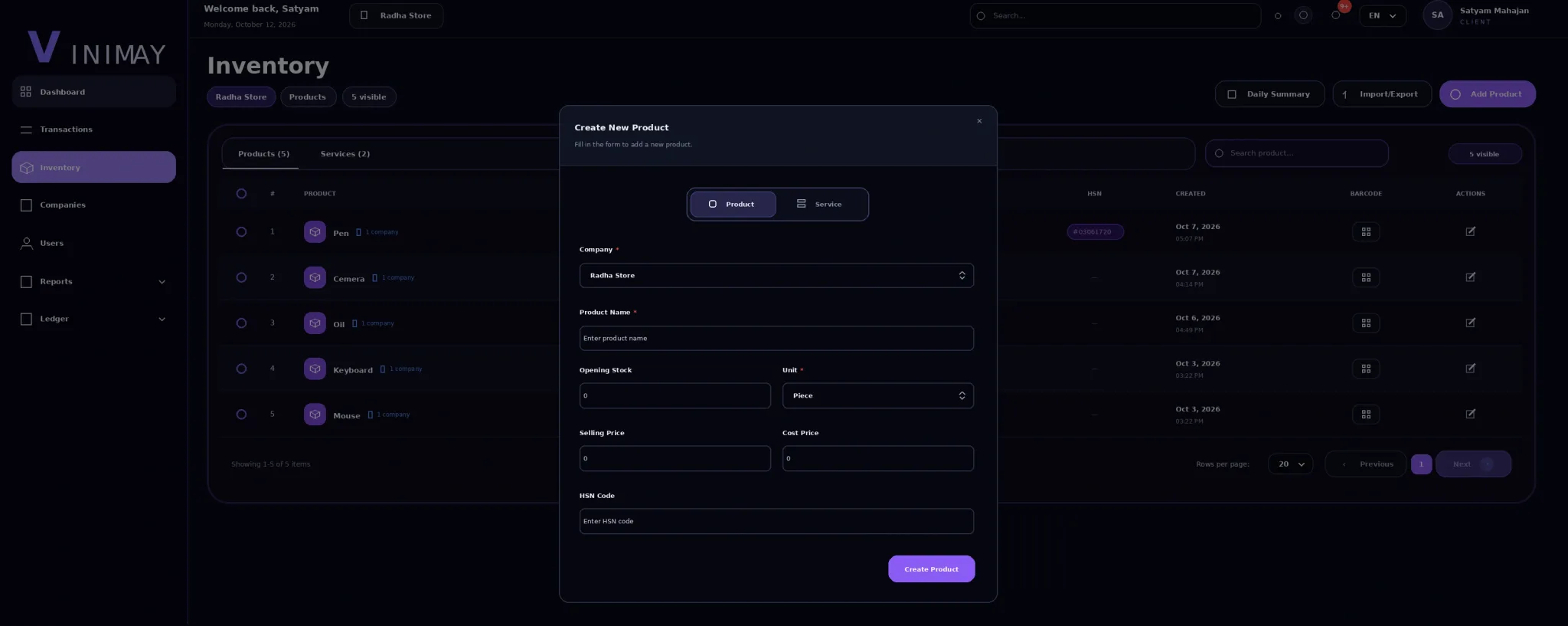
The Create New Product form opens. Select the appropriate company and enter the product name.
Next, locate the Unit field and click it to open the dropdown.
The Unit field is marked with a red asterisk, indicating that it is required. By default, the field is set to Piece, so change it if your product is sold using another unit.
Step 4: Select the Correct Unit
The dropdown displays the available unit options. Choose the one that matches how you measure and sell the product.
For example:
Select Piece for individual products such as pens or keyboards.
Select Kg for products such as rice, sugar, or flour sold by weight.
Select Litre for liquids sold by the litre.
Select Milliliters for products measured in smaller liquid quantities.
Select Dozen for items sold in sets of 12.
Select Box or Pack for products sold in those formats.
Select Meter for products sold by length.
If you cannot immediately find the required option, use the Search units box at the top of the dropdown to narrow the list. If none of the standard units fits, select Other (Custom).
Step 5: Enter Prices and Create the Product
After selecting the unit, enter the product's selling price and cost price.
Make sure both prices correspond to one unit of the measurement you selected.
For example:
If the unit is Kg, enter the price per kilogram.
If the unit is Litre, enter the price per litre.
If the unit is Piece, enter the price per piece.
If the unit is Dozen, enter the price for one dozen.
Complete the remaining required fields and click Create Product to save the product.
For more details about entering prices, see the guide on how to set cost price and selling price for a product in Vinimay.
Step 6: Verify the Unit in the Inventory List
After creating the product, return to the Inventory page and locate it in the product list.
Check the Unit column to confirm that the selected unit has been saved correctly.
If the unit is incorrect, open the product using the edit icon in the Actions column, where the available editing controls can be used to update the product details.
Screenshot: The Unit column displays the measurement unit saved for each product.
How to Choose the Right Unit for Different Products
The easiest way to choose the correct unit is to ask yourself: What unit will I use when billing my customer?
Use the following guidelines.
1. Counted Items: Choose Piece
Choose Piece when you sell products individually and count them one by one.
Examples include pens, notebooks, keyboards, mice, mobile accessories, and individual packaged items.
If a customer purchases five pens, the quantity on the bill should be five pieces.
2. Products Sold by Weight: Choose Kg
Choose Kg when you measure products by weight.
Examples include rice, sugar, flour, pulses, and other loose grocery items.
If a customer purchases 3 kg of rice, enter the quantity using the selected unit and ensure the price is set per kilogram.
3. Liquids: Choose Litre or Milliliters
Choose Litre when you sell liquids by the litre, such as loose oil or milk.
Choose Milliliters when you measure and sell liquids in smaller volumes.
One litre equals 1,000 milliliters. Therefore, make sure the price matches the unit selected in the product form.
4. Packaged Goods: Choose Box or Pack
Choose Box when a product is sold as a box and Pack when it is sold as a pack.
For example, you might sell a box of tiles or a sealed pack of biscuits. Select the unit that matches how you record the sale.
5. Products Sold in Sets: Choose Dozen
Choose Dozen when you sell products in groups of 12.
Examples include eggs or bananas sold by the dozen.
If you select Dozen, the price should represent one dozen, not one individual item.
6. Products Sold by Length: Choose Meter
Choose Meter when you sell products according to length, such as cloth or electrical cable.
If the product is sold by the metre, enter the corresponding price per metre.
7. Products Requiring a Different Measurement: Choose Other (Custom)
If none of the standard units matches your product, select Other (Custom).
Use a custom unit only when necessary. If an existing option already matches how you sell the product, using the standard unit helps keep your product list consistent.
What If You Buy in One Unit but Sell in Another?
Some businesses purchase goods in bulk but sell them in smaller quantities.
For example, you might purchase a box containing several individual items but sell each item separately.
In such cases, choose the unit that matches how you record the product for billing in Vinimay, and make sure the quantity and price correspond to that unit.
However, changing the unit alone does not automatically convert a bulk purchase into individual units. You must account for the actual quantity conversion and ensure your stock records reflect the units available for sale.
For example, if one box contains 12 pieces, selling one piece reduces the box's contents by one-twelfth. Keep the conversion and purchase records accurate so that your stock balance remains reliable.
Common Mistakes to Avoid When Choosing a Unit
Avoid these common mistakes when creating products in Vinimay.
Entering a price for the wrong unit: If the selected unit is Dozen, the price should be for 12 items, not one item.
Mixing Litre and Milliliters: One litre equals 1,000 milliliters. A price entered for the wrong unit can cause significant pricing errors.
Leaving Piece selected by default: Change the default unit if you sell the product by weight, volume, length, or another measurement.
Creating unnecessary custom units: Search the standard unit list before selecting Other (Custom).
Ignoring unit conversions: If you buy in bulk and sell in smaller quantities, make sure the quantities and prices reflect the correct conversion.
Forgetting to verify the saved unit: Check the Unit column after creating the product.
The selected unit also appears alongside quantity and price information in the Sales form's product row. Always review the unit, quantity, and Price/Unit field before creating a sales bill.
If you need to add several products with their details, see the guide on how to import products in bulk in Vinimay. You can also explore Vinimay's features or Knowledge Base for more billing and inventory tutorials.
Conclusion
Choosing the right unit in Vinimay helps you maintain accurate product quantities, set appropriate prices, and create clearer sales bills. Select Piece for individually counted products, Kg for weight, Litre or Milliliters for liquids, and the relevant option for packaged goods, sets, or length.
Before saving a product, verify its unit, cost price, selling price, and opening stock. These simple checks help prevent inventory discrepancies and make day-to-day stock management easier.