Vinimay LogoVinimay Text
About Us
Features
GST Billing & InvoicingInventory ManagementPOS BillingCustomer ManagementVendor ManagementTransaction Management
Solutions

Business Solutions

Choose a solution built for your business

General

Billing, inventory & accounts

→

Travels

Bookings, routes & billing

→

Courier

Tracking, delivery & billing

→

Transportation

Trips, vehicles & expenses

→

Marbles

Stock, units & sales

→

Restaurant & Cafe

Sales, stock & vendors

→

Kirana & Grocery

Billing, inventory & invoice

→

Service

Sales, raw material & stock

→

Manufacturing

Production, raw material & stock

→

Trading

Purchase, sales & stock ledger

→
Explore All Solutions→
Pricing
Knowledge Centre

Knowledge Base→

Step-by-step product tutorials & setup

Blogs→

Industry news, GST & tax tips

IN
About Us→
All FeaturesGST Billing & InvoicingInventory ManagementPOS BillingCustomer ManagementVendor ManagementTransaction Management
All SolutionsGeneralTravelsCourierTransportationMarblesRestaurant & CafeKirana & GroceryServiceManufacturingTrading
Pricing→

Knowledge Base

Product help & tutorials

→

Blogs

Industry news & tax tips

→

Region / Country

India

© 2025 Vinimay. All rights reserved.

🏠Getting Started
Quick setup guideHow to Add Unlimited Custom Business Fields to InvoicesHow to Set/Change Language in Vinimay Mobile AppHow to Update Phone Number/e-Mail of a BusinessHow to Add or Delete a Business in Vinimay AccountWhy Vinimay is a Better Alternative to Vyapar App
📋Billing & Invoicing
How to Add a Receiver's Signature Field to Your Invoices?How to Use Party-Wise Item PricesHow to Add and Edit Party Names for Shipping Addresses?Add Precise Quantities with Up to 4 Decimal Places
🛒Inventory Management
How to Add Items and Manage StockHow to Track Low Stock Alerts
👥Party Management
How to Add Customers and SuppliersHow to Send WhatsApp Payment Reminders
💰Accounting
How to Record Expense Entries in VinimayManaging Cash & Bank Accounts
📊Grow your business
How to Set Up Online Store in VinimayTrip & Fleet Management Guide
Contents

INVOICE

Billing
Made
Simple
Simpler billing. Brighter businesses.

Let's grow your business together.

Quick Setup

Get started in minutes

Secure & Reliable

Your data is safe with us

Built for Growth

Simple. Practical. Useful.

Vinimay Logo

Smart Billing. Stronger Businesses.

finaxis.in@gmail.com

Product

  • GST Billing & Invoicing
  • Inventory Management
  • POS Billing
  • Customer Management
  • Vendor Management
  • Transaction Management

Solutions

  • General
  • Travels
  • Courier
  • Transportation
  • Kirana & Grocery
  • Restaurant & Cafe
  • Marbles
  • Service
  • Manufacturing
  • Trading

Company

  • About Us
  • Features
  • Pricing
Small Businesses
Big Dreams
Vinimay Logo

Smart Billing. Stronger Businesses.

finaxis.in@gmail.com
Small Businesses
Big Dreams

Product

  • GST Billing & Invoicing
  • Inventory Management
  • POS Billing
  • Customer Management
  • Vendor Management
  • Transaction Management

Solutions

  • General
  • Travels
  • Courier
  • Transportation
  • Kirana & Grocery
  • Restaurant & Cafe
  • Marbles
  • Service
  • Manufacturing
  • Trading

Company

  • About Us
  • Features
  • Pricing
  • Blogs
  • Contact Us
  • Careers
Grow
Progress
Repeat

© 2026 Vinimay. All rights reserved.

Built for Growth|Simple Tools. Real Growth.

📄Inventory Management

How Do I Check Product Stock, Cost Price and Selling Price? Inventory Guide

P

Written By prachi kahar

Updated 27 days ago

Overview

Every business owner asks the same questions again and again. How many units do I have left? How much did I pay for this item? And at what price am I selling it? If you have to open a notebook or an Excel sheet to find these answers, you lose time, and it is easy to make a mistake.

How Do I Check Product Stock, Cost Price and Selling Price? Inventory Guide

Every business owner asks the same questions again and again. How many units do I have left? How much did I pay for this item? And at what price am I selling it? If you have to open a notebook or an Excel sheet to find these answers, you lose time, and it is easy to make a mistake.

In this software, all three answers are on one screen. The Dashboard has a section called Product & Service Stock (Inventory Pulse) that lists each item with its stock, unit, cost price and selling price. You can check your inventory in a few seconds, without any calculation.

In this guide, you will learn where to find that section, how to read each column, and where to add a product that is missing. Every screenshot has a red box and a number that match the text, so you can follow along easily. At the end, you will find answers to 10 common questions.

Quick answer

•       Where: Dashboard, then the Inventory Pulse section called Product & Service Stock.

•       Stock: how many units are available now, for example "2 in stock".

•       Cost Price: the price you pay for one unit of the item.

•       Selling Price: the price at which you sell one unit to your customer.

Before you start

•       You should be logged in to the software

•       Know which company you want to check

•       At least one product should be added, or the table will be empty

Step 1: Log in and open the Dashboard

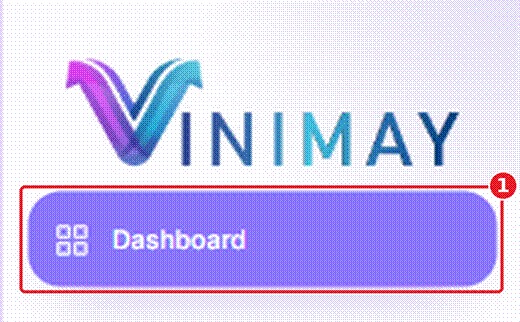
Log in to the software with your account. After you log in, you land on the Dashboard. You can always return to it from the left menu (image 1).
Title: Image 1 - Description: Step image 1

Dashboard in the left menu

Step 2: Check which company is selected

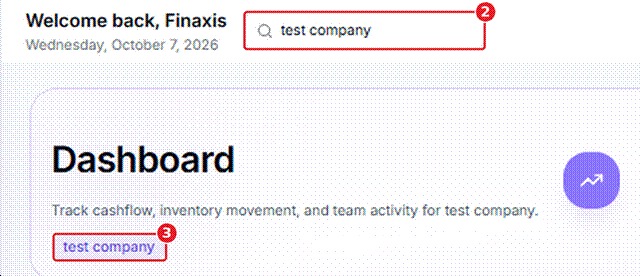
The Dashboard shows the data of one company at a time. At the top of the page, the box next to the welcome message shows the company name (image 2). The same name also appears as a tag under the Dashboard heading (image 3). In this example, it is "test company". If you manage more than one company, make sure the right one is shown before you read any numbers.
Title: Image 2 - Description: Step image 2

Selected company at the top and under the Dashboard heading

Step 3: Scroll down to Inventory Pulse

Scroll down the Dashboard until you see the section with the small label Inventory Pulse and the heading Product & Service Stock (image 4). Its description says "Current inventory levels and management." On the right side of this section, you will also see the Add Product button (image 5). We will use it in Step 6.

Title: Image 3 - Description: Step image 3

Inventory Pulse: Product & Service Stock

download.webp


Add Product button

Step 4: Search for a product or service

Below the heading, there is a search box that says "Search products or services..." (image 6). Type a part of the item name to find it quickly. This helps when your list grows long.

Title: Image 5 - Description: Step image 5

Search box for products and services

Step 5: Read the stock table

Each row in the table is one item. The columns tell you everything about it:

•       Item (image 7): the product name, with the company name shown below it.

•       Stock (image 8): how many units are available, for example "2 in stock".

•       Unit (image 9): how the item is measured, such as kg.

Title: Image 6 - Description: Step image 6

Item, Stock and Unit columns

•       Cost Price (image 10): what you pay for one unit. In the example, it is 2,000.00.

•       Selling Price (image 11): what you charge for one unit. In the example, it is 20.00.

•       Created At (image 12): the date and time when the product was added.

Title: Image 7 - Description: Step image 7

Cost Price, Selling Price and Created At columns

Tip: Compare Cost Price and Selling Price for every item. In this demo row, the selling price (20.00) is far lower than the cost price (2,000.00). If you see a pattern like this in your own data, check whether a price was typed wrongly.

Step 6: Add a product if it is missing

If you cannot find a product in the table, click the Add Product button at the top right of the section (image 5), and fill in the product details. Once it is saved, the new item should appear in the Product & Service Stock table.

Tip: Keep your product names clear and unique, such as "Rice 25kg bag", so they are easy to find with the search box.

Conclusion

Checking your stock, cost price and selling price does not need a separate report. Open the Dashboard, scroll to the Product & Service Stock section, and read the table. In a few seconds you know what you have, what it cost you and what you are charging.

To recap, always check the selected company first, use the search box to find an item, and read the Stock, Unit, Cost Price and Selling Price columns together. If something looks wrong, such as a selling price below the cost price, correct it before you create more invoices.


Frequently Asked Questions

Did this article solve your question?

Not really
Somewhat
Very helpful!

More in Inventory Management📄

Inventory में Stock -1 या लाल क्यों दिख रहा है?What Is a SAC Code? Meaning, Digits and ExamplesClient Account Management for CA Firms: Keep Every Client Organised
Previous

Client Account Management for CA Firms: Keep Every Client Organised

Still Have Questions?

Talk directly with our product specialist team

Our customer support team is available Mon-Sat, 9:00 AM - 7:00 PM IST to help you configure your business.

Email Support: finaxis.in@gmail.com
Contents