Client Account Management for CA Firms: Keep Every Client Organised
A CA firm looks after many businesses at once, and each one has its own invoices, payments and deadlines. When client data sits in separate files and chats, staff waste time looking for it and mistakes slip in.
This guide explains how a CA firm can organise client accounts, give staff the right access and keep a monthly routine. You will also follow numbered Vinimay screenshots to see where companies, users, plan limits and company selection appear.
Vinimay is free GST billing and accounting software built for small businesses. It lets you keep each business as a separate company, so you can work on one client at a time without mixing records.
What Does a CA Firm Need to Manage?
How to Manage Clients in Vinimay
Step 1: See which company you are working in
On the Dashboard, the box at the top shows the company you are working in (image 1). The cards below it show figures for the selected company. The Companies card (image 2) shows how many business entities are in view.

Company box on the Dashboard
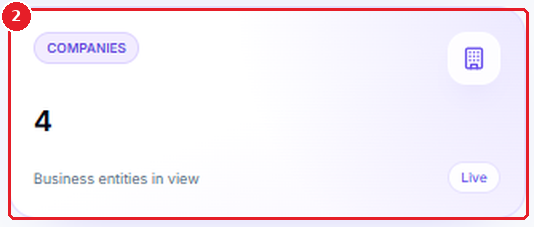
Companies card
Step 2: Add your staff
Click Users in the left menu. The Users page says you can manage user accounts, company assignments and access control from one place. The badge (image 3) shows how many companies are linked. Click Add User (image 4) to create a staff login. Use Copy URL (image 5) to share the user login link.
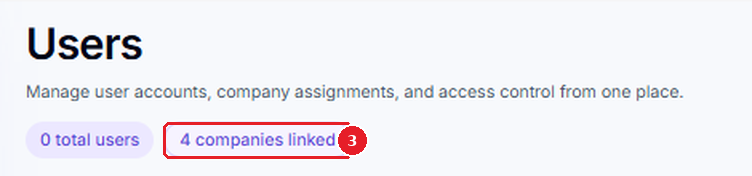
Users page
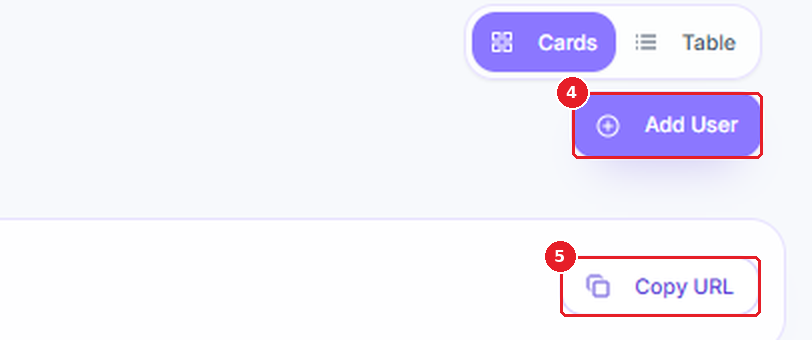
Add User and Copy URL buttons
Step 3: Check your plan limits
On the Dashboard, click Settings (image 6) in Quick Actions. The Plan & Permissions section shows your usage limits, such as Max Companies (image 7) and Max Users (image 8). Check these before you take on a new client or hire new staff. Some features, such as sending invoices by WhatsApp, depend on your plan.
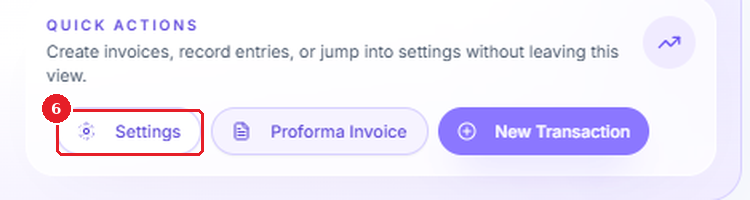
Settings button

Usage limits in Settings
Step 4: Pick the client’s company on every entry
When you create a document, the form asks for the Company (image 9). Choose the client it belongs to. On the Transactions page, the Company column (image 10) shows which company each entry belongs to, so you can review entries client by client.
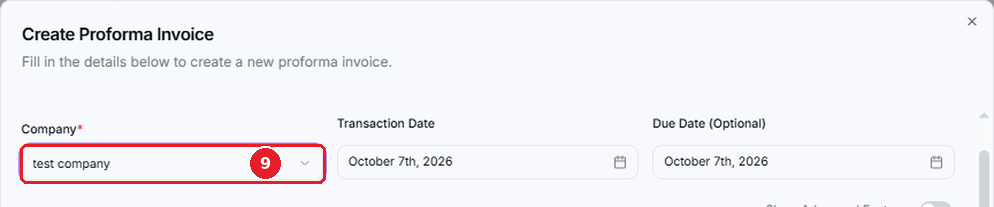
Company field in a document

Company column in Transactions
To see what a client’s customers owe, open Ledger and click Receivables. For the client’s results, open Reports and choose Profit & Loss or Balance Sheet.
Common Mistakes to Avoid
Recording an entry under the wrong client’s company.
Giving every staff member the same access.
Taking on clients without checking your plan limits.
Reviewing balances only at filing time.
Conclusion
Good client account management comes down to a few habits: a separate company for every client, the right access for every staff member and a monthly routine.
Check each client’s balances and reports before every filing, not after. Problems found early are easy to fix, and clients notice the difference.
Vinimay keeps these pieces in one place. With companies, users and reports together, your team spends less time searching and more time advising.
Try Vinimay free and bring your client accounts into one place