How to Add a Company Logo and Brand Color in Vinimay
You want your own logo and color on your company, not a blank one. Vinimay's Add Company form has a Company Logo box, a Logo Border option, and a Brand Color field at the top for this.
The logo has a size limit, and you can show or hide a border around it. The brand color starts with a code and has a Reset link, in case you want to go back.
This guide shows each field with screenshots. Red boxes have numbers matching the text. There are 10 FAQs at the end. Where our screenshots do not show something, we say so.
Quick answer
• Where: Companies, Add Company, top of the form.
• Logo size: under 200 KB.
• Color: Brand Color field, with a Reset link.
Step 1: Open the Add Company form.
Click Companies in the sidebar, then click Add Company (image 1). The logo options are at the top of the first part of the form.

Add Company button (1)
Step 2: Choose your logo
Click Choose File (image 2) and select your logo from your computer. The label says the file must be under 200 KB. Before a file is picked, the box says "No file chosen".
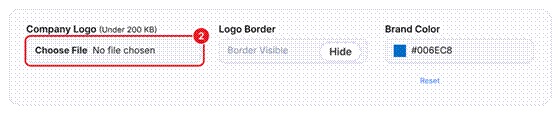
Choose File (2)
Step 3: Show or hide the logo border
The Logo Border box (image 3) says "Border Visible" and has a Hide button (image 4). Click Hide if you do not want a border around the logo. What the logo looks like on invoices is not shown in our screenshots.
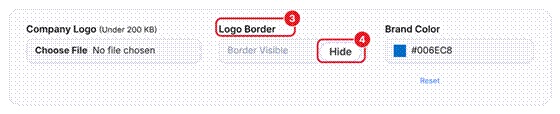
Logo Border (3) and Hide (4)
Step 4: Pick your brand color
The Brand Color box (image 5) shows a color square and a code; in our example, #006EC8. Click it to change the color. The small Reset link (image 6) below goes back to the default. Our screenshots do not show where the color is used.
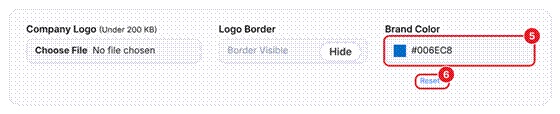
Brand Color (5) and Reset (6)
Step 5: Continue with the other parts
Above the logo are three parts: Company Basic Details (image 7), GST Registration Details (image 8) and Company TDS Details (image 9). Fill the business details below the logo and move through the parts. The Save button is not visible in our screenshots.

Form parts (7, 8, 9)
Tip: Resize your logo to under 200 KB before you start. A smaller file uploads faster.
Conclusion
A logo and a brand color make your company look professional. In Vinimay, they are at the top of the Add Company form.
Choose the file, decide on the border, pick the color and then complete the rest of the form.
After saving, check how your company looks. The FAQs below answer common questions.