Vinimay LogoVinimay Text
About Us
Features
GST Billing & InvoicingInventory ManagementPOS BillingCustomer ManagementVendor ManagementTransaction Management
Solutions

Business Solutions

Choose a solution built for your business

General

Billing, inventory & accounts

→

Travels

Bookings, routes & billing

→

Courier

Tracking, delivery & billing

→

Transportation

Trips, vehicles & expenses

→

Marbles

Stock, units & sales

→

Restaurant & Cafe

Sales, stock & vendors

→

Kirana & Grocery

Billing, inventory & invoice

→

Service

Sales, raw material & stock

→

Manufacturing

Production, raw material & stock

→

Trading

Purchase, sales & stock ledger

→
Explore All Solutions→
Pricing
Knowledge Centre

Knowledge Base→

Step-by-step product tutorials & setup

Blogs→

Industry news, GST & tax tips

IN
About Us→
All FeaturesGST Billing & InvoicingInventory ManagementPOS BillingCustomer ManagementVendor ManagementTransaction Management
All SolutionsGeneralTravelsCourierTransportationMarblesRestaurant & CafeKirana & GroceryServiceManufacturingTrading
Pricing→

Knowledge Base

Product help & tutorials

→

Blogs

Industry news & tax tips

→

Region / Country

India

© 2025 Vinimay. All rights reserved.

🏠Getting Started
Quick setup guideHow to Add Unlimited Custom Business Fields to InvoicesHow to Set/Change Language in Vinimay Mobile AppHow to Update Phone Number/e-Mail of a BusinessHow to Add or Delete a Business in Vinimay AccountWhy Vinimay is a Better Alternative to Vyapar App
📋Billing & Invoicing
How to Add a Receiver's Signature Field to Your Invoices?How to Use Party-Wise Item PricesHow to Add and Edit Party Names for Shipping Addresses?Add Precise Quantities with Up to 4 Decimal Places
🛒Inventory Management
How to Add Items and Manage StockHow to Track Low Stock Alerts
👥Party Management
How to Add Customers and SuppliersHow to Send WhatsApp Payment Reminders
💰Accounting
How to Record Expense Entries in VinimayManaging Cash & Bank Accounts
📊Grow your business
How to Set Up Online Store in VinimayTrip & Fleet Management Guide
Contents

INVOICE

Billing
Made
Simple
Simpler billing. Brighter businesses.

Let's grow your business together.

Quick Setup

Get started in minutes

Secure & Reliable

Your data is safe with us

Built for Growth

Simple. Practical. Useful.

Vinimay Logo

Smart Billing. Stronger Businesses.

finaxis.in@gmail.com

Product

  • GST Billing & Invoicing
  • Inventory Management
  • POS Billing
  • Customer Management
  • Vendor Management
  • Transaction Management

Solutions

  • General
  • Travels
  • Courier
  • Transportation
  • Kirana & Grocery
  • Restaurant & Cafe
  • Marbles
  • Service
  • Manufacturing
  • Trading

Company

  • About Us
  • Features
  • Pricing
Small Businesses
Big Dreams
Vinimay Logo

Smart Billing. Stronger Businesses.

finaxis.in@gmail.com
Small Businesses
Big Dreams

Product

  • GST Billing & Invoicing
  • Inventory Management
  • POS Billing
  • Customer Management
  • Vendor Management
  • Transaction Management

Solutions

  • General
  • Travels
  • Courier
  • Transportation
  • Kirana & Grocery
  • Restaurant & Cafe
  • Marbles
  • Service
  • Manufacturing
  • Trading

Company

  • About Us
  • Features
  • Pricing
  • Blogs
  • Contact Us
  • Careers
Grow
Progress
Repeat

© 2026 Vinimay. All rights reserved.

Built for Growth|Simple Tools. Real Growth.

📄Service

Software Mein Service Kaise Add Karein (Step-by-Step Guide)

P

Written By prachi kahar

Updated 20 days ago

Overview

Business me sirf maal hi nahi bikta, kai baar aap kaam ya expertise bechte hain, jaise repair, installation, consulting, transport ya design ka kaam. Ise "service" kehte hain. Service ka koi physical stock nahi hota, isliye accounting software me ise product se alag add kiya jata hai.

Software Mein Service Kaise Add Karein (Step-by-Step Guide)

Business me sirf maal hi nahi bikta, kai baar aap kaam ya expertise bechte hain, jaise repair, installation, consulting, transport, ya design ka kaam. Ise "service" kehte hain. Service ka koi physical stock nahi hota, isliye accounting software me ise product se alag add kiya jata hai.

Agar service ka naam, rate aur SAC code software me pehle se save ho, to invoice banate waqt har baar sab kuch likhna nahi padta. Isse time bachta hai, galti ke chances kam hote hain aur GST calculation bhi sahi hota hai.

Is guide me hum screenshots ke saath step-by-step dekhenge ki service kaise add karte hain. Har screenshot par laga red box aur number text ke "image me ..." se match karta hai, isliye aap aasani se follow kar sakte hain. Aakhir me 10 aam sawal (FAQ) bhi diye gaye hain.

Shuru karne se pehle

•       Software me login kiya hua hona chahiye

•       Company pehle se create ho (jis company ke liye service add karni hai)

•       Service ka naam aur uska amount (rate) ready rakhein

•       SAC code ready rakhein, ye tax calculation ke kaam aata hai

Step 1: Dashboard kholein

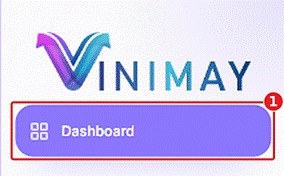
Login karte hi aap Dashboard par aate hain. On the left side of the menu, the Dashboard option (image me 1) is highlighted.
Title: Image 1 - Description: Step image 1

Left menu me Dashboard

Step 2: Settings button par click karein

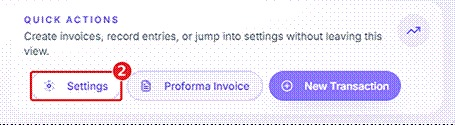
Dashboard par upar Quick Actions me Settings button hai. Us par click karein (image me 2).
Title: Image 2 - Description: Step image 2

Dashboard par Settings button

Step 3: Services tab chunein

Settings page par Permissions, Reset Password, Vendors, Customers, Products, Services, Invoices aur Banks tabs dikhte hain. In the Services tab par click karein (image me 3).

Title: Image 3 - Description: Step image 3

Settings me Services tab


Step 4: Add Service button dabayein

Services tab me Manage Services page khulta hai. Yahan upar kul kitni services hain ye counting dikhti hai. Nayi service jodne ke liye right side ka Add Service button dabayein (image me 4).

Title: Image 4 - Description: Step image 4

Add Service button

Tip: Bahut saari services ek saath add karni hon to Add Service ke bagal ke Import Services button ka use karein.

Step 5: Company select karein

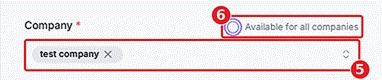
1. Company field me dropdown se wo company chunein jiske liye service add kar rahe hain (image me 5). Ye required field hai.

2. Agar service sabhi companies me chahiye to Available for all companies option chunein (image me 6).
Title: Image 5 - Description: Step image 5

Company aur "Available for all companies" option

Step 6: Service ka naam aur amount bharein

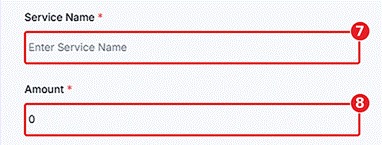
1. Service Name me service ka naam likhein, jaise "Consulting" ya "AC Repair" (image me 7). Ye required hai.

2. Amount me service ka rate daalein (image me 8). Ye bhi required hai.
Title: Image 6 - Description: Step image 6

Service Name aur Amount

Step 7: SAC Code daalein

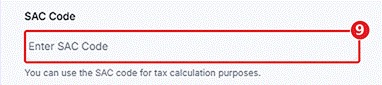
Ab SAC Code field me service ka SAC code likhein (image me 9). Form me bhi likha hai ki is code ko tax calculation ke liye use kar sakte hain.
Title: Image 7 - Description: Step image 7

SAC Code field

Tip: SAC code sahi bharein, kyunki isi se GST ka sahi calculation hota hai.

Step 8: Create Service par click karein

Sab details check karne ke baad form ke neeche Create Service button dabayein (image me 10). Service save ho jayegi aur Manage Services list me dikhne lagegi.

Title: Image 8 - Description: Step image 8

Create Service button

Conclusion

I guided him to see the Dashboard, Settings, phir Services tab, Add Service form aur Create Service tak service add is done in a few minutes. Bas company chunein, service ka naam aur amount bharein, SAC code daalein aur Create Service par click karein.

Ek baar service save ho jaye to invoice aur hisab-kitab me wahi naam, rate aur SAC code apne aap use ho sakte hain. Isse har baar details likhne ka time bachta hai aur tax ki galti ka darr kam hota hai.

Ab aap isi tarah apni baaki services bhi add kar sakte hain. Agar bahut saari services hain to Import Services se ek saath bhi add kar sakte hain. Neeche diye gaye FAQ me aur bhi aam sawalon ke jawab hain


Frequently Asked Questions

Did this article solve your question?

Not really
Somewhat
Very helpful!

More in Service📄

Why Can't I Add More Companies or Users in Vinimay? Check Your Plan LimitsHow to Choose Business Type, Industry Type and Business Model in VinimayHow to Add More Than One Product or Service to the Same Invoice in VinimayHow to Map Your Menu to Swiggy and Zomato in Vinimay

Why Can't I Add More Companies or Users in Vinimay? Check Your Plan Limits

Next
Still Have Questions?

Talk directly with our product specialist team

Our customer support team is available Mon-Sat, 9:00 AM - 7:00 PM IST to help you configure your business.

Email Support: finaxis.in@gmail.com
Contents