How to Choose Business Type, Industry Type and Business Model in Vinimay
The company form in Vinimay asks for a Business Type, an Industry Type and a Business Model, and each of them is a required dropdown. If you are not sure which choice fits your business, it is easy to pick the wrong one or to get stuck on the first step.
The three dropdowns sit side by side at the top of the first step, Company Basic Details. Screenshots show choices such as Partnership and Private Limited Company for Business Type, Trading and Service for Industry Type, and Courier Service, Manufacturing and Vehicle Leasing Service for Business Model.
This guide starts from the login page and shows with real screenshots where these fields are and how they appear on the company card.
Step 1: Log in to Vinimay
Open the Vinimay login page. Choose Client Login for the account owner or User Login for staff (marker 1). Enter the Username (marker 2) and Password (marker 3), type the CAPTCHA (marker 4), and click Sign In (marker 5).
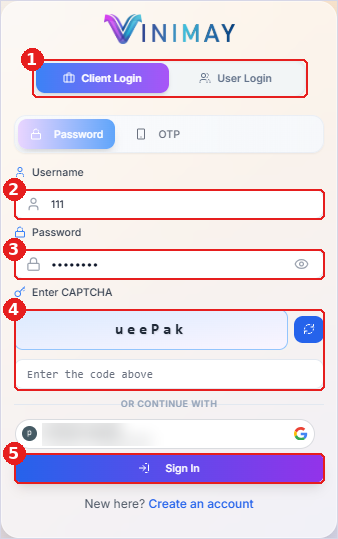 Step 1: Log in to Vinimay
Step 2: Open Companies from the Dashboard
After you sign in, you land on the dashboard. In the left menu, click Companies (marker 6).
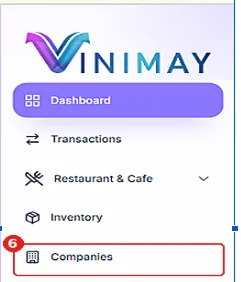
Step 2: Companies in the left menu
Step 3: Look at your company card
On the company card, you see the business type under the company name, for example Partnership (marker 7), and tags next to the GST status, such as restaurants_cafe (marker 8) on one company and courier (marker 9) on another. The tag follows what was chosen for the company.
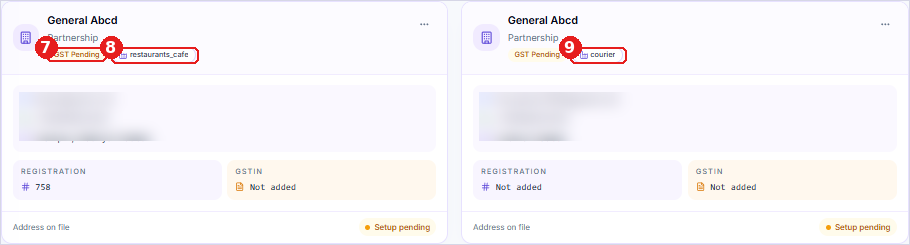
Step 3: Business type and tags on the company card
Step 4: Find the three dropdowns
Open the company with the three-dot button on its card. On the first step, Company Basic Details, you will find:
Business Type (marker 10): required. The example shows Partnership.
Industry Type (marker 11): required. The example shows Trading.
Business Model (marker 12): required. The example shows Manufacturing.
Business Name (marker 13): required.
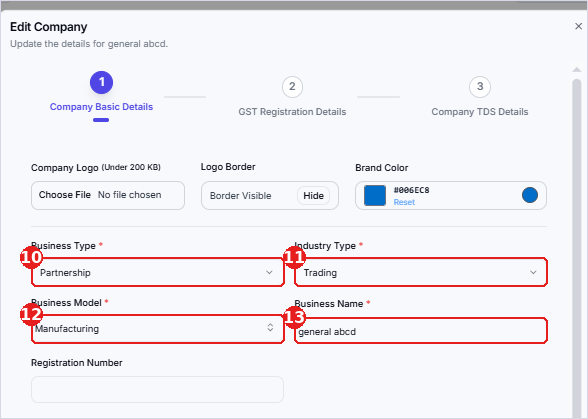
Step 4: The three dropdowns
Step 5: Choose the Business Model that fits you
The business model is the choice that describes what your business does. Another screenshot shows Courier Service (marker 14) chosen, and a third shows Vehicle Leasing Service with the Industry Type set to Service. Open the dropdown to see all the choices.
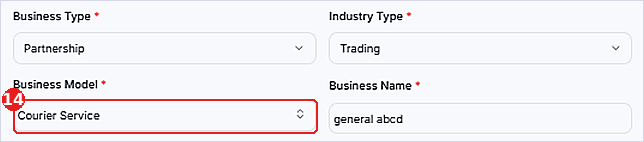
Step 5: Business Model
Tips
Pick the Business Type that matches how your business is registered.
Pick the Industry Type first, then look through the Business Model choices.
Check the tag on the company card after you save.
Ask your CA when you are not sure about your business type.
Conclusion
Business Type, Industry Type and Business Model are three required dropdowns at the top of the company form in Vinimay. The company card shows the business type and a tag that follows your choice.
Open each dropdown to see all the choices and pick the one that fits your business. You can change them later by editing the company.
Choosing correctly keeps your company profile accurate. Create a free Vinimay account and set up your company today.