अगर आप रेस्टोरेंट, कैफे या फूड बिज़नेस चलाते हैं और अपने बिज़नेस की अकाउंटिंग, बिलिंग और अन्य गतिविधियों को एक ही सॉफ्टवेयर से मैनेज करना चाहते हैं, तो Vinimay Accounting Software आपके लिए उपयोगी हो सकता है।
Vinimay में आप अपने रेस्टोरेंट को एक नई कंपनी के रूप में जोड़ सकते हैं। इसके बाद उपलब्ध सुविधाओं के अनुसार रेस्टोरेंट की बिलिंग, मेन्यू, इन्वेंट्री, कर्मचारियों और अन्य बिज़नेस रिकॉर्ड को मैनेज कर सकते हैं।
इस गाइड में हम आपको बताएंगे कि Vinimay में नया Restaurant या Cafe कैसे Add करें, जरूरी बिज़नेस डिटेल्स कैसे भरें और रेस्टोरेंट का अकाउंट कैसे तैयार करें।
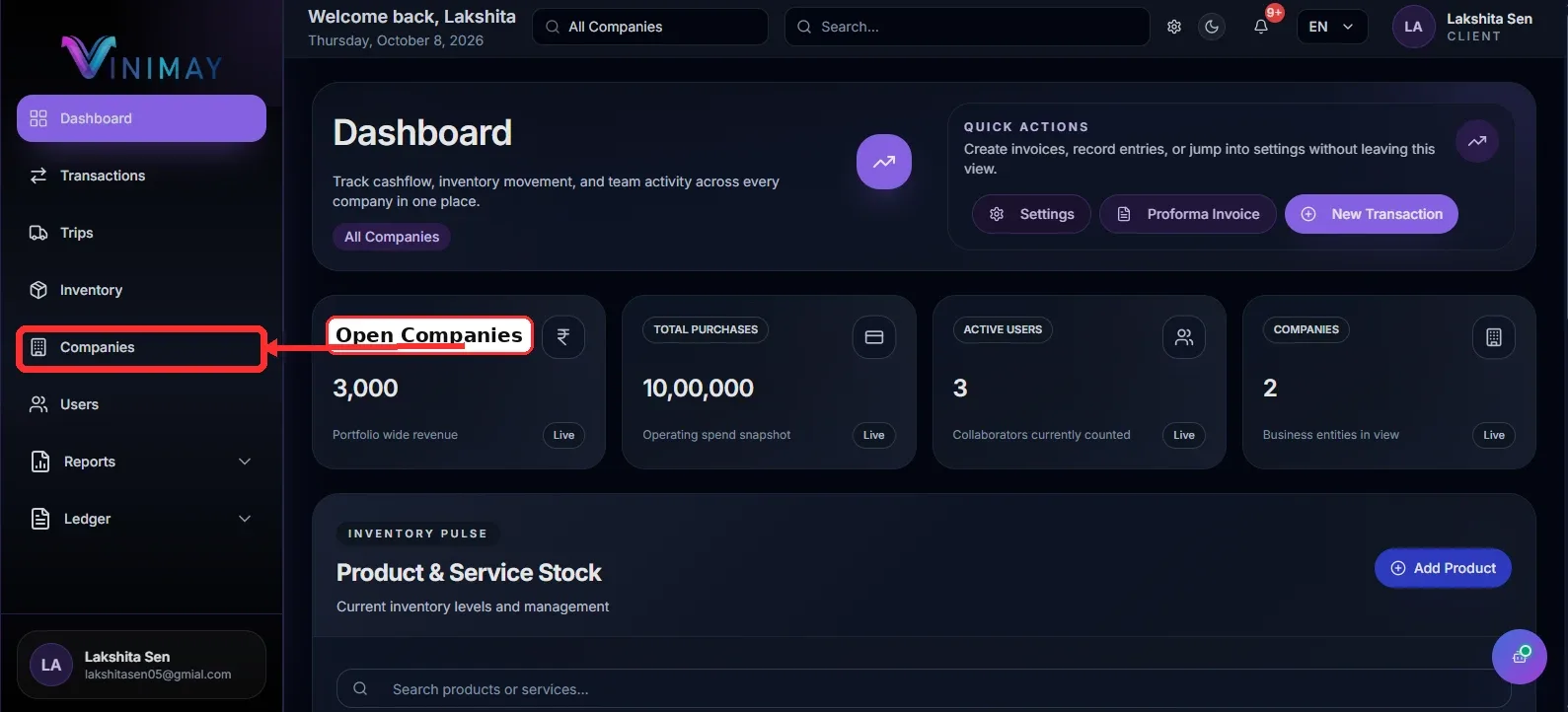
Step 1: Companies सेक्शन खोलें
सबसे पहले Vinimay में अपने रजिस्टर्ड अकाउंट से लॉगिन करें।
लॉगिन करने के बाद आपके सामने मुख्य Dashboard खुल जाएगा।
अब स्क्रीन के बाईं ओर दिए गए मेन्यू में Companies का विकल्प खोजें।
Companies पर क्लिक करने से एक नया पेज खुलेगा, जहां आप अपने अकाउंट में पहले से जोड़ी गई सभी कंपनियों और बिज़नेस की जानकारी देख सकते हैं।
इसी सेक्शन से आप नया रेस्टोरेंट भी जोड़ सकते हैं।
Step 2: Add Company बटन पर क्लिक करें
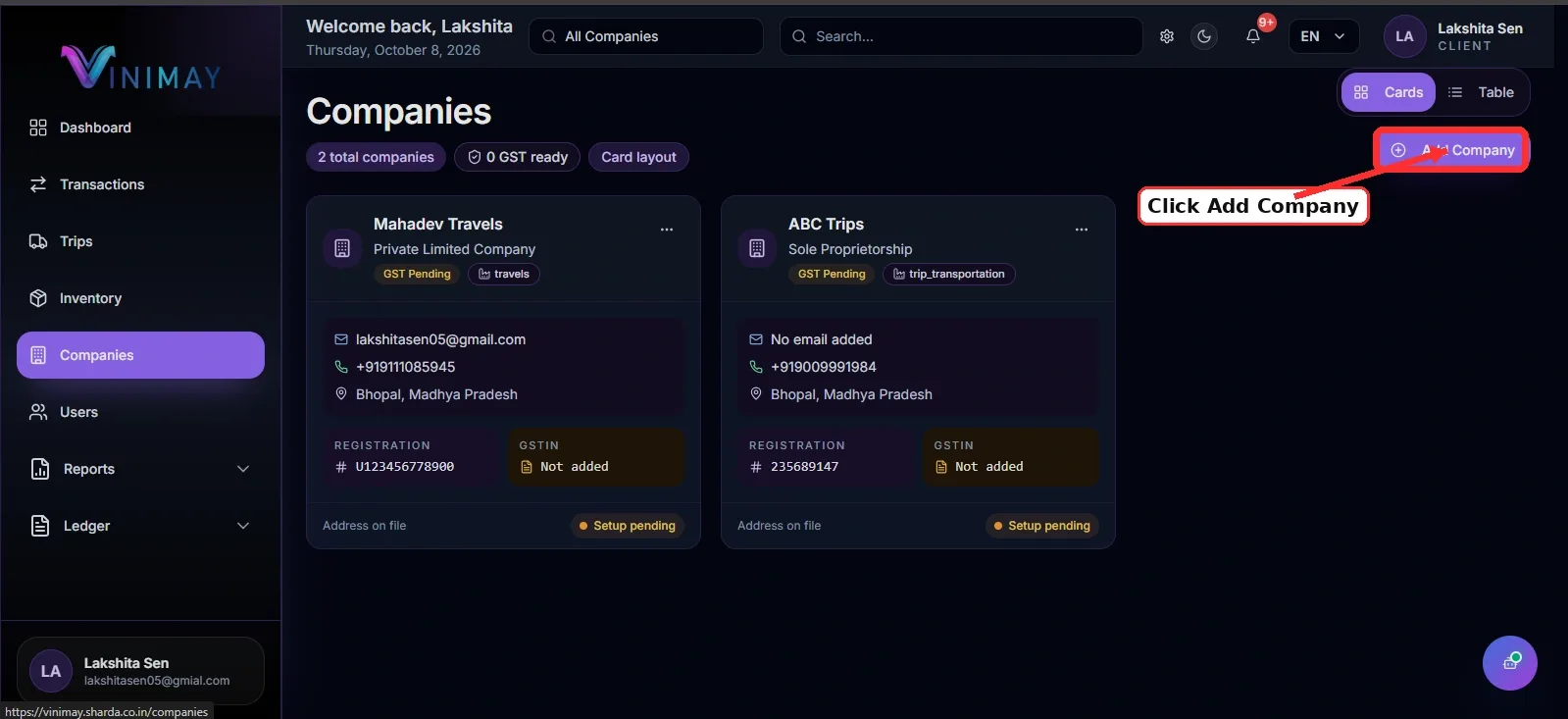
Companies पेज खुलने के बाद स्क्रीन के ऊपर दाईं ओर Add Company का बटन दिखाई देगा।
इस बटन पर क्लिक करें।
अब आपके सामने नई कंपनी बनाने का फॉर्म खुल जाएगा।
इस फॉर्म में आपको रेस्टोरेंट से संबंधित जरूरी जानकारी दर्ज करनी होगी।
ध्यान रखें कि यहां आपका रेस्टोरेंट एक कंपनी या बिज़नेस प्रोफाइल के रूप में जोड़ा जाएगा।
Step 3: Restaurant की Basic Details भरें
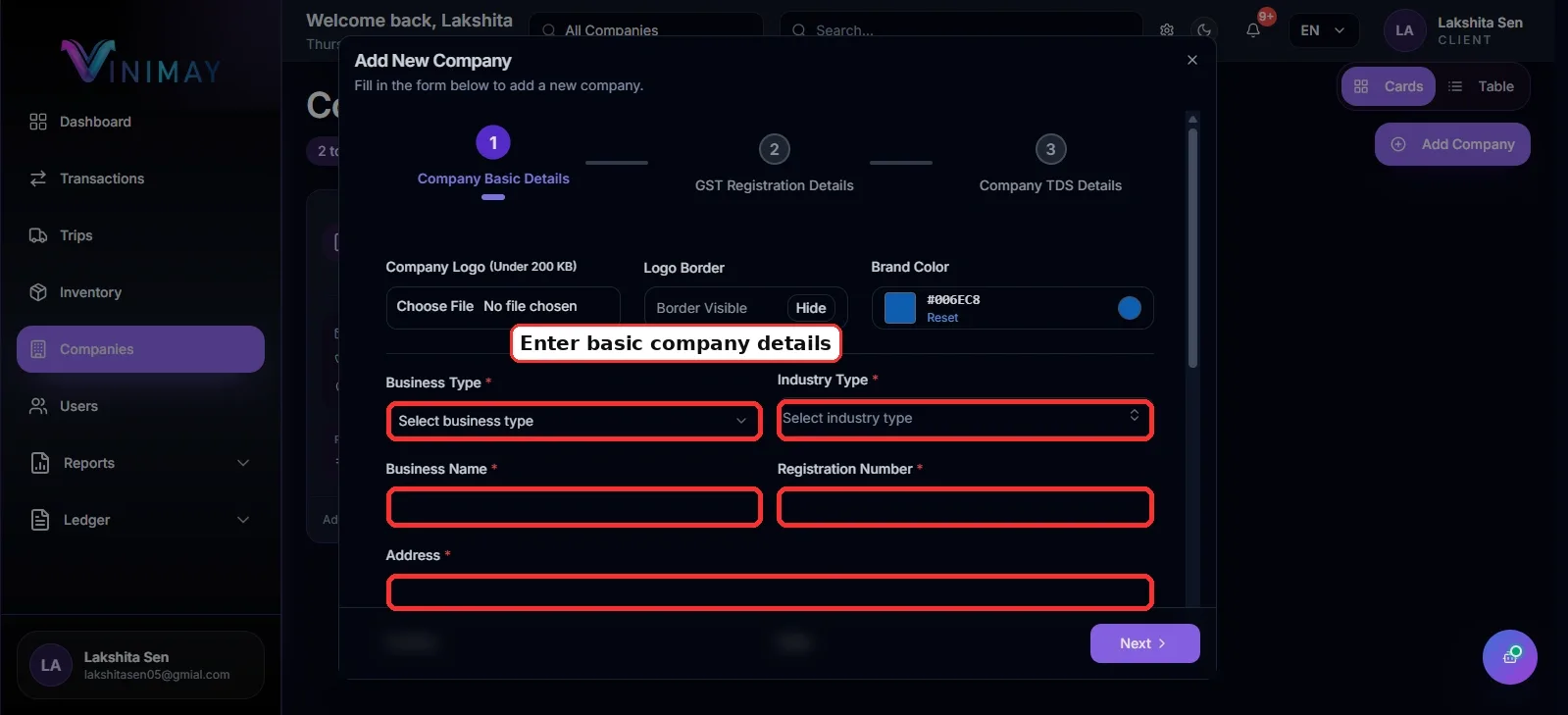
अब Company Basic Details सेक्शन में अपने रेस्टोरेंट की जानकारी दर्ज करें।
इसमें निम्न विवरण शामिल हो सकते हैं:
Business Type: अपने बिज़नेस का प्रकार चुनें।
Industry Type: रेस्टोरेंट से संबंधित इंडस्ट्री चुनें।
Business Name: अपने रेस्टोरेंट का नाम दर्ज करें।
Registration Number: लागू होने पर रजिस्ट्रेशन नंबर भरें।
Business Address: रेस्टोरेंट का पूरा पता दर्ज करें।
Company Logo: जरूरत के अनुसार रेस्टोरेंट का लोगो अपलोड करें।
Brand Color: अपने ब्रांड की पहचान के अनुसार रंग चुनें।
सभी जानकारी सही तरीके से भरें, क्योंकि इनका उपयोग कंपनी प्रोफाइल और संबंधित बिज़नेस दस्तावेजों में किया जा सकता है।
Step 4: Restaurants & Cafe विकल्प चुनें
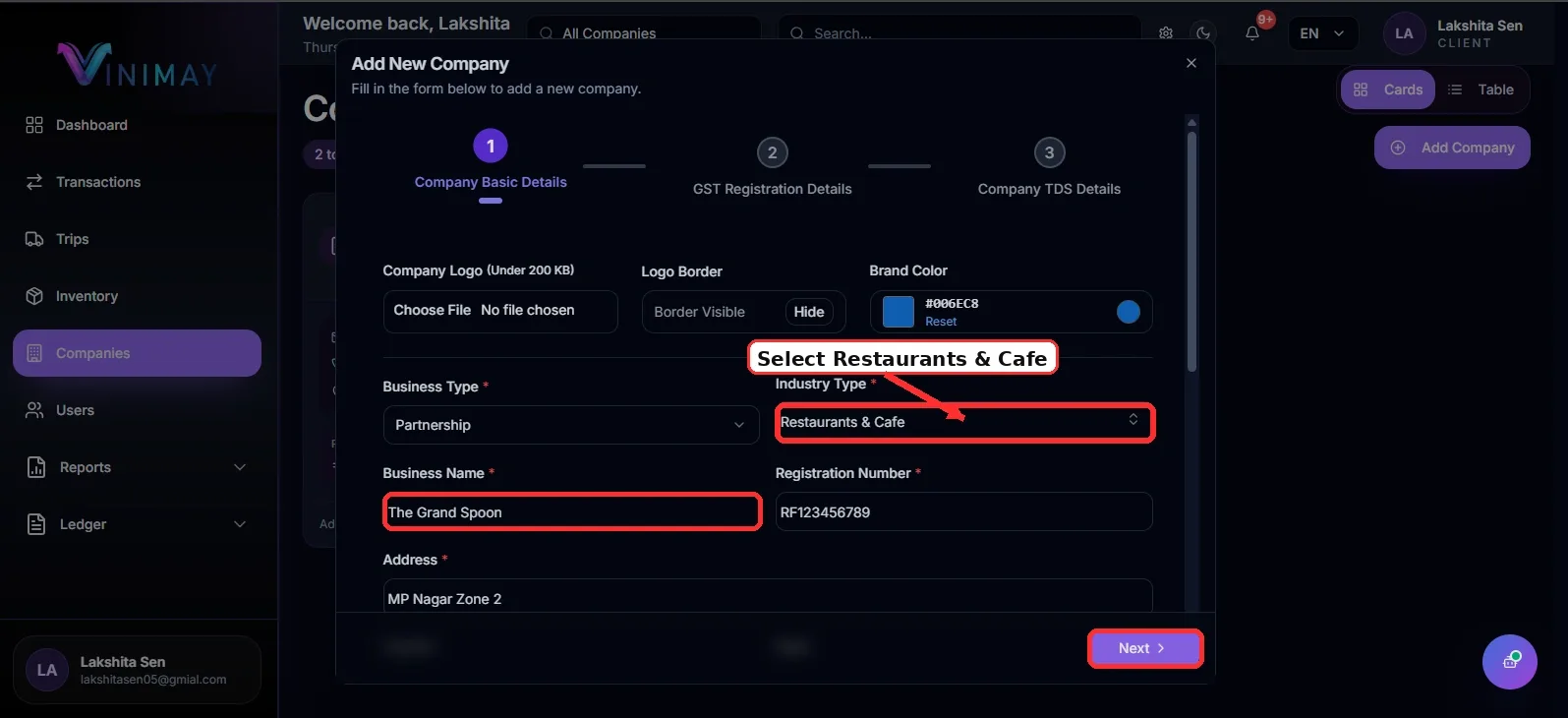
अब Industry Type वाले विकल्प पर क्लिक करें।
उपलब्ध इंडस्ट्री की लिस्ट में से Restaurants & Cafe चुनें।
यह स्टेप महत्वपूर्ण है, क्योंकि इससे Vinimay में आपका बिज़नेस रेस्टोरेंट और कैफे कैटेगरी के अंतर्गत दर्ज होगा।
इसके बाद अपने रेस्टोरेंट का नाम और आवश्यक रजिस्ट्रेशन डिटेल्स भरें।
उदाहरण के लिए, अगर आपके रेस्टोरेंट का नाम The Grand Spoon है, तो Business Name में यही नाम दर्ज करें।
सभी डिटेल्स चेक करने के बाद Next बटन पर क्लिक करें।
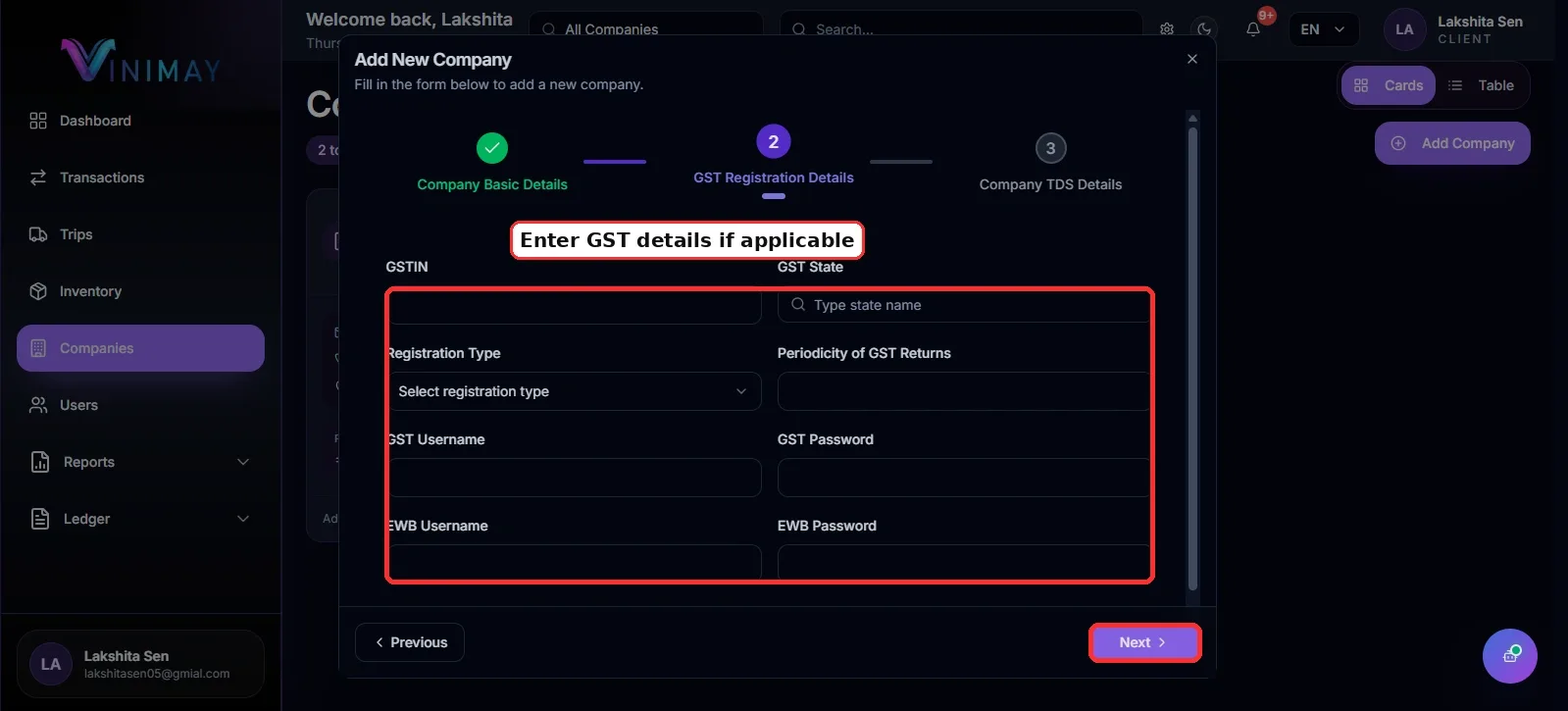
Step 5: GST Registration Details दर्ज करें
अगले स्टेप में GST Registration Details का फॉर्म खुलेगा।
अगर आपका रेस्टोरेंट GST के अंतर्गत रजिस्टर्ड है, तो यहां लागू विवरण दर्ज करें।
इसमें निम्न जानकारी शामिल हो सकती है:
GSTIN: रेस्टोरेंट का GST रजिस्ट्रेशन नंबर
GST State: वह राज्य जिसमें GST रजिस्ट्रेशन है
Registration Type: GST रजिस्ट्रेशन का प्रकार
GST Return Periodicity: GST रिटर्न फाइल करने की अवधि
GST Username/Password: जरूरत होने पर संबंधित लॉगिन जानकारी
E-Way Bill Details: लागू होने पर जरूरी विवरण
ध्यान रखें कि सभी रेस्टोरेंट पर एक जैसी GST आवश्यकताएं लागू नहीं होती हैं।
अगर आपका रेस्टोरेंट GST के अंतर्गत रजिस्टर्ड नहीं है, तो उपलब्ध विकल्पों के अनुसार आगे बढ़ें।
सुरक्षा के लिए GST पोर्टल के लॉगिन क्रेडेंशियल्स केवल आवश्यक और विश्वसनीय व्यवस्था में ही दर्ज करें।
Step 6: TDS Details भरें और Company Create करें
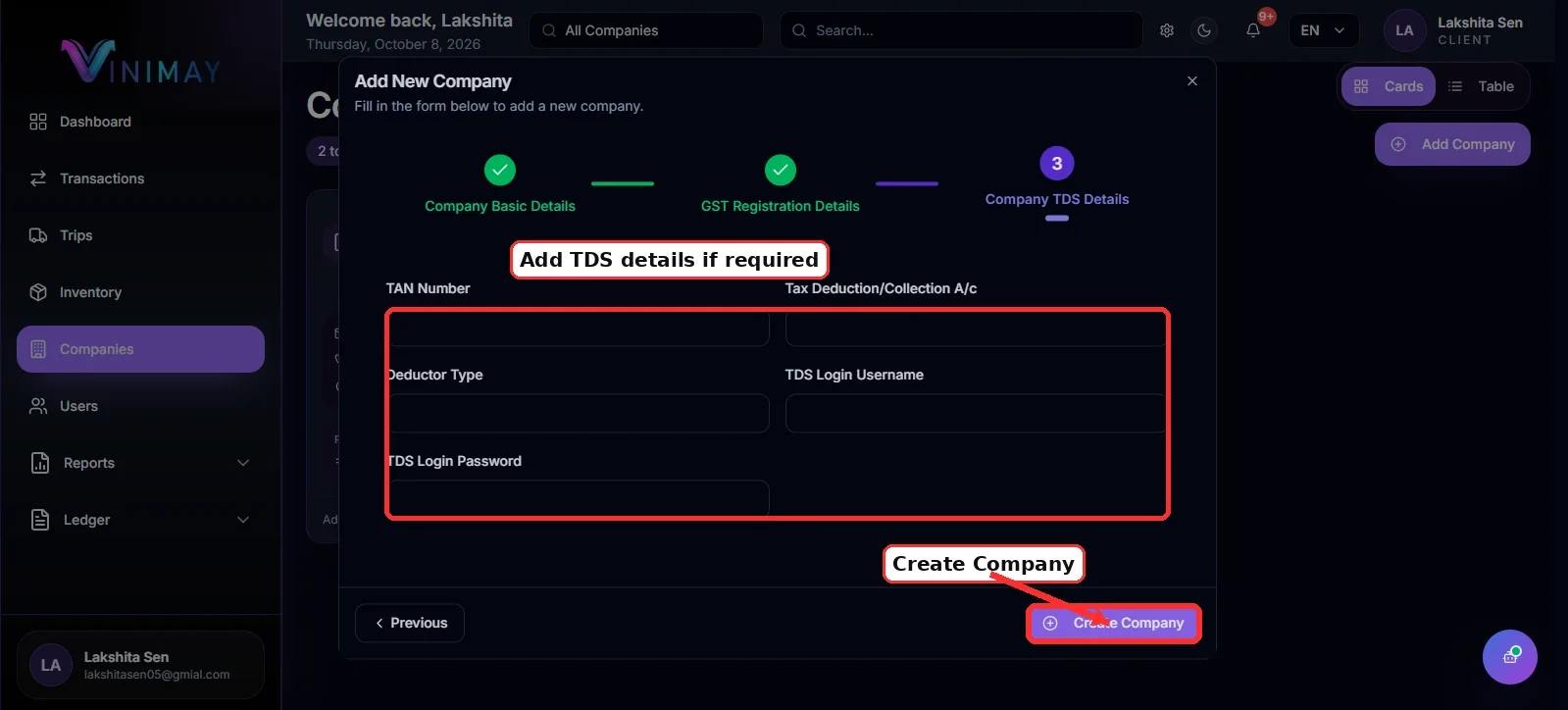
GST डिटेल्स पूरी करने के बाद अगला सेक्शन Company TDS Details होगा।
यहां आपको अपने रेस्टोरेंट की TDS से संबंधित जानकारी भरनी पड़ सकती है।
इसमें शामिल हो सकते हैं:
TAN Number: लागू होने पर टैक्स डिडक्शन अकाउंट नंबर
Deductor Type: TDS काटने वाले व्यक्ति या संस्था का प्रकार
TDS Login Information: आवश्यक होने पर संबंधित लॉगिन विवरण
अगर आपके बिज़नेस पर TDS से संबंधित आवश्यकताएं लागू होती हैं, तो सही जानकारी दर्ज करें।
सभी विवरण भरने के बाद एक बार पूरे फॉर्म को चेक करें।
अब Create Company बटन पर क्लिक करें।
जानकारी सही होने पर Vinimay में आपका नया रेस्टोरेंट बिज़नेस प्रोफाइल बन जाएगा।
Step 7: Restaurant Successfully Add हुआ है या नहीं, चेक करें
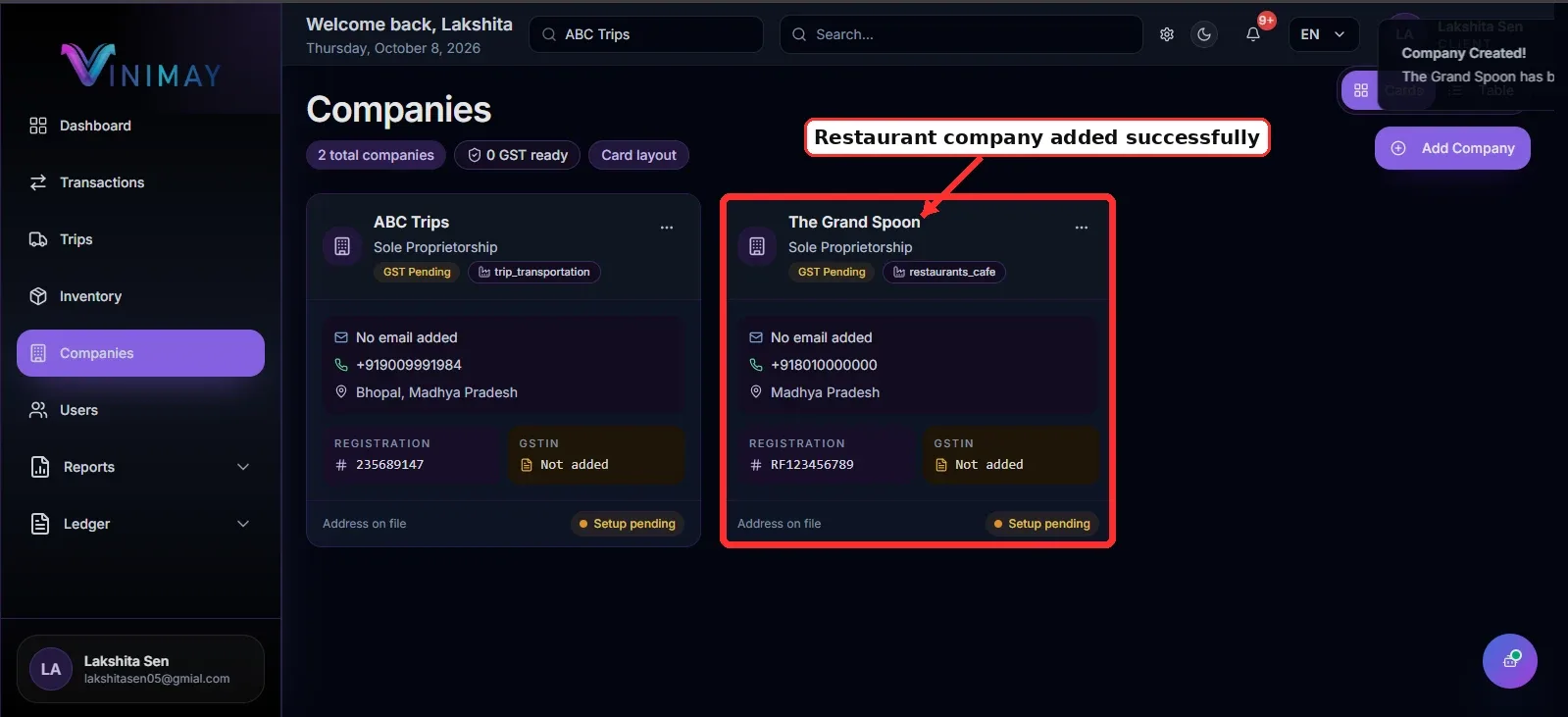
Company Create करने के बाद वापस Companies सेक्शन में जाएं।
यहां आपको अपनी नई जोड़ी गई कंपनी या रेस्टोरेंट का नाम दिखाई देना चाहिए।
उदाहरण के लिए, अगर आपने The Grand Spoon नाम से रेस्टोरेंट बनाया है, तो Companies की लिस्ट में यह नाम दिखाई देगा।
इसके साथ restaurants_cafe टैग भी दिखाई दे सकता है, जो बताता है कि कंपनी को Restaurant & Cafe इंडस्ट्री के अंतर्गत बनाया गया है।
अब आप अपने रेस्टोरेंट की आगे की सेटिंग्स और उपलब्ध मैनेजमेंट फीचर्स का उपयोग शुरू कर सकते हैं।
Vinimay में Restaurant Add करने के फायदे
Vinimay में रेस्टोरेंट जोड़ने से आप अपने बिज़नेस के अलग-अलग काम एक ही प्लेटफॉर्म पर मैनेज कर सकते हैं।
उपलब्ध फीचर्स और सेटिंग्स के अनुसार आप रेस्टोरेंट के लिए Menu Items बना सकते हैं, Inventory का रिकॉर्ड रख सकते हैं, Tables और Orders मैनेज कर सकते हैं तथा कर्मचारियों की जानकारी व्यवस्थित कर सकते हैं।
इसके अलावा, बिज़नेस की Sales, Purchases और अन्य अकाउंटिंग गतिविधियों का रिकॉर्ड रखने में भी मदद मिलती है।
अगर आप एक से अधिक रेस्टोरेंट या कैफे चलाते हैं, तो उन्हें अलग-अलग कंपनी प्रोफाइल के रूप में मैनेज करना उपयोगी हो सकता है।
निष्कर्ष
Vinimay में नया Restaurant या Cafe जोड़ना एक आसान प्रक्रिया है।
आप Companies सेक्शन में जाकर Add Company का विकल्प चुन सकते हैं और जरूरी बिज़नेस, GST तथा TDS डिटेल्स भरकर रेस्टोरेंट का नया प्रोफाइल बना सकते हैं।
रेस्टोरेंट सफलतापूर्वक जोड़ने के बाद आप Vinimay के उपलब्ध Restaurant Management फीचर्स का उपयोग करके अपने बिज़नेस की दैनिक गतिविधियों को अधिक व्यवस्थित तरीके से संभाल सकते हैं।