How to Add a Menu Item in Vinimay (Restaurant Module)
You run a restaurant, and you want to put your dishes into Vinimay, but the Menu page is empty and the Add New Menu Item form asks for things like a category, a kitchen station and a shortcode. It is easy to get stuck on the first dish.
Each dish in Vinimay is a menu item. It has a name, a category, a kitchen station, a tax percentage and a food type, and it can also have a photo, a description and two quick codes that help the cashier punch an order fast.
This guide starts from the login page, goes through the Dashboard to the Menu page, and shows with clear images how to add your first menu item and what to do if it will not save.
Step 1: Log in to Vinimay
Open the Vinimay login page. Choose Client Login for the account owner or User Login for staff (marker 1). Enter the Username (marker 2) and Password (marker 3), type the CAPTCHA (marker 4), and click Sign In (marker 5).
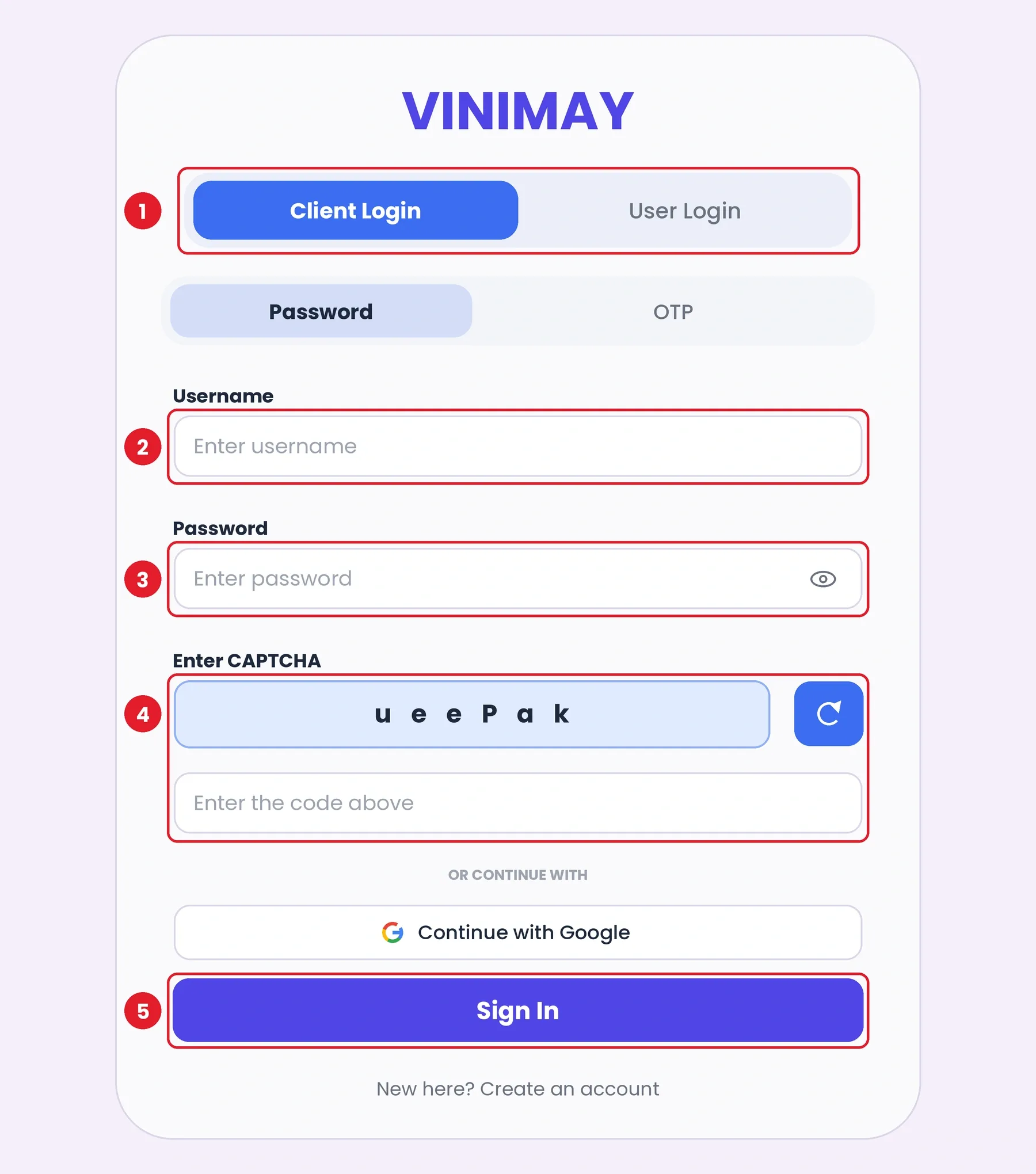
Step 1: Log in to Vinimay
Step 2: Go from the Dashboard to Menu
After you sign in, you land on the Dashboard. In the left menu, click Restaurant & Cafe, then open Management and click Menu (marker 6).
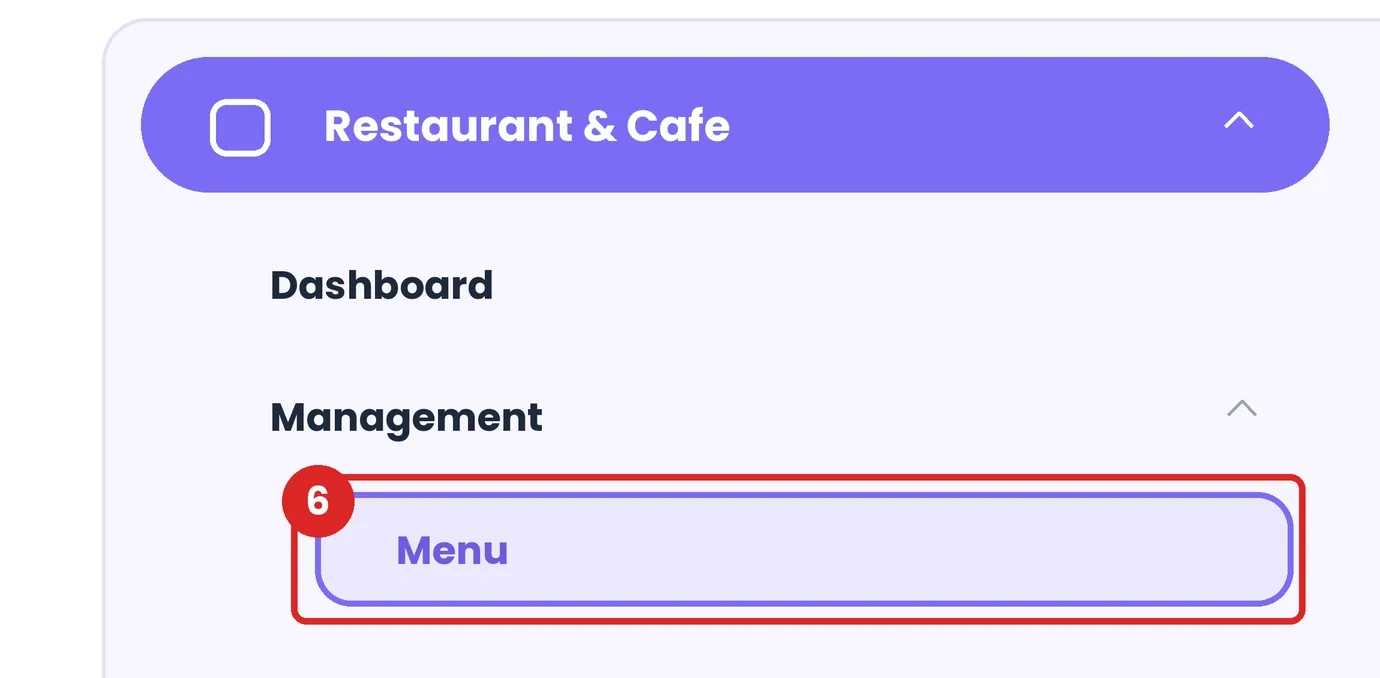
Step 2: Management > Menu
Step 3: Know the Menu Management page
The page has two tabs: Menu Items and Categories (marker 7). Under Active Menu Items, click Add Menu Item (marker 8) to add a dish, or Bulk Import (marker 9) to add many. The search box and the filters (marker 10) help you find a dish by category, food type, station or status. The table (marker 11) lists the Name, Category, Type, Variants (Price), Station, Status and Actions.
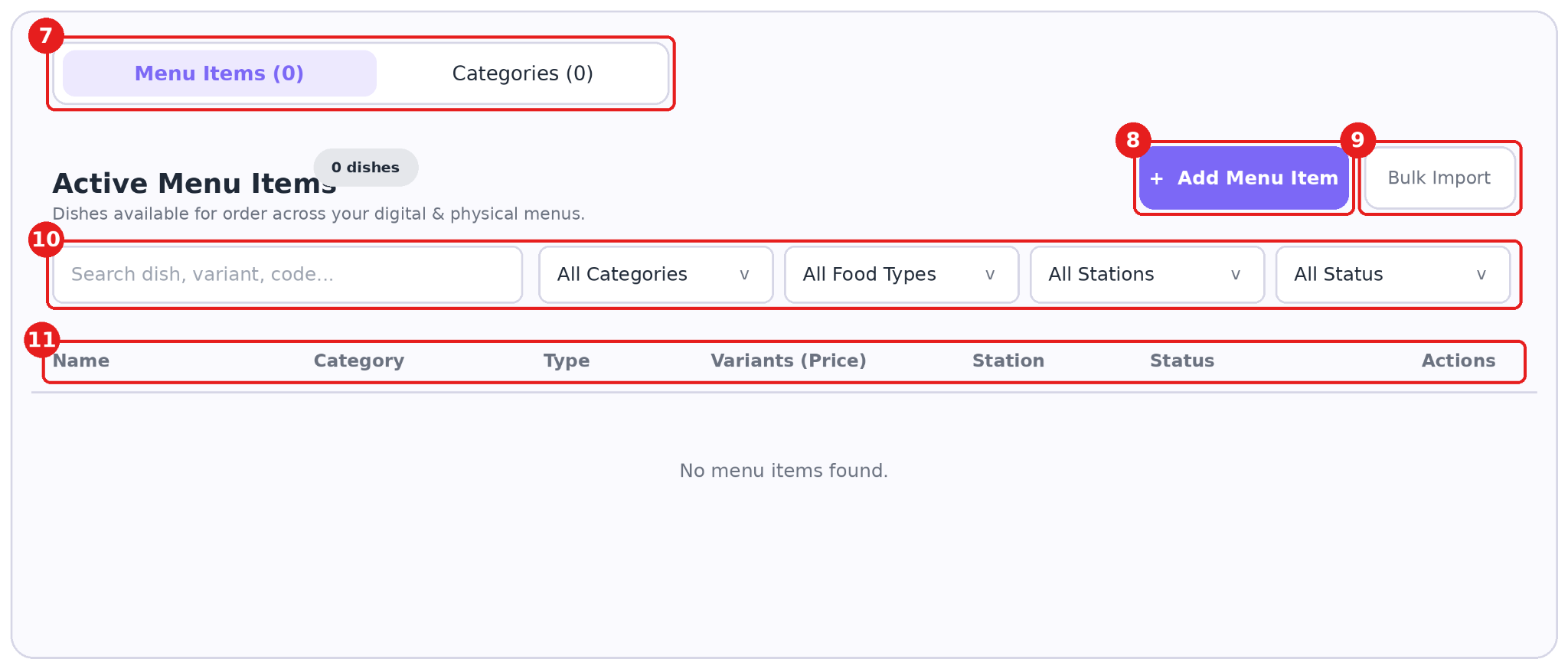
Step 3: The Menu page
Step 4: Fill in the Add New Menu Item form
Item Name (marker 12): for example, Farmhouse Pizza. Required.
Category (marker 13): select a category. Required.
Kitchen Station (marker 14): select where the dish is prepared. Required.
Tax Percentage (marker 15): shows 5 by default.
Dietary Preference (marker 16): a toggle that shows Veg.
Shortcodes (marker 17): an alphabetic code such as bn or pbm, and an optional numeric code such as 101. The cashier types the code to punch an item fast. Each code must be unique per restaurant.
Description (marker 18) and Item Photo / Image (marker 19): optional.
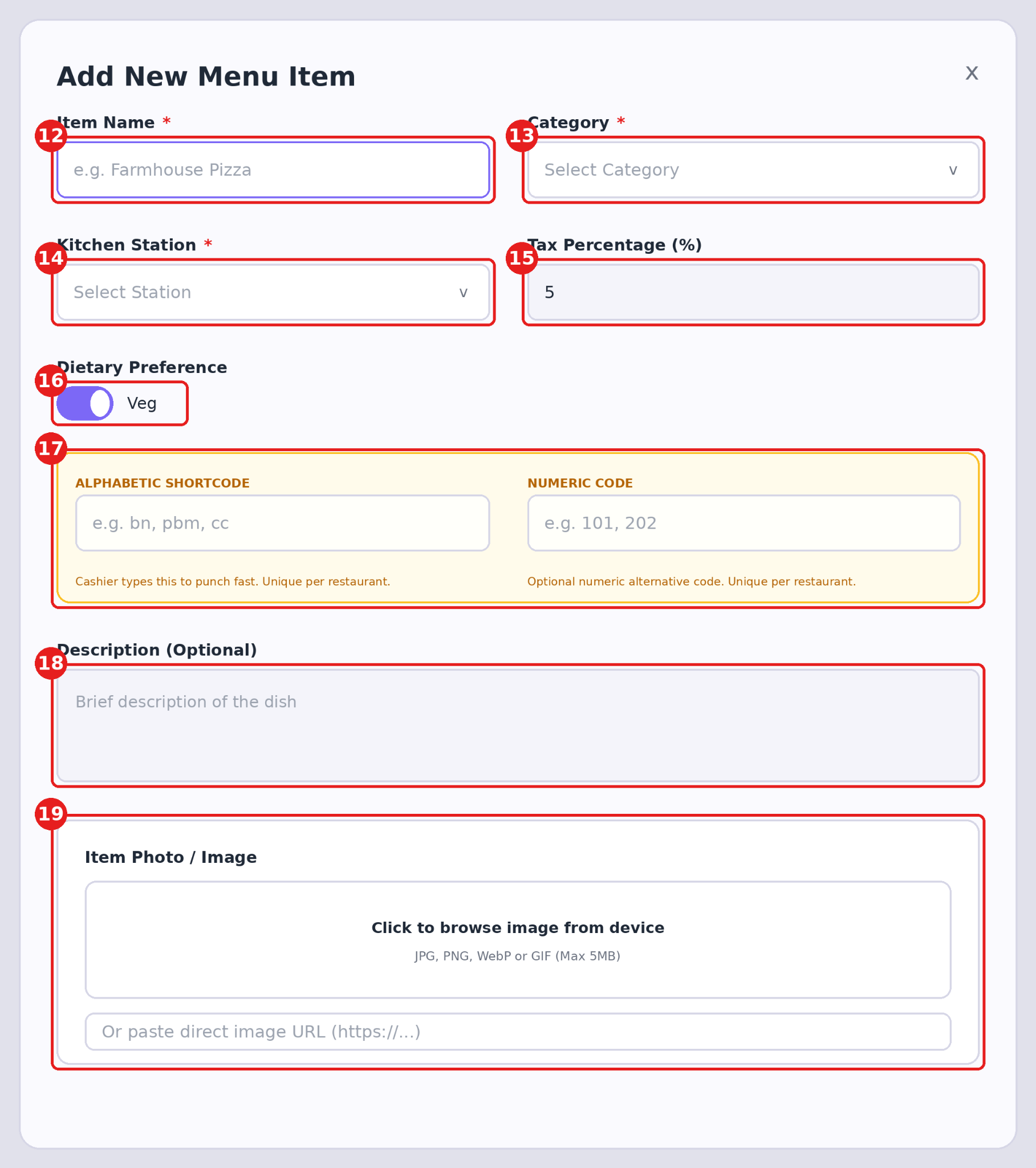
Step 4: Add New Menu Item form
Field guide
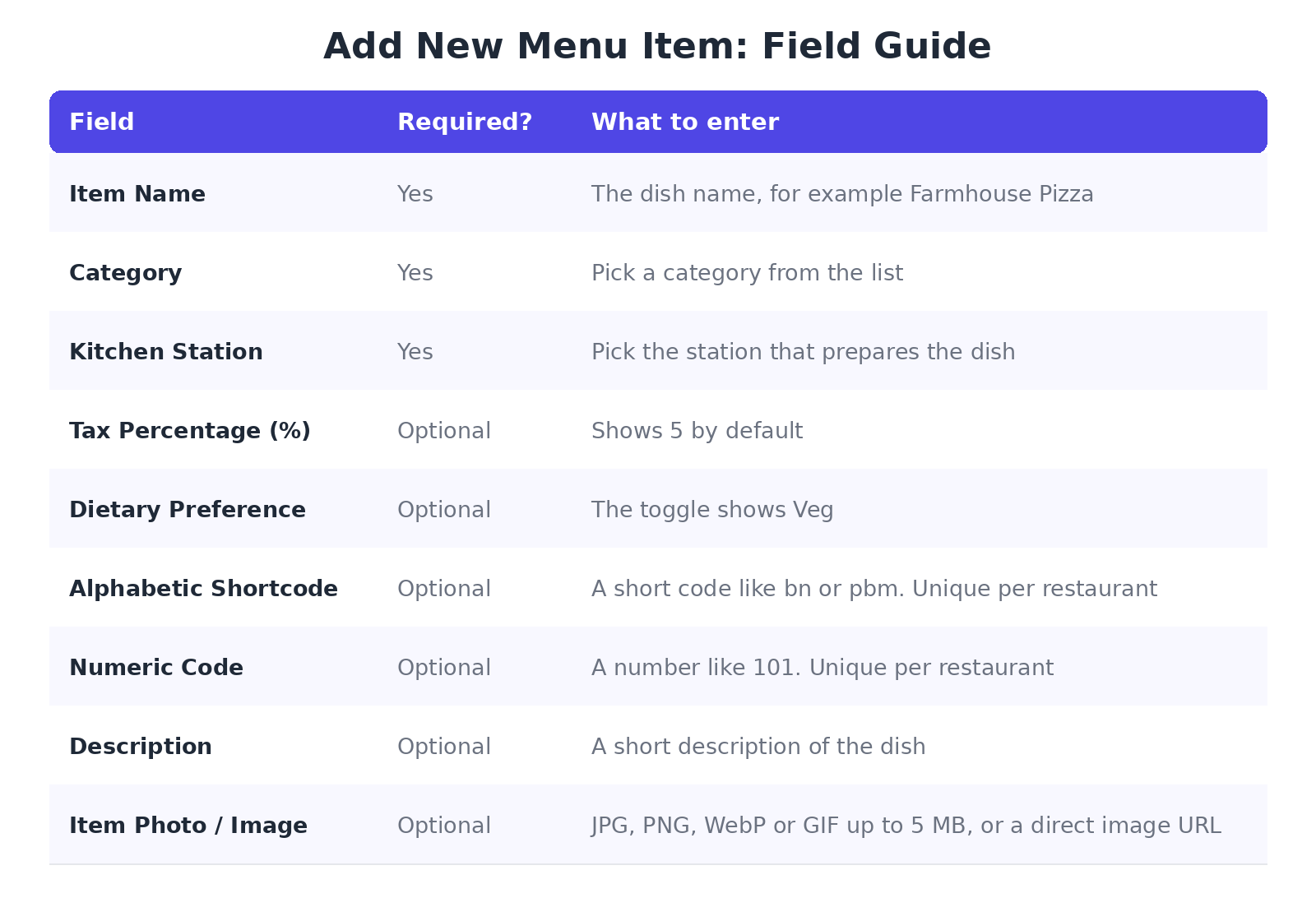 Field guide
Cannot save the menu item?
The form scrolls down, so scroll to the end to find the save button. If it will not save, check the points below.
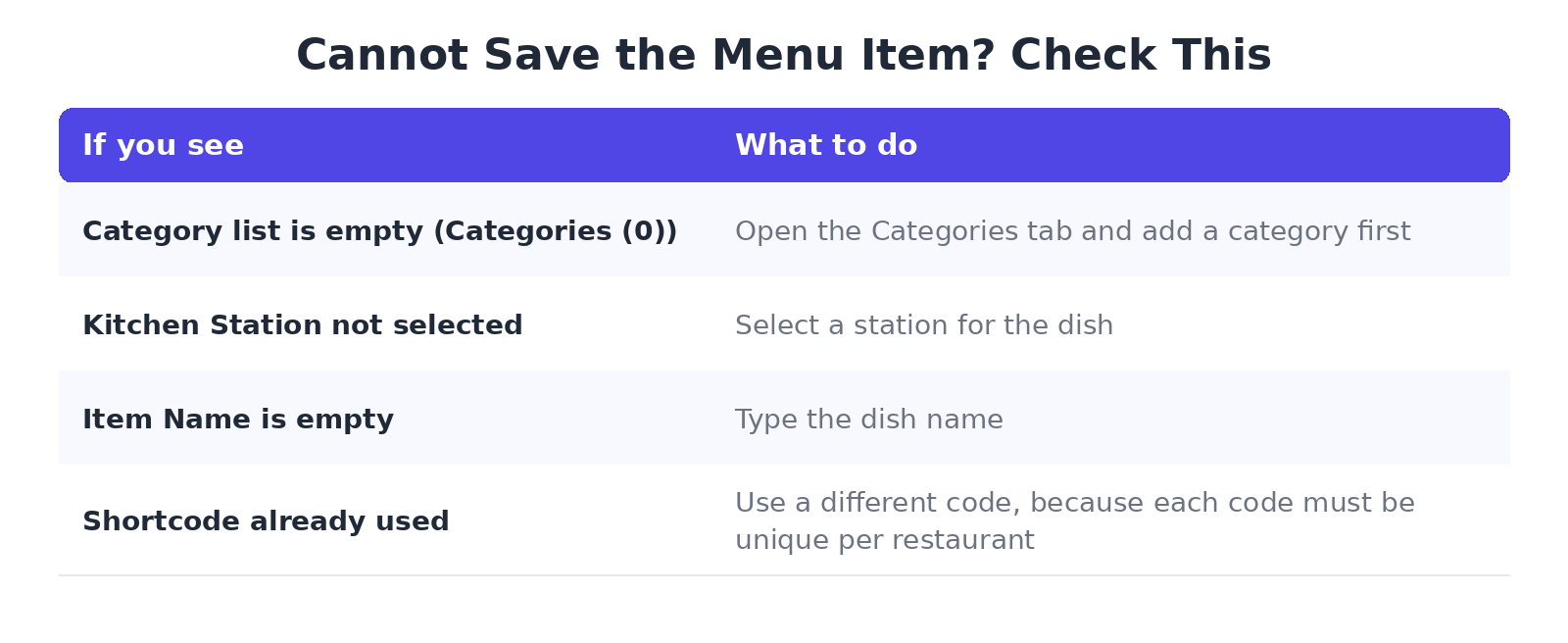 Fixes
Tips
Add your categories first, so the Category list is not empty.
Use short, easy shortcodes, so the cashier can type them fast.
Add a photo for dishes you show on a digital menu.
Use Bulk Import when you have many dishes.
Conclusion
To add a dish in Vinimay, log in, open Restaurant & Cafe, then Management, then Menu, and click Add Menu Item. Fill in the name, category and kitchen station, and add a shortcode if you want the cashier to punch it fast.
If the form will not save, check that the category and station are selected and that your codes are unique. Start with a few dishes, then use Bulk Import for the rest.
Once your menu is ready, you can add recipes for each dish. Create a free Vinimay account and add your first menu item today.