Vinimay Restaurant Inventory: Bulk Import, Export Low Stock and Add Item Explained
Your restaurant buys flour, oil, vegetables, and spices, and you need to know what you have and what is about to run out. You open the restaurant inventory management page in Vinimay and see three buttons at the top: Bulk Import, Export Low Stock, and Add Item. You wonder which one to use.
The page is subtitled "Track and manage raw materials." Add Item adds a single raw material, Bulk Import is for adding many at once, and Export Low Stock is for exporting the items that are low on stock, as its name says.
This guide starts from the login page and uses real screenshots to show every part of the page and the Add Inventory Item windo
Step 1: Log in to Vinimay
Open the Vinimay login page. Choose Client Login for the account owner or User Login for staff (marker 1). Enter the Username (marker 2) and Password (marker 3), type the CAPTCHA (marker 4), and click Sign In (marker 5).
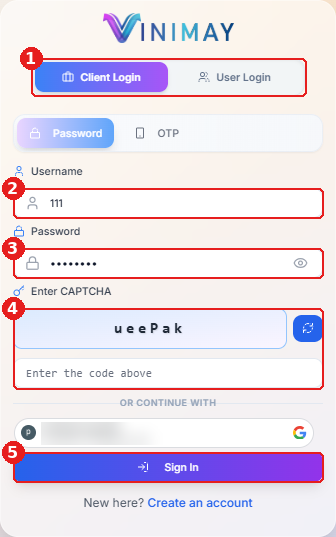
Step 1: Log in to Vinimay
Step 2: Start from the Dashboard
After you sign in, you land on the Dashboard (marker 6).
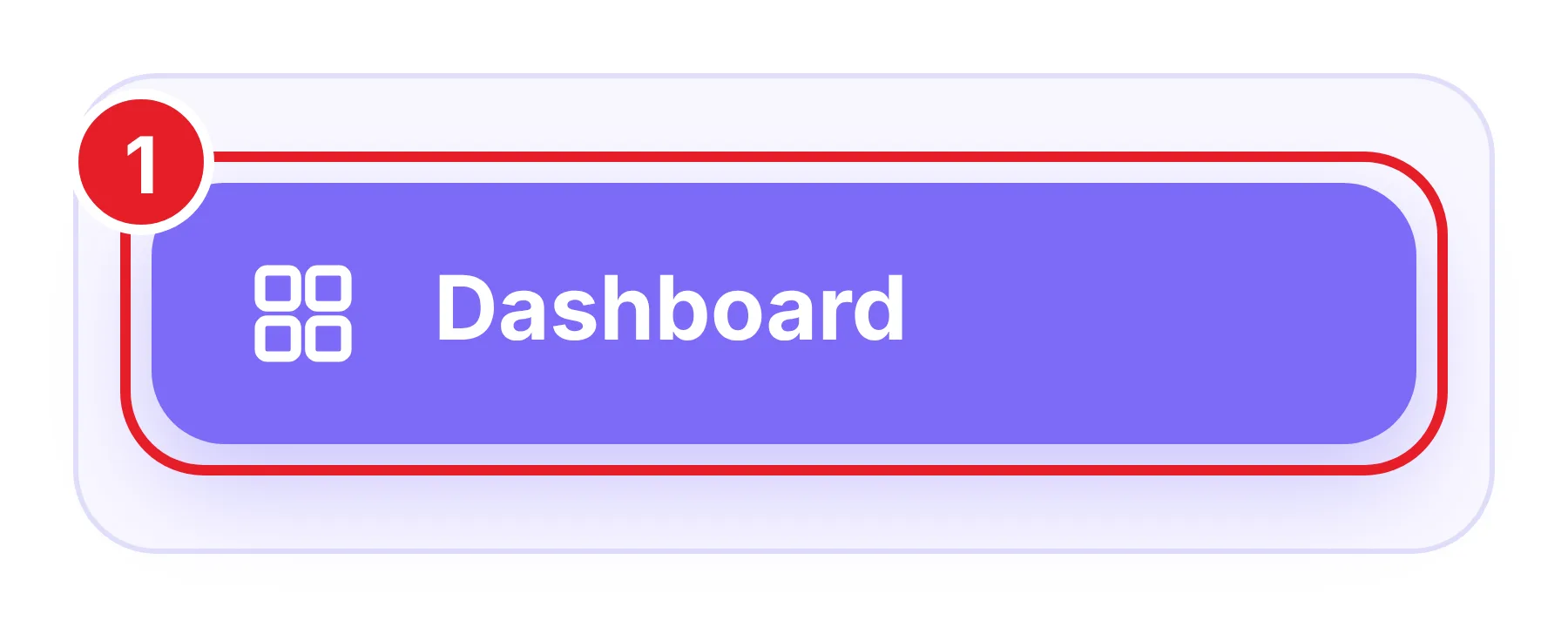
Step 2: The Dashboard menu
Step 3: Open Restaurant & Cafe, then Inventory
Click Restaurant & Cafe. Under Management, click Inventory (marker 7).
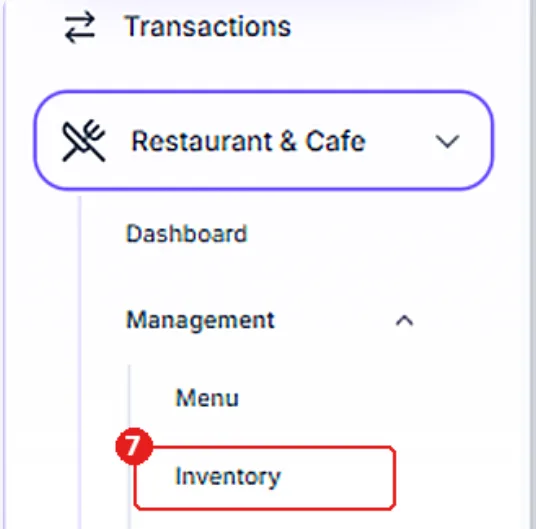
Step 3: Management > Inventory
Step 4: Know the three buttons
The page is titled Inventory Management, with the line "Track and manage raw materials." At the top right are Bulk Import (marker 8), Export Low Stock (marker 9) and Add Item (marker 10).

Step 4: Bulk Import, Export Low Stock and Add Item
Step 5: Search and choose how many rows to see
The search box (marker 11) says "Search inventory items...". Rows per page (marker 12) sets how many rows you see, and it shows 10.

Step 5: Search and rows per page
Step 6: Read the table
The table (marker 13) has the columns #, Item Name, Stock Level, Cost / Unit, Status and Actions. When you have no items, it says "No items found."

Step 6: The inventory table
Step 7: Add an item
Click Add Item to open the Add Inventory Item window. Fill in the Name (marker 14), choose the Unit (marker 15), and enter the Cost per Unit (marker 16), the Initial Stock (marker 17) and the Reorder Level (marker 18). Then click Add Item (marker 19). Name and Unit are required.
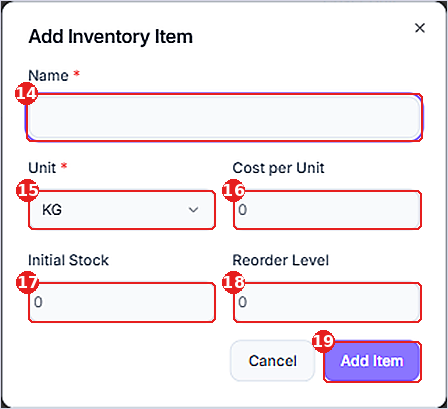
Step 7: Add Inventory Item
The three buttons at a glance
Tips
Use Add Item to start with your most used raw materials.
Use Bulk Import when you have a long list.
Fill in the Reorder Level for items you run out of often.
Use the search box to find an item fast.
Conclusion
The restaurant inventory management page tracks your raw materials. Add Item adds one, Bulk Import adds many, and Export Low Stock exports the items that are low.
The table shows each item's stock level, cost per unit and status, and the search box and rows per page keep long lists easy to read.
Start with Add Item for your main raw materials. Create a free Vinimay account and set up your restaurant inventory today.