Vinimay LogoVinimay Text
About Us
Features
GST Billing & InvoicingInventory ManagementPOS BillingCustomer ManagementVendor ManagementTransaction Management
Solutions

Business Solutions

Choose a solution built for your business

General

Billing, inventory & accounts

→

Travels

Bookings, routes & billing

→

Courier

Tracking, delivery & billing

→

Transportation

Trips, vehicles & expenses

→

Marbles

Stock, units & sales

→

Restaurant & Cafe

Sales, stock & vendors

→

Kirana & Grocery

Billing, inventory & invoice

→

Service

Sales, raw material & stock

→

Manufacturing

Production, raw material & stock

→

Trading

Purchase, sales & stock ledger

→
Explore All Solutions→
Pricing
Knowledge Centre

Knowledge Base→

Step-by-step product tutorials & setup

Blogs→

Industry news, GST & tax tips

IN
About Us→
All FeaturesGST Billing & InvoicingInventory ManagementPOS BillingCustomer ManagementVendor ManagementTransaction Management
All SolutionsGeneralTravelsCourierTransportationMarblesRestaurant & CafeKirana & GroceryServiceManufacturingTrading
Pricing→

Knowledge Base

Product help & tutorials

→

Blogs

Industry news & tax tips

→

Region / Country

India

© 2025 Vinimay. All rights reserved.

🏠Getting Started
Quick setup guideHow to Add Unlimited Custom Business Fields to InvoicesHow to Set/Change Language in Vinimay Mobile AppHow to Update Phone Number/e-Mail of a BusinessHow to Add or Delete a Business in Vinimay AccountWhy Vinimay is a Better Alternative to Vyapar App
📋Billing & Invoicing
How to Add a Receiver's Signature Field to Your Invoices?How to Use Party-Wise Item PricesHow to Add and Edit Party Names for Shipping Addresses?Add Precise Quantities with Up to 4 Decimal Places
🛒Inventory Management
How to Add Items and Manage StockHow to Track Low Stock Alerts
👥Party Management
How to Add Customers and SuppliersHow to Send WhatsApp Payment Reminders
💰Accounting
How to Record Expense Entries in VinimayManaging Cash & Bank Accounts
📊Grow your business
How to Set Up Online Store in VinimayTrip & Fleet Management Guide
Contents

INVOICE

Billing
Made
Simple
Simpler billing. Brighter businesses.

Let's grow your business together.

Quick Setup

Get started in minutes

Secure & Reliable

Your data is safe with us

Built for Growth

Simple. Practical. Useful.

Vinimay Logo

Smart Billing. Stronger Businesses.

finaxis.in@gmail.com

Product

  • GST Billing & Invoicing
  • Inventory Management
  • POS Billing
  • Customer Management
  • Vendor Management
  • Transaction Management

Solutions

  • General
  • Travels
  • Courier
  • Transportation
  • Kirana & Grocery
  • Restaurant & Cafe
  • Marbles
  • Service
  • Manufacturing
  • Trading

Company

  • About Us
  • Features
  • Pricing
Small Businesses
Big Dreams
Vinimay Logo

Smart Billing. Stronger Businesses.

finaxis.in@gmail.com
Small Businesses
Big Dreams

Product

  • GST Billing & Invoicing
  • Inventory Management
  • POS Billing
  • Customer Management
  • Vendor Management
  • Transaction Management

Solutions

  • General
  • Travels
  • Courier
  • Transportation
  • Kirana & Grocery
  • Restaurant & Cafe
  • Marbles
  • Service
  • Manufacturing
  • Trading

Company

  • About Us
  • Features
  • Pricing
  • Blogs
  • Contact Us
  • Careers
Grow
Progress
Repeat

© 2026 Vinimay. All rights reserved.

Built for Growth|Simple Tools. Real Growth.

📄Record Customer

Vinimay Settings में नया कस्टमर कैसे बनाएँ

P

Written By prachi kahar

Updated 1 month ago

Overview

हर बिज़नेस का सबसे ज़रूरी हिस्सा उसके कस्टमर हैं। अगर उनके नाम, मोबाइल नंबर और पते एक जगह सही तरह से सेव हों, तो बिल बनाना और उनसे संपर्क करना दोनों आसान हो जाते हैं।

Vinimay Settings में नया कस्टमर कैसे बनाएँ  

हर बिज़नेस का सबसे ज़रूरी हिस्सा उसके कस्टमर हैं। अगर उनके नाम, मोबाइल नंबर और पते एक जगह सही तरह से सेव हों, तो बिल बनाना और उनसे संपर्क करना दोनों आसान हो जाते हैं।

इस गाइड में हम Vinimay की Settings में Customers टैब से नया कस्टमर बनाना सीखेंगे। हर स्टेप के साथ असली स्क्रीन का नंबर वाला screenshot है, जिसे ज़ूम करके साफ़ बनाया गया है।

Vinimay छोटे बिज़नेस के लिए बना फ्री GST बिलिंग और अकाउंटिंग सॉफ़्टवेयर है। इसे शुरू करना मुफ़्त है, इसलिए आप अपने अकाउंट में साथ-साथ यह फॉर्म देख सकते हैं।

स्टेप 1: लॉग इन करें

Vinimay का लॉगिन पेज खोलें। Client Login (image 1) चुनें और Password टैब (image 2) चुनें। Username (image 3) और Password (image 4) भरें, CAPTCHA बॉक्स में दिखाया गया कोड लिखें (image 5) और Sign In (image 6) पर क्लिक करें।
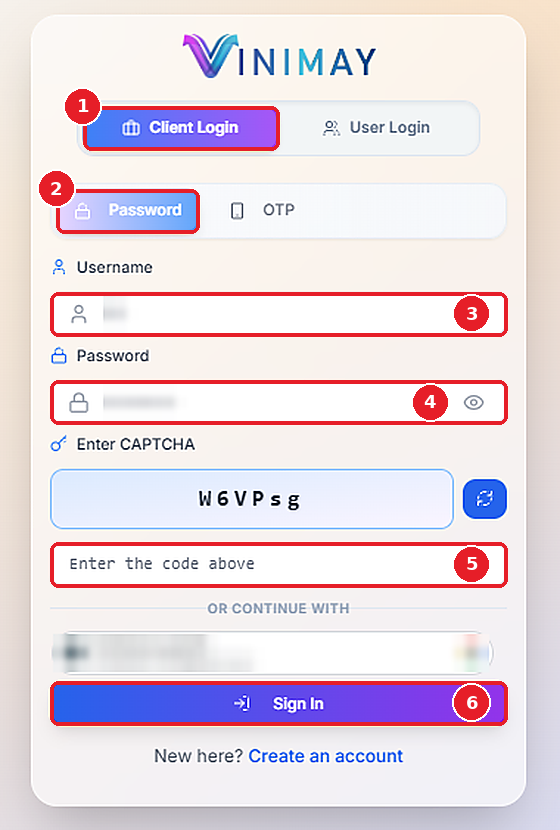
Vinimay लॉगिन पेज: Client Login, Password, Username, CAPTCHA और Sign In

लॉगिन पेज

स्टेप 2: Settings खोलें

लॉग इन करने के बाद आप Dashboard पर पहुँचते हैं। ऊपर दाईं तरफ़ Quick Actions बॉक्स में Settings (image 7) बटन दबाएँ।
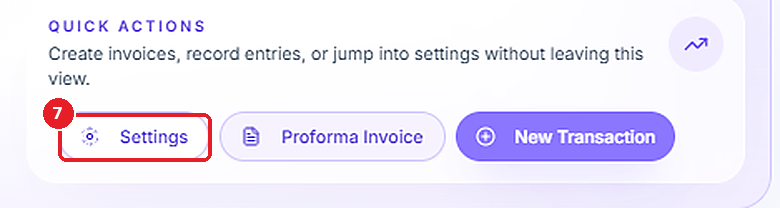
Vinimay Dashboard के Quick Actions में Settings बटन

Quick Actions में Settings बटन

स्टेप 3: Customers टैब चुनें

Settings पेज पर लिखा है कि यहाँ से आप अपना अकाउंट, प्राथमिकताएँ, अनुमतियाँ और बिज़नेस सेटअप एक ही जगह सँभाल सकते हैं। ऊपर के टैब में Customers (image 8) चुनें। उसके साथ Vendors, Products, Services, Invoices और Banks जैसे टैब भी हैं।

Vinimay Settings के टैब: Vendors, Customers, Products, Services, Invoices, Banks

Settings के टैब

स्टेप 4: नया कस्टमर बनाएँ

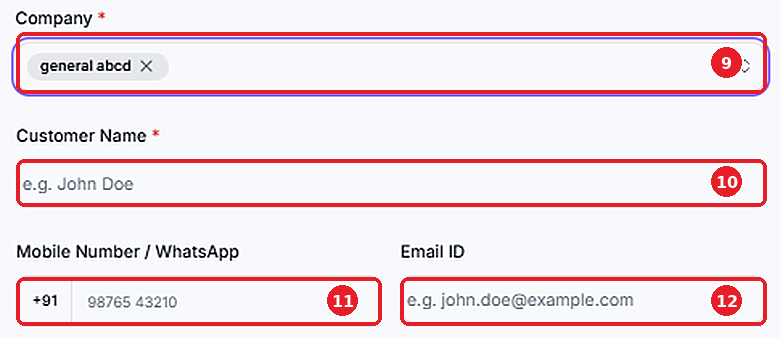
Customers टैब से नया कस्टमर बनाने पर Create New Customer विंडो खुलती है। ऊपर लिखा है कि नया कस्टमर जोड़ने के लिए फॉर्म भरें। इसमें ये फ़ील्ड हैं:

  • Company (image 9): ज़रूरी है (लाल तारा *)। यहाँ आपकी कंपनी का नाम चुना हुआ दिखता है।

  • Customer Name (image 10): यह भी ज़रूरी है। जैसे John Doe।

  • Mobile Number / WhatsApp (image 11): पहले से +91 दिखता है।

  • Email ID (image 12): ईमेल पता।

Vinimay Create New Customer विंडो: Company, Customer Name, Mobile Number और Email ID

Company, नाम, मोबाइल और ईमेल

स्टेप 5: पता भरें

आगे के फ़ील्ड पते के लिए हैं:

  • Address Line (Street/Building) (image 13): गली या इमारत का पता।

  • State (image 14): टाइप करके राज्य खोजें।

  • City (image 15): टाइप करके शहर खोजें।

  • Pincode (image 16): पिनकोड, जैसे 400001।

उसके नीचे GST Registration Type और PAN के फ़ील्ड भी दिखते हैं।
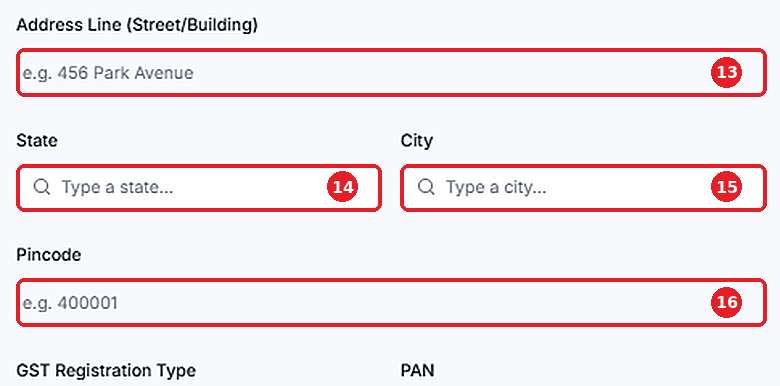
Vinimay Create New Customer विंडो: Address Line, State, City और Pincode

पता, State, City और Pincode

स्टेप 6: कस्टमर बनाएँ

सब जानकारी भरने के बाद विंडो में नीचे Create Customer (image 17) बटन दबाएँ।
Vinimay का Create Customer बटन

Create Customer बटन

कस्टमर बनाते समय सामान्य गलतियाँ

  • गलत Company चुनना, जब आपके पास एक से ज़्यादा कंपनी हों।

  • Customer Name में पूरा नाम न लिखना।

  • मोबाइल नंबर में गलत अंक डालना।

  • State और City खाली छोड़ देना, जबकि बिल पर इनकी ज़रूरत पड़ सकती है।

निष्कर्ष

कस्टमर बनाना एक बार का काम है, पर इसका फ़ायदा हर बिल में मिलता है। कंपनी चुनें, नाम और मोबाइल भरें, पता और GST जानकारी जोड़ें।

जो कस्टमर बार-बार आते हैं, उन्हें पूरा पता और सही मोबाइल नंबर देकर सेव करें। इससे बाद में बिल बनाना तेज़ हो जाता है।

कुछ ही मिनट में अपने पाँच सबसे ज़रूरी कस्टमर जोड़कर देखें। बाकी अपने आप आदत बन जाएगी।

Vinimay आज़माएं (Try Vinimay) और अपने कस्टमर आज ही दर्ज करें।


Frequently Asked Questions

Did this article solve your question?

Not really
Somewhat
Very helpful!

More in Record Customer📄

How the Walk-In Customer Works in Vinimay RestaurantHow to Enable TDS for Customers in Vinimay (TDS Column Explained)

How the Walk-In Customer Works in Vinimay Restaurant

Next
Previous

How to Enable TDS for Customers in Vinimay (TDS Column Explained)

Still Have Questions?

Talk directly with our product specialist team

Our customer support team is available Mon-Sat, 9:00 AM - 7:00 PM IST to help you configure your business.

Email Support: finaxis.in@gmail.com
Contents