Vinimay LogoVinimay Text
About Us
Features
GST Billing & InvoicingInventory ManagementPOS BillingCustomer ManagementVendor ManagementTransaction Management
Solutions

Business Solutions

Choose a solution built for your business

General

Billing, inventory & accounts

→

Travels

Bookings, routes & billing

→

Courier

Tracking, delivery & billing

→

Transportation

Trips, vehicles & expenses

→

Marbles

Stock, units & sales

→

Restaurant & Cafe

Sales, stock & vendors

→

Kirana & Grocery

Billing, inventory & invoice

→

Service

Sales, raw material & stock

→

Manufacturing

Production, raw material & stock

→

Trading

Purchase, sales & stock ledger

→
Explore All Solutions→
Pricing
Knowledge Centre

Knowledge Base→

Step-by-step product tutorials & setup

Blogs→

Industry news, GST & tax tips

IN
About Us→
All FeaturesGST Billing & InvoicingInventory ManagementPOS BillingCustomer ManagementVendor ManagementTransaction Management
All SolutionsGeneralTravelsCourierTransportationMarblesRestaurant & CafeKirana & GroceryServiceManufacturingTrading
Pricing→

Knowledge Base

Product help & tutorials

→

Blogs

Industry news & tax tips

→

Region / Country

India

© 2025 Vinimay. All rights reserved.

🏠Getting Started
Quick setup guideHow to Add Unlimited Custom Business Fields to InvoicesHow to Set/Change Language in Vinimay Mobile AppHow to Update Phone Number/e-Mail of a BusinessHow to Add or Delete a Business in Vinimay AccountWhy Vinimay is a Better Alternative to Vyapar App
📋Billing & Invoicing
How to Add a Receiver's Signature Field to Your Invoices?How to Use Party-Wise Item PricesHow to Add and Edit Party Names for Shipping Addresses?Add Precise Quantities with Up to 4 Decimal Places
🛒Inventory Management
How to Add Items and Manage StockHow to Track Low Stock Alerts
👥Party Management
How to Add Customers and SuppliersHow to Send WhatsApp Payment Reminders
💰Accounting
How to Record Expense Entries in VinimayManaging Cash & Bank Accounts
📊Grow your business
How to Set Up Online Store in VinimayTrip & Fleet Management Guide
Contents

INVOICE

Billing
Made
Simple
Simpler billing. Brighter businesses.

Let's grow your business together.

Quick Setup

Get started in minutes

Secure & Reliable

Your data is safe with us

Built for Growth

Simple. Practical. Useful.

Vinimay Logo

Smart Billing. Stronger Businesses.

finaxis.in@gmail.com

Product

  • GST Billing & Invoicing
  • Inventory Management
  • POS Billing
  • Customer Management
  • Vendor Management
  • Transaction Management

Solutions

  • General
  • Travels
  • Courier
  • Transportation
  • Kirana & Grocery
  • Restaurant & Cafe
  • Marbles
  • Service
  • Manufacturing
  • Trading

Company

  • About Us
  • Features
  • Pricing
Small Businesses
Big Dreams
Vinimay Logo

Smart Billing. Stronger Businesses.

finaxis.in@gmail.com
Small Businesses
Big Dreams

Product

  • GST Billing & Invoicing
  • Inventory Management
  • POS Billing
  • Customer Management
  • Vendor Management
  • Transaction Management

Solutions

  • General
  • Travels
  • Courier
  • Transportation
  • Kirana & Grocery
  • Restaurant & Cafe
  • Marbles
  • Service
  • Manufacturing
  • Trading

Company

  • About Us
  • Features
  • Pricing
  • Blogs
  • Contact Us
  • Careers
Grow
Progress
Repeat

© 2026 Vinimay. All rights reserved.

Built for Growth|Simple Tools. Real Growth.

📄Billing & Invoicing

Vinimay Invoice में Transaction Date और Due Date कैसे सेट करें?

L

Written By lakshita

Updated 27 days ago

Overview

आप Vinimay में invoice बना रहे हैं और उस पर सही तारीखें चाहिए। हो सकता है आप किसी पुराने दिन का बिल दर्ज कर रहे हों, या चाहते हों कि ग्राहक किसी तारीख तक भुगतान कर दे। फॉर्म में दो तारीख वाले फ़ील्ड हैं, और पता नहीं चलता कि कौन सा बदलें।

आप Vinimay में invoice बना रहे हैं और उस पर सही तारीखें चाहिए। हो सकता है आप किसी पुराने दिन का बिल दर्ज कर रहे हों, या चाहते हों कि ग्राहक किसी तारीख तक भुगतान कर दे। फॉर्म में दो तारीख वाले फ़ील्ड हैं, और पता नहीं चलता कि कौन सा बदलें।

Sales फॉर्म में Transaction Date ज़रूरी है और Due Date वैकल्पिक है। दोनों में "October 8th, 2026" जैसी तारीख और दाईं ओर एक छोटा कैलेंडर आइकन दिखता है। जो तारीख बदलनी हो, उस फ़ील्ड पर क्लिक करके तारीख चुनें।

यह गाइड login से शुरू होती है और असली स्क्रीनशॉट के साथ बताती है कि दोनों तारीखें कहाँ हैं, कौन ज़रूरी है, और किन फॉर्म में सिर्फ़ एक तारीख होती है।

स्टेप 1: Vinimay में Login करें

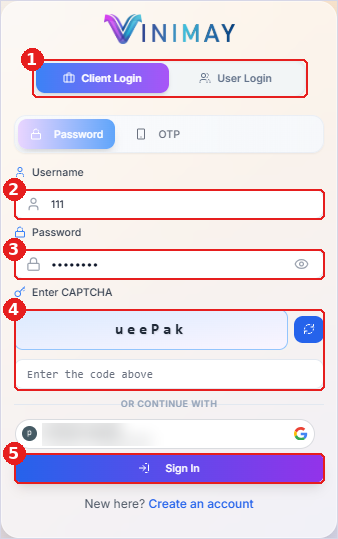
Vinimay का login पेज खोलें। मालिक के लिए Client Login और स्टाफ के लिए User Login चुनें (मार्कर 1)। Username (मार्कर 2) और Password (मार्कर 3) डालें, CAPTCHA लिखें (मार्कर 4) और Sign In दबाएँ (मार्कर 5)।

Vinimay login पेज

स्टेप 1: Login

स्टेप 2: Dashboard से Transactions खोलें

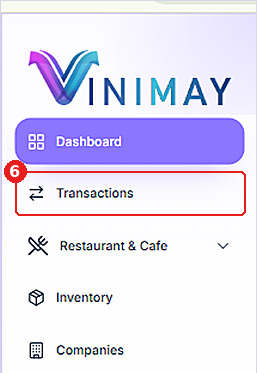
Login के बाद आप Dashboard पर आते हैं। बाईं ओर के मेन्यू में Transactions (मार्कर 6) पर क्लिक करें।

Vinimay का बायाँ मेन्यू

Transactions

स्टेप 3: New Transaction दबाएँ

Transactions पेज पर ऊपर दाईं ओर बैंगनी बटन New Transaction (मार्कर 7) दबाएँ।

New Transaction बटन

New Transaction

स्टेप 4: Sales टैब चुनें

फॉर्म के ऊपर के टैब में पहला टैब Sales (मार्कर 8) चुनें।

Create Transaction के टैब

Sales टैब

स्टेप 5: Transaction Date और Due Date सेट करें

Company के नीचे दो तारीख वाले फ़ील्ड साथ-साथ हैं। Transaction Date (मार्कर 9) पर लाल तारा है, इसलिए यह ज़रूरी है। Due Date (मार्कर 10) पर तारा नहीं है, इसलिए यह वैकल्पिक है। दोनों में तारीख और कैलेंडर आइकन है। जिस फ़ील्ड को बदलना हो, उस पर क्लिक करके तारीख चुनें।

  • Transaction Date: invoice की तारीख। किसी दूसरे दिन का बिल दर्ज करते समय इसे बदलें।

  • Due Date: वह तारीख जब तक आप भुगतान चाहते हैं।

Transaction Date और Due Date

स्टेप 5: दोनों तारीखें

स्टेप 6: जानें कि किन फॉर्म में सिर्फ़ एक तारीख है

Receipt फॉर्म (पैसा मिलने के लिए) में सिर्फ़ Transaction Date (मार्कर 11) है, Due Date नहीं। Payment फॉर्म में भी सिर्फ़ Transaction Date दिखती है।

Receipt फॉर्म में सिर्फ़ Transaction Date

स्टेप 6: Receipt फॉर्म

काम की बातें

  • Create Transaction से पहले Transaction Date जाँच लें, क्योंकि यह ज़रूरी है।

  • Due Date तभी भरें जब आप भुगतान की अंतिम तारीख दर्ज करना चाहते हों।

  • Transaction Date असली बिक्री की तारीख रखें, ताकि रिकॉर्ड कागज़ के बिल से मिले।

  • पैसा मिलने या देने के लिए Receipt या Payment फॉर्म इस्तेमाल करें, जिनमें एक ही तारीख होती है।

निष्कर्ष

Vinimay के sales फॉर्म में Transaction Date ज़रूरी है और Due Date वैकल्पिक। दोनों में तारीख और कैलेंडर आइकन दिखता है, और आप फ़ील्ड पर क्लिक करके तारीख चुनते हैं।

जब बिल किसी और दिन का हो, तब Transaction Date बदलें। जब आप ग्राहक को भुगतान की अंतिम तारीख देते हैं, तब Due Date रखें। Receipt और Payment फॉर्म में सिर्फ़ Transaction Date होती है।

तारीखें सही रखने से आपके रिकॉर्ड व्यवस्थित रहते हैं। आज ही Vinimay का फ्री अकाउंट बनाएँ और अगले invoice पर आज़माएँ।


Frequently Asked Questions

Did this article solve your question?

Not really
Somewhat
Very helpful!

More in Billing & Invoicing📄

How Do I Use the Manage Vendors Page? Search, Counters and the Add Vendor FormHow to Create a Recipe (Bill of Materials) in VinimayFree Billing Software for Freelancers: Quote, Bill and Get PaidWhat Is a Proforma Invoice and How Do I Create One? Step-by-Step Guide

How Do I Use the Manage Vendors Page? Search, Counters and the Add Vendor Form

Next
Previous

Vinimay Invoice पर Terms and Conditions कैसे बदलें?

Still Have Questions?

Talk directly with our product specialist team

Our customer support team is available Mon-Sat, 9:00 AM - 7:00 PM IST to help you configure your business.

Email Support: finaxis.in@gmail.com
Contents