Vinimay LogoVinimay Text
About Us
Features
GST Billing & InvoicingInventory ManagementPOS BillingCustomer ManagementVendor ManagementTransaction Management
Solutions

Business Solutions

Choose a solution built for your business

General

Billing, inventory & accounts

→

Travels

Bookings, routes & billing

→

Courier

Tracking, delivery & billing

→

Transportation

Trips, vehicles & expenses

→

Marbles

Stock, units & sales

→

Restaurant & Cafe

Sales, stock & vendors

→

Kirana & Grocery

Billing, inventory & invoice

→

Service

Sales, raw material & stock

→

Manufacturing

Production, raw material & stock

→

Trading

Purchase, sales & stock ledger

→
Explore All Solutions→
Pricing
Knowledge Centre

Knowledge Base→

Step-by-step product tutorials & setup

Blogs→

Industry news, GST & tax tips

IN
About Us→
All FeaturesGST Billing & InvoicingInventory ManagementPOS BillingCustomer ManagementVendor ManagementTransaction Management
All SolutionsGeneralTravelsCourierTransportationMarblesRestaurant & CafeKirana & GroceryServiceManufacturingTrading
Pricing→

Knowledge Base

Product help & tutorials

→

Blogs

Industry news & tax tips

→

Region / Country

India

© 2025 Vinimay. All rights reserved.

🏠Getting Started
Quick setup guideHow to Add Unlimited Custom Business Fields to InvoicesHow to Set/Change Language in Vinimay Mobile AppHow to Update Phone Number/e-Mail of a BusinessHow to Add or Delete a Business in Vinimay AccountWhy Vinimay is a Better Alternative to Vyapar App
📋Billing & Invoicing
How to Add a Receiver's Signature Field to Your Invoices?How to Use Party-Wise Item PricesHow to Add and Edit Party Names for Shipping Addresses?Add Precise Quantities with Up to 4 Decimal Places
🛒Inventory Management
How to Add Items and Manage StockHow to Track Low Stock Alerts
👥Party Management
How to Add Customers and SuppliersHow to Send WhatsApp Payment Reminders
💰Accounting
How to Record Expense Entries in VinimayManaging Cash & Bank Accounts
📊Grow your business
How to Set Up Online Store in VinimayTrip & Fleet Management Guide
Contents

INVOICE

Billing
Made
Simple
Simpler billing. Brighter businesses.

Let's grow your business together.

Quick Setup

Get started in minutes

Secure & Reliable

Your data is safe with us

Built for Growth

Simple. Practical. Useful.

Vinimay Logo

Smart Billing. Stronger Businesses.

finaxis.in@gmail.com

Product

  • GST Billing & Invoicing
  • Inventory Management
  • POS Billing
  • Customer Management
  • Vendor Management
  • Transaction Management

Solutions

  • General
  • Travels
  • Courier
  • Transportation
  • Kirana & Grocery
  • Restaurant & Cafe
  • Marbles
  • Service
  • Manufacturing
  • Trading

Company

  • About Us
  • Features
  • Pricing
Small Businesses
Big Dreams
Vinimay Logo

Smart Billing. Stronger Businesses.

finaxis.in@gmail.com
Small Businesses
Big Dreams

Product

  • GST Billing & Invoicing
  • Inventory Management
  • POS Billing
  • Customer Management
  • Vendor Management
  • Transaction Management

Solutions

  • General
  • Travels
  • Courier
  • Transportation
  • Kirana & Grocery
  • Restaurant & Cafe
  • Marbles
  • Service
  • Manufacturing
  • Trading

Company

  • About Us
  • Features
  • Pricing
  • Blogs
  • Contact Us
  • Careers
Grow
Progress
Repeat

© 2026 Vinimay. All rights reserved.

Built for Growth|Simple Tools. Real Growth.

📄Manage Vendors

Vendor को दिया Advance कहाँ दिखता है? Vendor Account समझें

L

Written By lakshita

Updated 1 month ago

Overview

आपने vendor को पहले से कुछ पैसा दे दिया था। अब देखना है कि वह कहाँ दर्ज है और vendor पर अभी कितना बाकी है। Vinimay में यह जानकारी किस पेज पर मिलती है?

आपने vendor को पहले से कुछ पैसा दे दिया था। अब देखना है कि वह कहाँ दर्ज है और vendor पर अभी कितना बाकी है। Vinimay में यह जानकारी किस पेज पर मिलती है?

Ledger के नीचे Payables खोलने पर Vendor Account पेज आता है। ऊपर Total Vendors, Net Advance, Total Credit, Total Discount और Total Debit के पाँच कार्ड हैं। नीचे हर vendor की पंक्ति में उसका नाम, Advance का लेबल, रकम और View Ledger बटन है।

इस गाइड में हम यह पेज screenshot के साथ समझाते हैं। लाल बॉक्स के नंबर टेक्स्ट से मिलते हैं। अंत में 10 सवाल-जवाब हैं। हमने View Ledger खोलकर नहीं देखा और कार्डों की गणना का सूत्र पेज पर लिखा नहीं था, इसलिए जहाँ अंदाज़ा है, वहाँ साफ़ बताया है।

संक्षेप में

•       कहाँ: Ledger, Payables।

•       Advance: Net Advance कार्ड और vendor की पंक्ति।

•       विस्तार: View Ledger।

स्टेप 1: Ledger में Payables खोलें

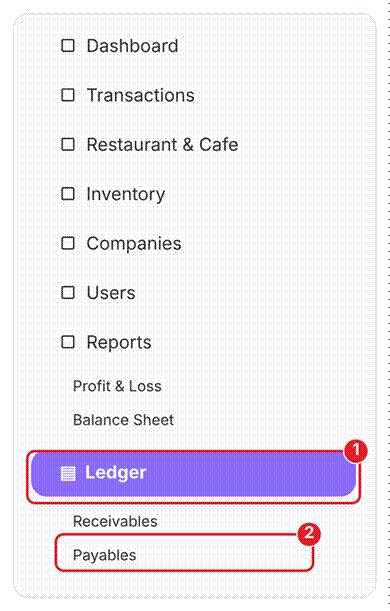
बाएँ मेन्यू में Ledger (इमेज 1) खोलें और Payables (इमेज 2) चुनें।
Title: Image 1 - Description: Step image 1

Ledger (1) और Payables (2)

स्टेप 2: Vendor Account चुनें

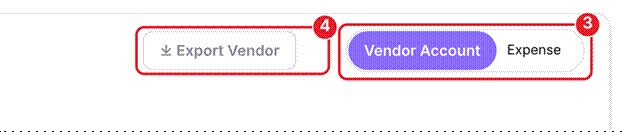
ऊपर दाईं ओर स्विच (इमेज 3) में Vendor Account चुना हुआ होना चाहिए। बगल का Export Vendor बटन (इमेज 4) हमने दबाकर नहीं देखा।
Title: Image 2 - Description: Step image 2

स्विच (3) और Export Vendor (4)

स्टेप 3: Vendor खोजें

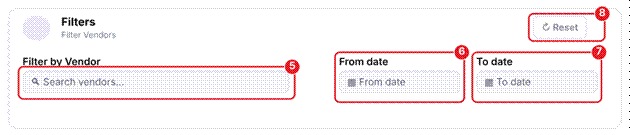
Filter by Vendor (इमेज 5) में नाम लिखें। From date (इमेज 6) और To date (इमेज 7) से तारीख़ें चुनें। Reset (इमेज 8) से फ़िल्टर हटाएँ।
Title: Image 3 - Description: Step image 3

Vendor (5), From (6), To (7), Reset (8)

स्टेप 4: पाँच कार्ड पढ़ें

Total Vendors (इमेज 9) में vendors की संख्या और "0 settled" है। Net Advance (इमेज 10) "Total advance with vendors" है। Total Credit (इमेज 11) "Payments made to vendors" है। Total Discount (इमेज 12) "Discounts applied on purchases" है। Total Debit (इमेज 13) "All-time purchases made" है। हमारे उदाहरण में Credit 10,010 और Debit 10 था, और Net Advance 10,000। यानी इस उदाहरण में Credit घटा Debit बराबर Advance बैठा; पर यह सूत्र पेज पर लिखा नहीं है, इसलिए इसे पक्का न मानें।

Title: Image 4 - Description: Step image 4

पाँच कार्ड (9 से 13)

स्टेप 5: Vendor की पंक्ति देखें

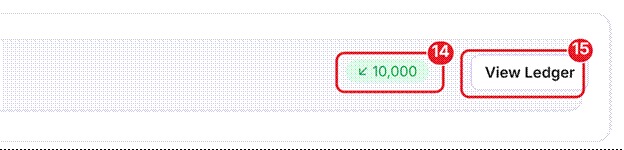
नीचे हर vendor की पंक्ति में नाम, Advance लेबल और हरे रंग में रकम (इमेज 14) है। विस्तार देखने के लिए View Ledger (इमेज 15) दबाएँ। इसे हमने खोलकर नहीं देखा।
Title: Image 5 - Description: Step image 5

रकम (14) और View Ledger (15)

टिप: पूरा हिसाब देखना हो तो पहले कार्ड से सार देखें, फिर View Ledger से vendor के हिसाब में जाएँ।

निष्कर्ष

Vendor को दिया advance Payables के Vendor Account पेज पर दिखता है। ऊपर के कार्ड कुल तस्वीर देते हैं और नीचे की पंक्ति हर vendor की।

Net Advance बताता है कि vendors के पास आपका कुल कितना advance है। Total Credit और Total Debit की मदद से आप इसका मिलान कर सकते हैं।

View Ledger में क्या दिखता है, यह हमारे screenshot में नहीं था, इसलिए वहाँ ख़ुद जाँच लें। नीचे 10 सवाल-जवाब हैं।

Frequently Asked Questions

Did this article solve your question?

Not really
Somewhat
Very helpful!

More in Manage Vendors📄

How to Record a Payment to a Vendor in VinimayHow to Record a Purchase from a Vendor in Vinimay

How to Record a Payment to a Vendor in Vinimay

Next
Previous

How to Record a Purchase from a Vendor in Vinimay

Still Have Questions?

Talk directly with our product specialist team

Our customer support team is available Mon-Sat, 9:00 AM - 7:00 PM IST to help you configure your business.

Email Support: finaxis.in@gmail.com
Contents