Vinimay LogoVinimay Text
About Us
Features
GST Billing & InvoicingInventory ManagementPOS BillingCustomer ManagementVendor ManagementTransaction Management
Solutions

Business Solutions

Choose a solution built for your business

General

Billing, inventory & accounts

→

Travels

Bookings, routes & billing

→

Courier

Tracking, delivery & billing

→

Transportation

Trips, vehicles & expenses

→

Marbles

Stock, units & sales

→

Restaurant & Cafe

Sales, stock & vendors

→

Kirana & Grocery

Billing, inventory & invoice

→

Service

Sales, raw material & stock

→

Manufacturing

Production, raw material & stock

→

Trading

Purchase, sales & stock ledger

→
Explore All Solutions→
Pricing
Knowledge Centre

Knowledge Base→

Step-by-step product tutorials & setup

Blogs→

Industry news, GST & tax tips

IN
About Us→
All FeaturesGST Billing & InvoicingInventory ManagementPOS BillingCustomer ManagementVendor ManagementTransaction Management
All SolutionsGeneralTravelsCourierTransportationMarblesRestaurant & CafeKirana & GroceryServiceManufacturingTrading
Pricing→

Knowledge Base

Product help & tutorials

→

Blogs

Industry news & tax tips

→

Region / Country

India

© 2025 Vinimay. All rights reserved.

🏠Getting Started
Quick setup guideHow to Add Unlimited Custom Business Fields to InvoicesHow to Set/Change Language in Vinimay Mobile AppHow to Update Phone Number/e-Mail of a BusinessHow to Add or Delete a Business in Vinimay AccountWhy Vinimay is a Better Alternative to Vyapar App
📋Billing & Invoicing
How to Add a Receiver's Signature Field to Your Invoices?How to Use Party-Wise Item PricesHow to Add and Edit Party Names for Shipping Addresses?Add Precise Quantities with Up to 4 Decimal Places
🛒Inventory Management
How to Add Items and Manage StockHow to Track Low Stock Alerts
👥Party Management
How to Add Customers and SuppliersHow to Send WhatsApp Payment Reminders
💰Accounting
How to Record Expense Entries in VinimayManaging Cash & Bank Accounts
📊Grow your business
How to Set Up Online Store in VinimayTrip & Fleet Management Guide
Contents

INVOICE

Billing
Made
Simple
Simpler billing. Brighter businesses.

Let's grow your business together.

Quick Setup

Get started in minutes

Secure & Reliable

Your data is safe with us

Built for Growth

Simple. Practical. Useful.

Vinimay Logo

Smart Billing. Stronger Businesses.

finaxis.in@gmail.com

Product

  • GST Billing & Invoicing
  • Inventory Management
  • POS Billing
  • Customer Management
  • Vendor Management
  • Transaction Management

Solutions

  • General
  • Travels
  • Courier
  • Transportation
  • Kirana & Grocery
  • Restaurant & Cafe
  • Marbles
  • Service
  • Manufacturing
  • Trading

Company

  • About Us
  • Features
  • Pricing
Small Businesses
Big Dreams
Vinimay Logo

Smart Billing. Stronger Businesses.

finaxis.in@gmail.com
Small Businesses
Big Dreams

Product

  • GST Billing & Invoicing
  • Inventory Management
  • POS Billing
  • Customer Management
  • Vendor Management
  • Transaction Management

Solutions

  • General
  • Travels
  • Courier
  • Transportation
  • Kirana & Grocery
  • Restaurant & Cafe
  • Marbles
  • Service
  • Manufacturing
  • Trading

Company

  • About Us
  • Features
  • Pricing
  • Blogs
  • Contact Us
  • Careers
Grow
Progress
Repeat

© 2026 Vinimay. All rights reserved.

Built for Growth|Simple Tools. Real Growth.

📄Kirana & Grocery Store

How to Create a Kirana & Grocery Store in Vinimay for Inventory Management

L

Written By lakshita

Updated 1 month ago

Overview

Open Vinimay and sign in using your Client Login.

Step 1: Log in to Vinimay

Open Vinimay and sign in using your Client Login.

After login, you will reach the main dashboard.


Step 2: Open Companies

From the left-side menu, click Companies.

This section shows all businesses already created in your Vinimay account.
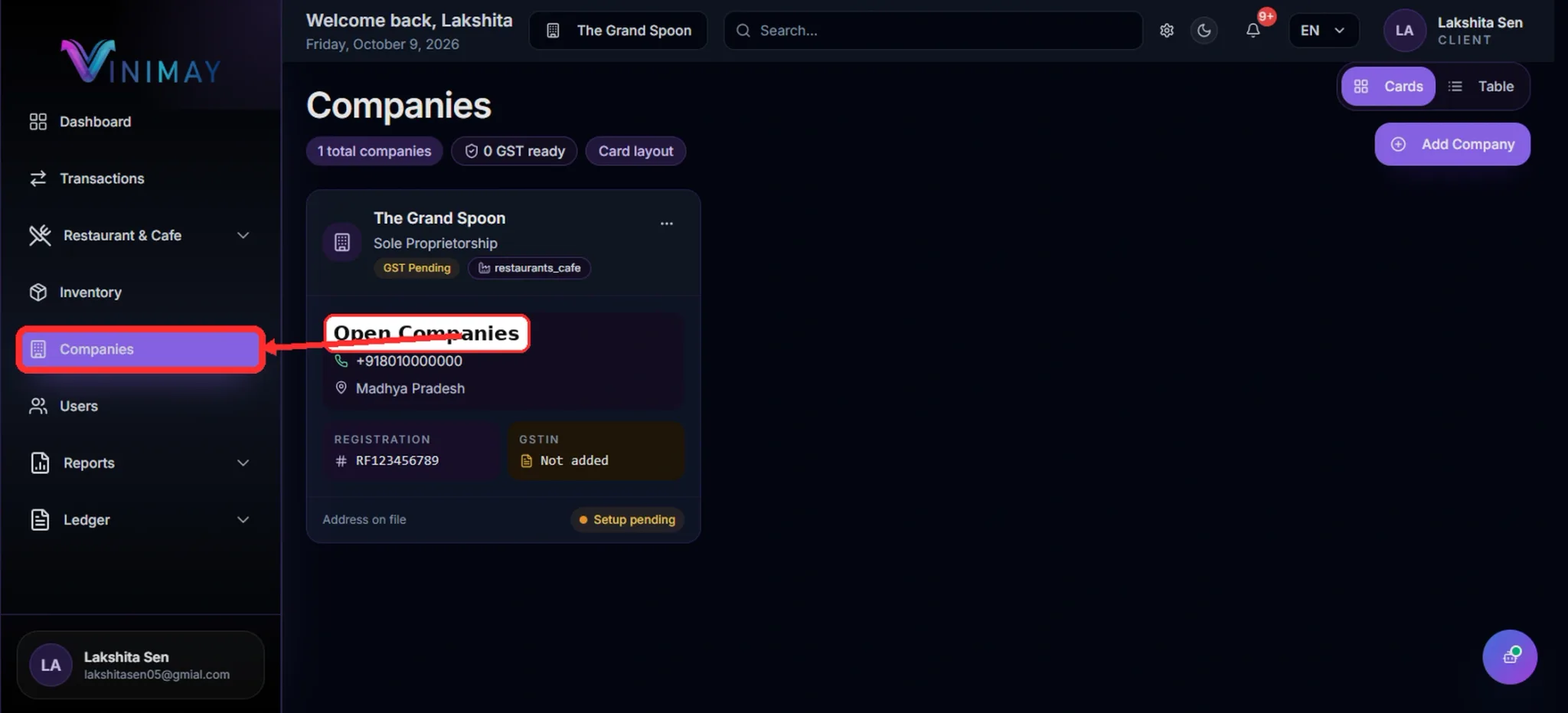
Kirana_7Steps_1_Open_Companies_HR


Step 3: Click Add Company

On the Companies page, click Add Company from the top-right corner.

The Add New Company form will open.
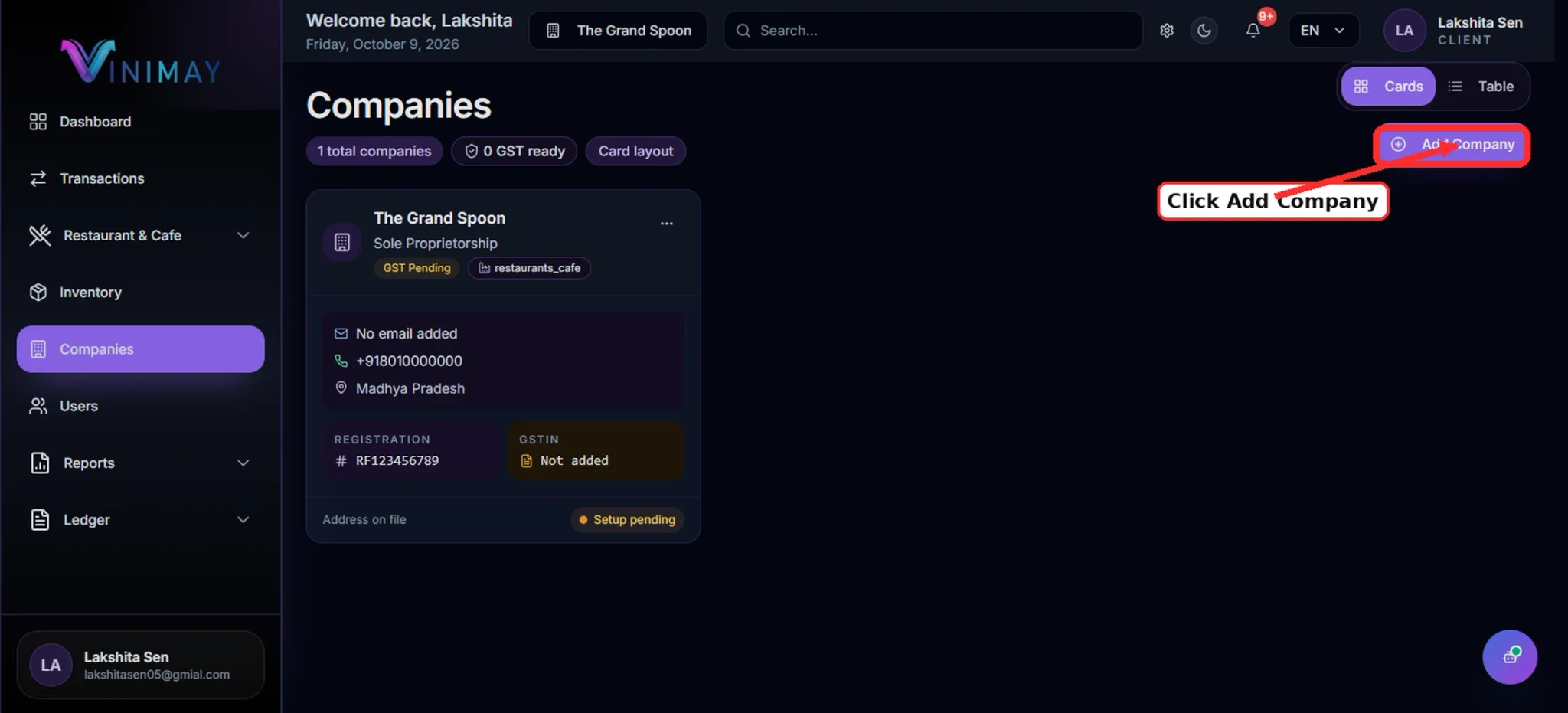
Kirana_7Steps_2_Add_Company_HR


Step 4: Enter Basic Business Details

Fill in the required details such as:

  • Business Type

  • Industry Type

  • Business Name

  • Registration Number

  • Address

  • Logo, if required

  • Brand color, if required

Make sure the business name is the actual name of your kirana or grocery store.
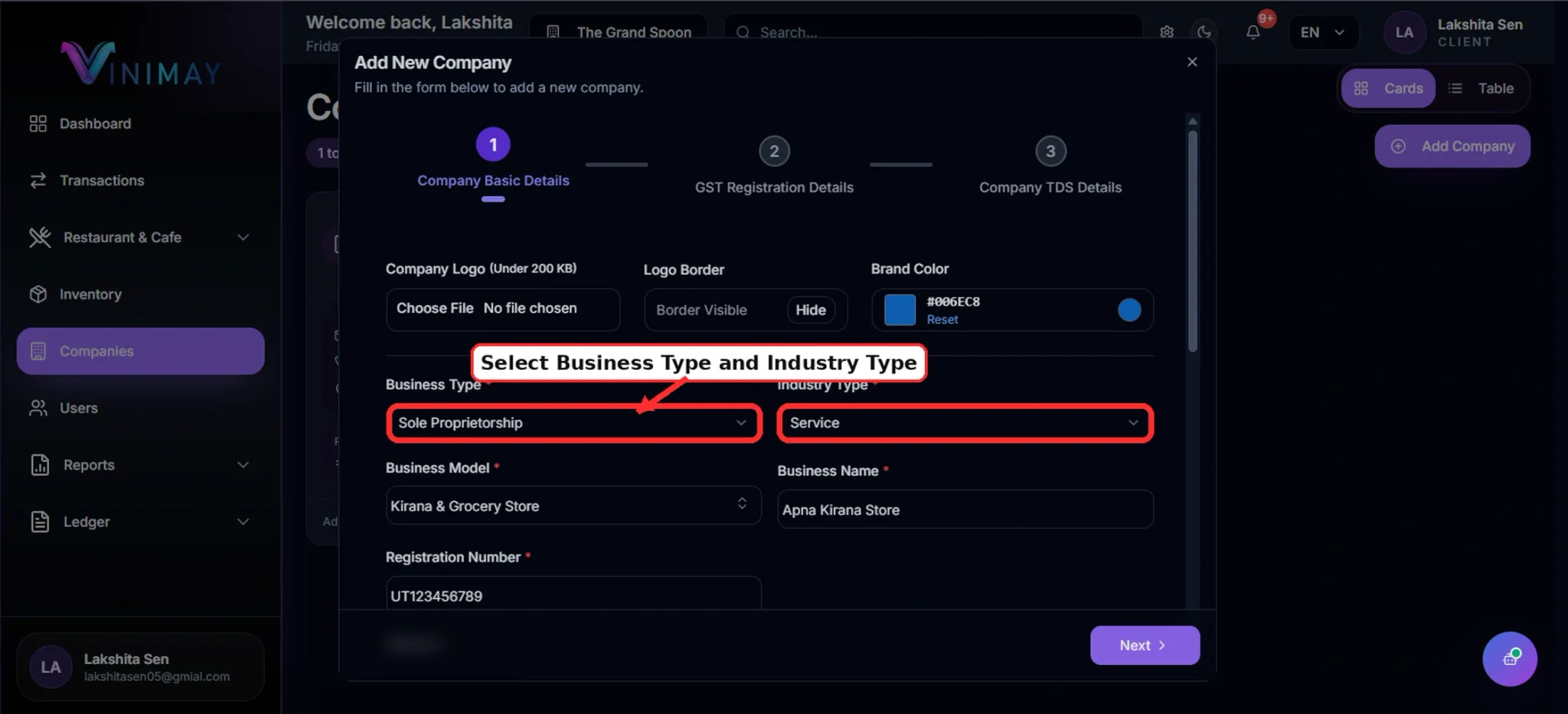
Kirana_7Steps_3_Business_Industry_HR


Step 5: Select Kirana & Grocery Store

In the Business Model field, select:

Kirana & Grocery Store

For example:

Business Name: Apna Kirana Store
Business Model: Kirana & Grocery Store

Then click Next.
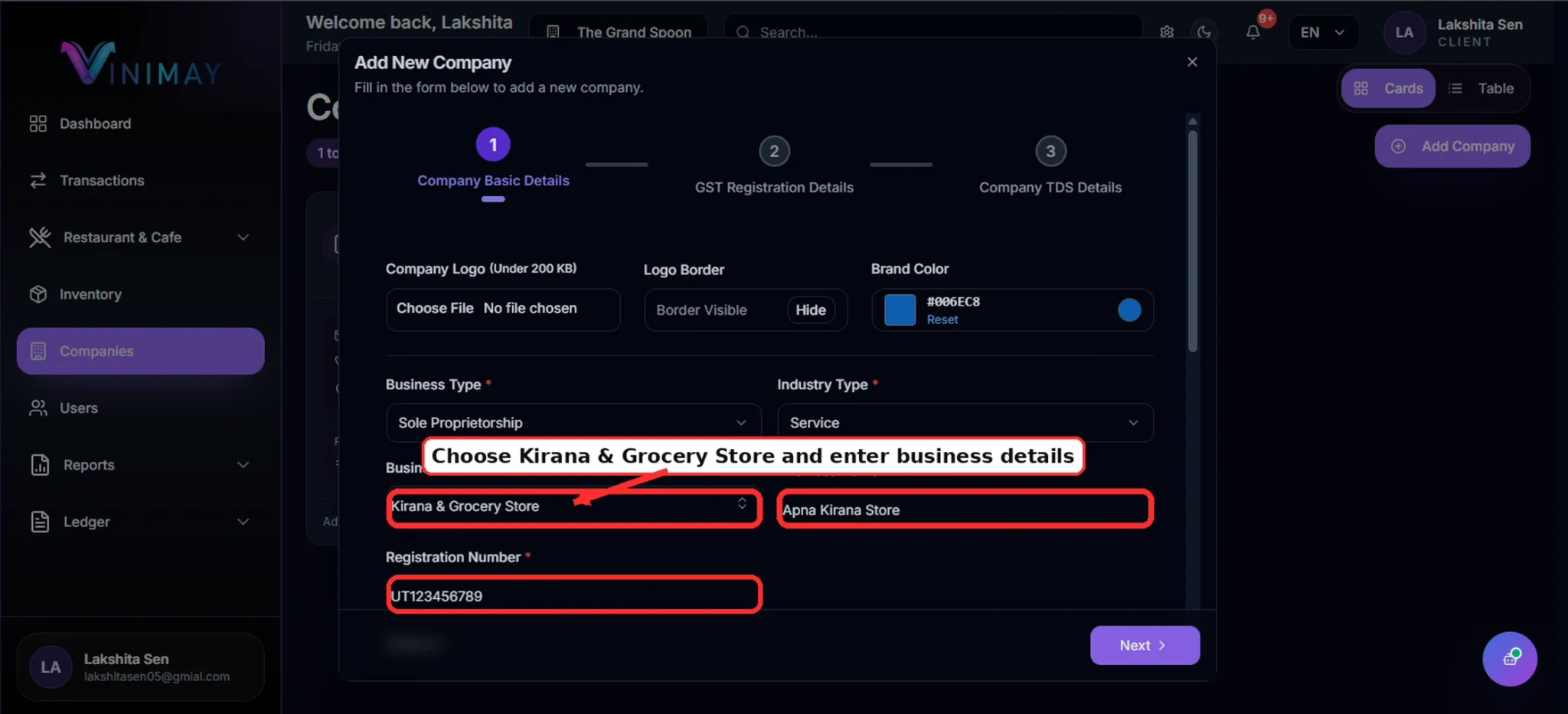
Kirana_7Steps_4_Kirana_Model_Details_HR


Step 6: Complete GST and TDS Details

Continue to the next sections and enter GST information if your store is GST registered.

You can also enter TDS-related details if applicable.

If these details are not required for your business, continue according to the options available in Vinimay.

After completing the required information, click Create Company.
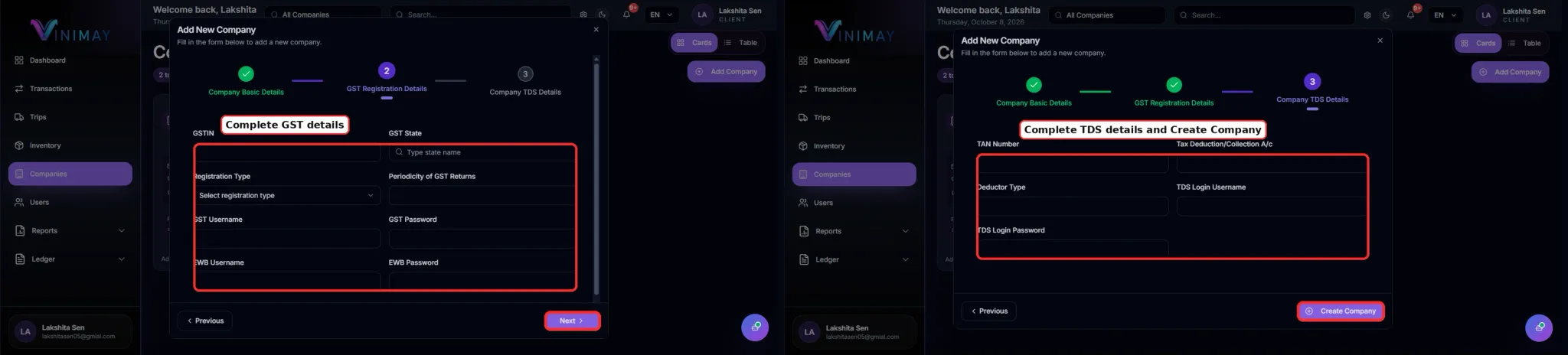
Kirana_7Steps_6_GST_TDS_Create_Company_HR


Step 7: Verify the Kirana Store and Start Inventory Setup

Return to the Companies page.

Your newly created kirana business should now appear in the company list with the kirana_grocery_store tag.

Select the new store and open Inventory.

You can now start adding products such as:

  • Rice

  • Flour

  • Sugar

  • Pulses

  • Oil

  • Biscuits

  • Beverages

  • Household products

Enter the product details, prices, GST rates, units, and opening stock so the store is ready for billing and inventory management.
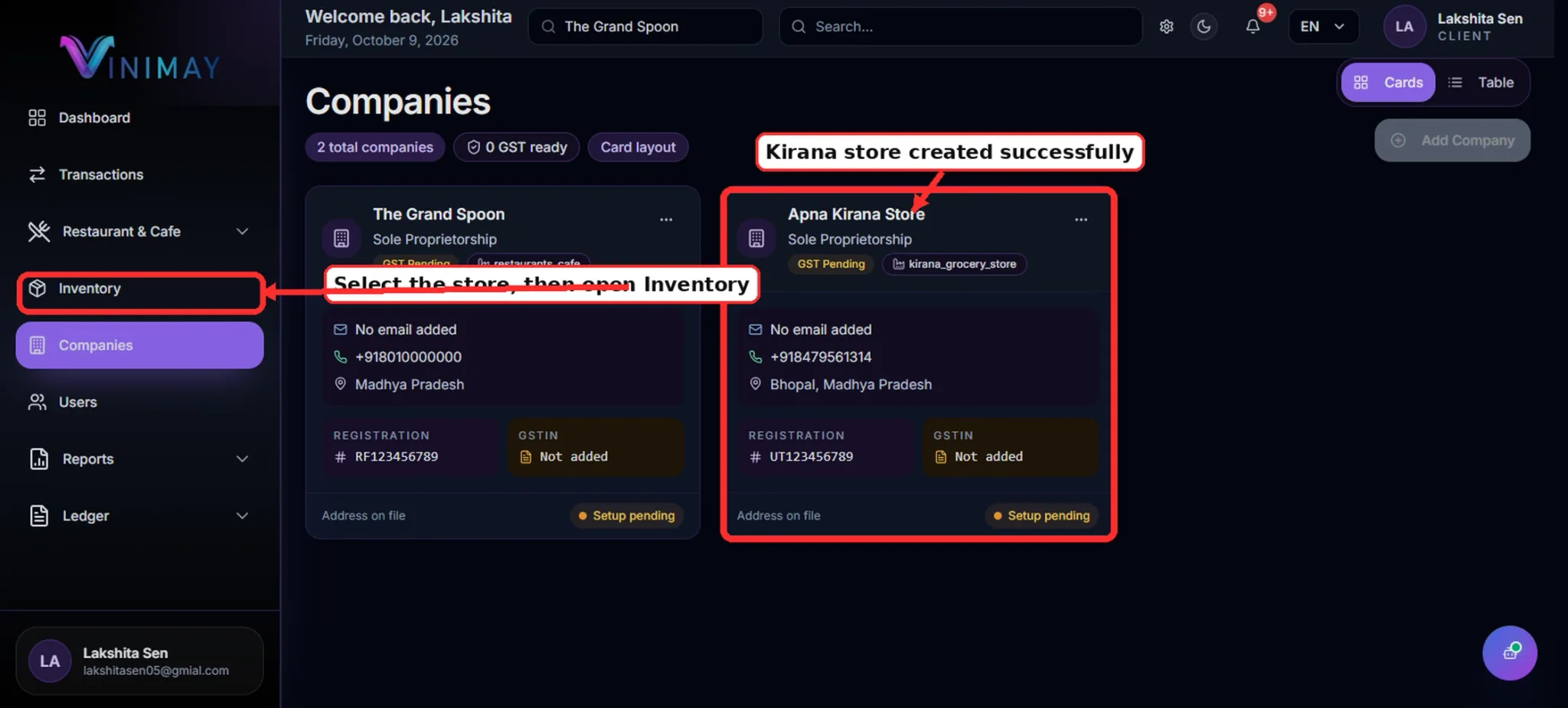
Kirana_7Steps_7_Verify_Open_Inventory_HR


Quick Path

Login → Companies → Add Company → Enter Business Details → Select Kirana & Grocery Store → Complete GST/TDS Details → Create Company → Select Store → Inventory → Add Products


Frequently Asked Questions

Did this article solve your question?

Not really
Somewhat
Very helpful!

More in Kirana & Grocery Store📄

How to Make a Purchase Entry in VinimayVinimay में Kirana Store कैसे सेटअप करें?

How to Make a Purchase Entry in Vinimay

Next
Still Have Questions?

Talk directly with our product specialist team

Our customer support team is available Mon-Sat, 9:00 AM - 7:00 PM IST to help you configure your business.

Email Support: finaxis.in@gmail.com
Contents