Need to add a service in Vinimay? Services are the work you charge customers for, such as repairs, installation or consulting. Unlike physical products, services do not require stock quantities. Vinimay lets you manage them separately through the Services tab in Settings.
This guide explains how to add a service in Vinimay step by step, including how to fill in the Create New Service form, enter the service amount, add an optional SAC code and verify the saved service.
Quick Answer: How to Add a Service in Vinimay
To add a service in Vinimay, click Settings in the Quick Actions section of your Dashboard, open the Services tab, click Add Service, enter the company, service name and amount, optionally add the SAC code, and click Create Service.
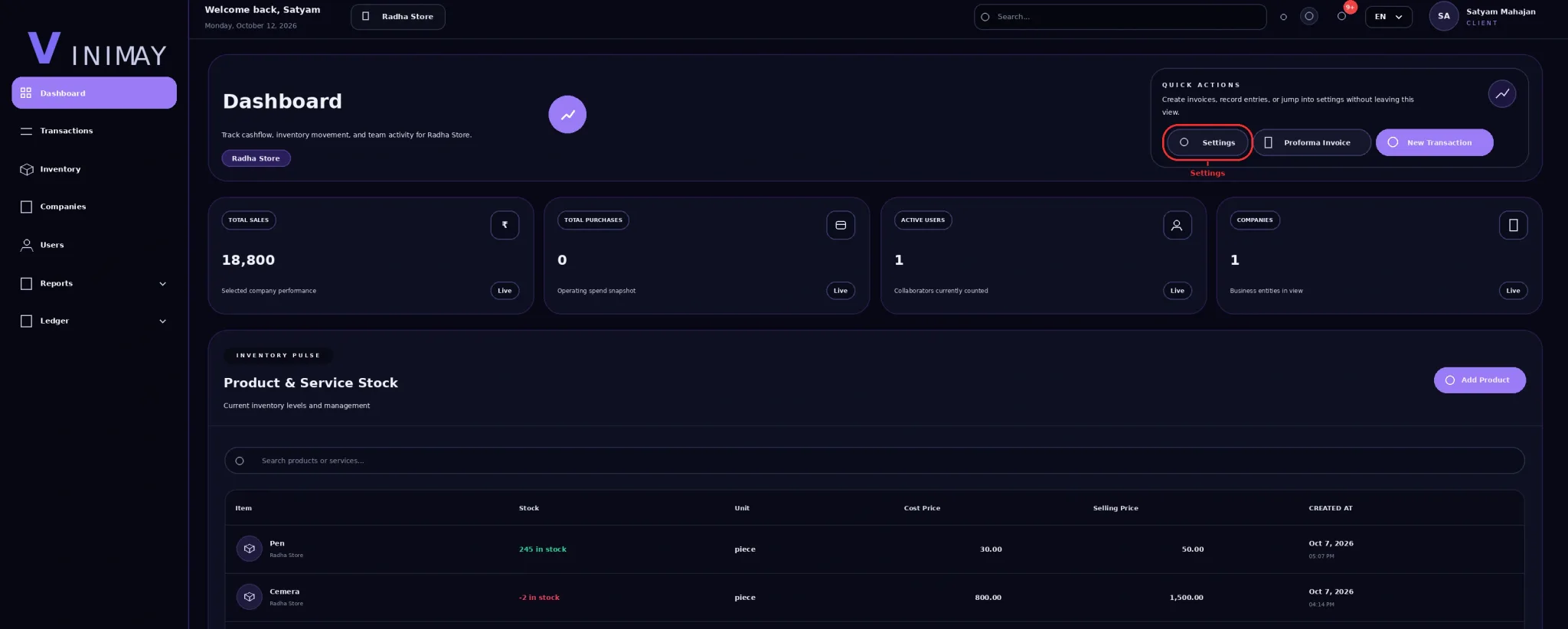
Step 1: Click Settings
Log in to your Vinimay account and open the Dashboard.
Look for the Quick Actions section at the top-right of the Dashboard. Click Settings, located next to options such as Proforma Invoice and New Transaction.
The Settings page opens, allowing you to manage your account, preferences, permissions and business setup.
Step 2: Open the Services Tab
On the Settings page, you will find sections for Permissions, Reset Password, Vendors, Customers, Products, Services, Invoices and Banks.
Click the Services tab to open the service management section.
This page allows you to create new services and manage the services you have already added to Vinimay.
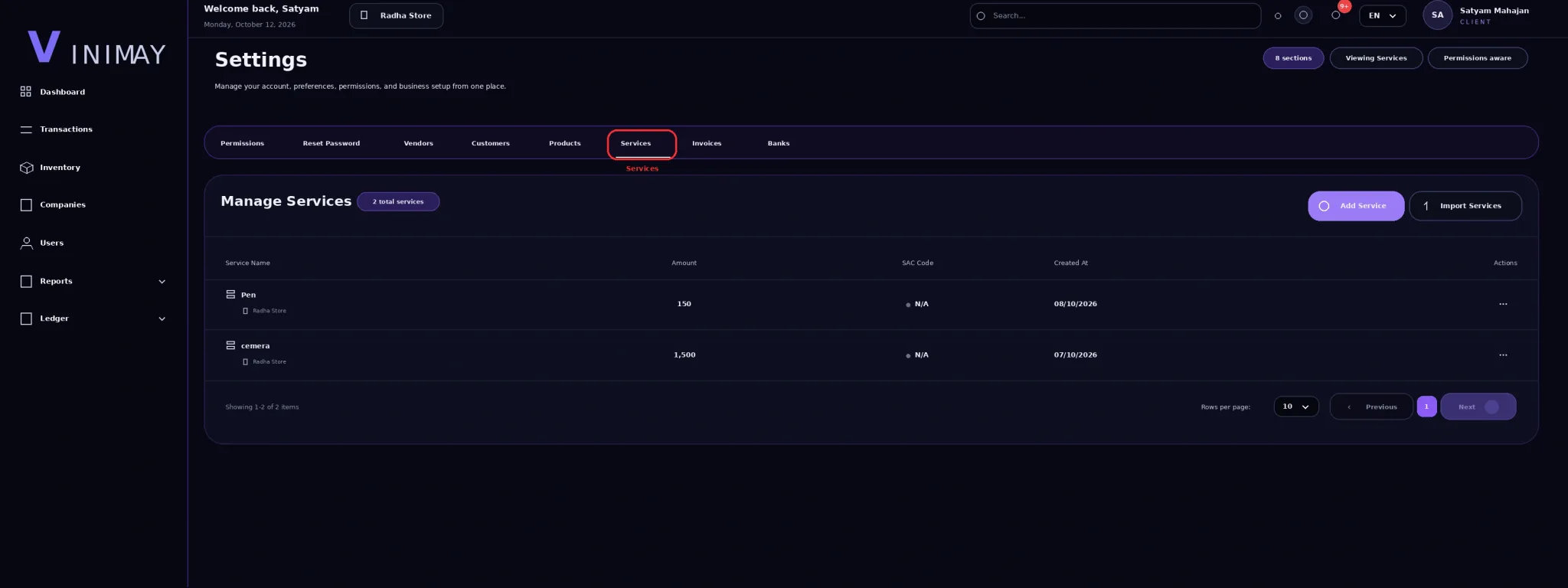
Step 3: Click Add Service
The Manage Services page displays your existing service records and provides options to add or import services.
At the top-right of the page, click Add Service to open the Create New Service form.
If you need to add multiple services, you can also use the Import Services option available on the same page.
Step 4: Fill In the Create New Service Form
The Create New Service form contains fields for the company, service name, amount and SAC code. Fields marked with a red star are required.
Company
Select the company to which the service belongs.
If you manage multiple businesses in Vinimay, ensure that you choose the correct company before entering the remaining details.
The form also includes an Available for all companies option. Select it if you want the service to be available across all your companies.
Service Name
Enter a clear and descriptive name for the service you provide.
For example, you can enter:
AC Repair
Installation Service
Business Consulting
Equipment Maintenance
Website Development
Choose a name that makes the service easy to identify when managing your business records.
Amount
Enter the amount you charge for the service.
For example, if you charge ₹2,500 for an installation service, enter 2,500 in the Amount field.
Check the amount carefully before saving to ensure that the service record contains the correct value.
SAC Code
Enter the applicable SAC code if you know it.
SAC stands for Services Accounting Code and is used to classify services for GST purposes. The field is optional in Vinimay, so you can create a service without entering a code.
However, adding the appropriate SAC code can help maintain complete service and tax-related records. If you are unsure which code applies to your service, consult your accountant.
Required fields: Company, Service Name and Amount.
Optional field: SAC Code.
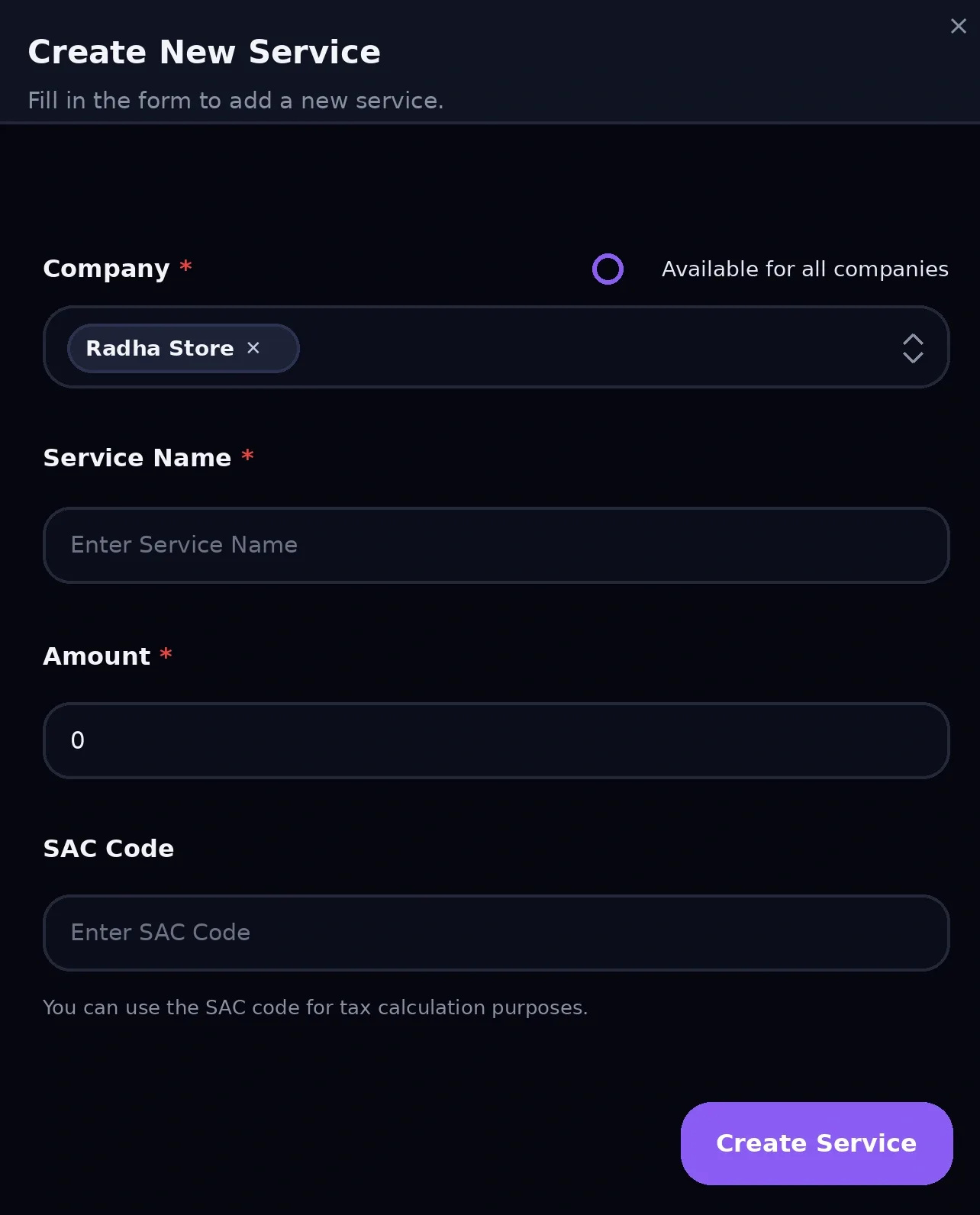
Step 5: Click Create Service
After entering the details, review the selected company, service name and amount.
If you want the service to be available across all your companies, verify that the relevant option is selected.
Once everything is correct, click Create Service at the bottom-right corner of the form.
Your service will be saved and should appear in the Manage Services list.
What Does the Manage Services List Show?
After you add a service in Vinimay, you can view its details by opening Settings and selecting the Services tab.
The Manage Services list includes the following columns:
Service Name: Displays the service name, with the company name below it.
Amount: Shows the amount entered for the service.
SAC Code: Displays the SAC code or N/A if no code was added.
Created At: Shows the date the service was created.
Actions: Provides a three-dot menu for available service actions.
Review the list after creating a service to confirm that the record has been added with the correct details.
What Is a SAC Code, and Do You Need One to Add a Service in Vinimay?
SAC stands for Services Accounting Code. It classifies services under the GST system, while HSN codes are used to classify goods.
In Vinimay, the SAC Code field is optional. You can still add a service without entering a code, and the Manage Services list will display N/A in the SAC Code column.
The form indicates that the SAC code can be used for tax calculation purposes. Adding the correct code can therefore help maintain more complete tax-related records.
If you are unsure which SAC code applies to your service, consult your CA or GST adviser.
To learn more about GST components in Vinimay, read the guide CGST, SGST and IGST in Vinimay.
What Is the Difference Between a Product and a Service in Vinimay?
Products and services are managed separately because they represent different types of business transactions.
Products: These are physical goods that you buy, sell or maintain in inventory. Product records can include opening stock, unit, cost price and selling price.
Services: These represent work you charge customers for, such as repairs, consulting or installation. The service form includes the company, service name, amount and optional SAC code, without requiring stock quantities.
Vinimay provides separate Products and Services tabs under Settings. Choose the appropriate section based on what your business sells.
Tips Before You Add a Service in Vinimay
Choose the correct company: Verify the Company field, particularly if you manage multiple businesses.
Use clear service names: Names such as "AC Repair" or "Equipment Installation" are easier to identify than generic labels.
Enter the correct amount: Double-check the service charge before creating the record.
Add the SAC code when applicable: Maintain the appropriate classification for your GST-related records.
Check the saved service: Return to the Manage Services list to confirm that the service appears correctly.
Use Import Services for bulk entries: If you have multiple services to add, check the import option instead of entering each record individually.
Conclusion
Adding a service in Vinimay helps you maintain organized records of the work your business offers and the amounts you charge. Open Settings, select the Services tab, click Add Service and enter the required company, service name and amount details.
Add the applicable SAC code when available, save the form using Create Service and verify the entry in the Manage Services list. Following these steps helps you keep your service records organized and ready for use in your business workflow.