What Is an HSN Code? Meaning, Digits and How to Use It
Every product you sell under GST has a code, and that code decides how it is classified for tax. This code is the HSN code. It appears on your invoice and in your GST return, so getting it right matters.
Entering the code once when you create a product saves you from looking it up for every invoice. Vinimay is free GST billing and accounting software built for small businesses, and its Add Product form has an HSN Code field, so you can set it up in a minute.
What Is an HSN Code?
HSN stands for Harmonized System of Nomenclature. It is an international system for classifying goods. In GST, an HSN code identifies a product so that the correct rate and rules apply. HSN codes are used for goods. Services have an SAC code.
How to Add an HSN Code in Vinimay
Step 1: Open Inventory and click Add Product
In the left menu, click Inventory (image 1).
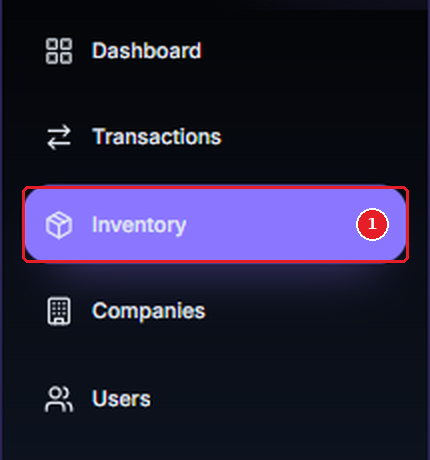
Inventory in the left menu
On the Inventory page, click Add Product (image 2) at the top right.

Add Product button on the Inventory page
Step 2: Fill in the product form with its HSN code
The Create New Product window opens. Make sure Product (image 3) is selected at the top. Type the Product Name (image 4). Scroll down to the HSN Code field (image 5) and enter the code of your product. The form does not mark HSN Code as required, but your GST invoice needs it, so fill it in. Then click Create Product (image 6).
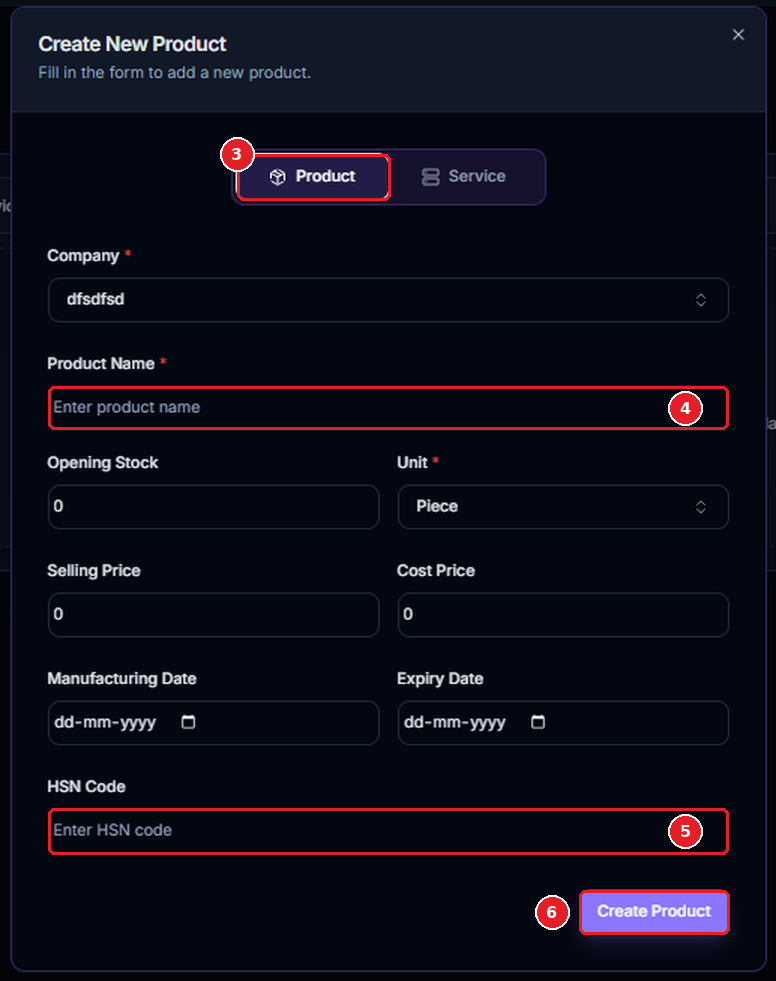
Create New Product form with the HSN Code field
Step 3: See the HSN Code field on a proforma invoice
When you create a proforma invoice in Vinimay, each item row has an HSN Code field (image 7) next to Price/Unit and Amount. This is where the code of the item appears on the document you send to your customer.

HSN Code field in a proforma invoice item row
Common Mistakes to Avoid
Using the wrong code, which can mean the wrong GST rate.
Entering fewer digits than required for your turnover.
Using a goods HSN code for a service.
Copying a code from a supplier without checking it.
Never reviewing codes after a rate change.
Tips for Using HSN Codes
Enter the HSN code once when you create the product.
Keep a list of the codes of your main products.
Check your turnover to know how many digits you need.
Review codes and rates when GST rates change.
Ask your CA for products that are hard to classify.
Conclusion
An HSN code classifies your goods for GST. Use the right code, show the right number of digits and add it to the product once, so that your documents carry it from the start.
Try Vinimay free and add your products with HSN codes in minutes.